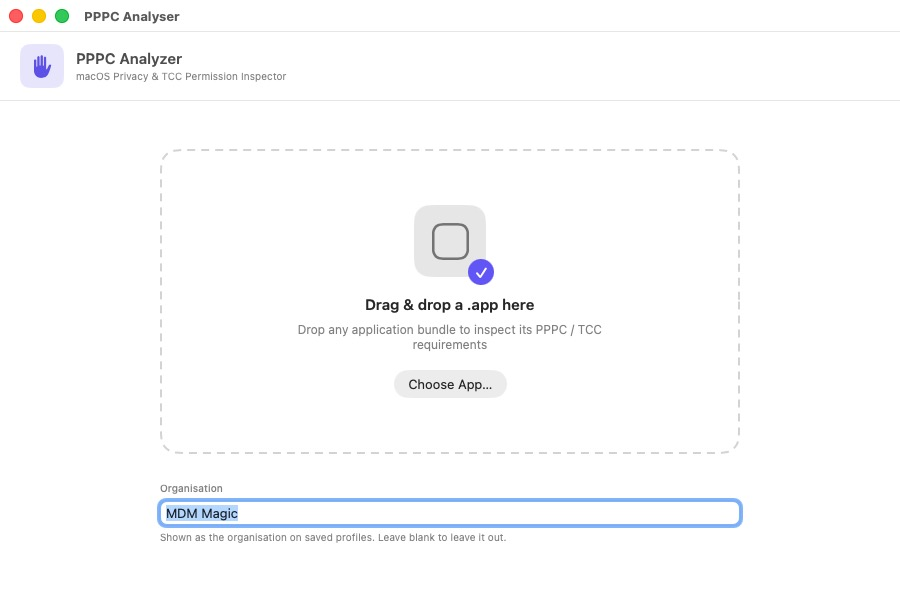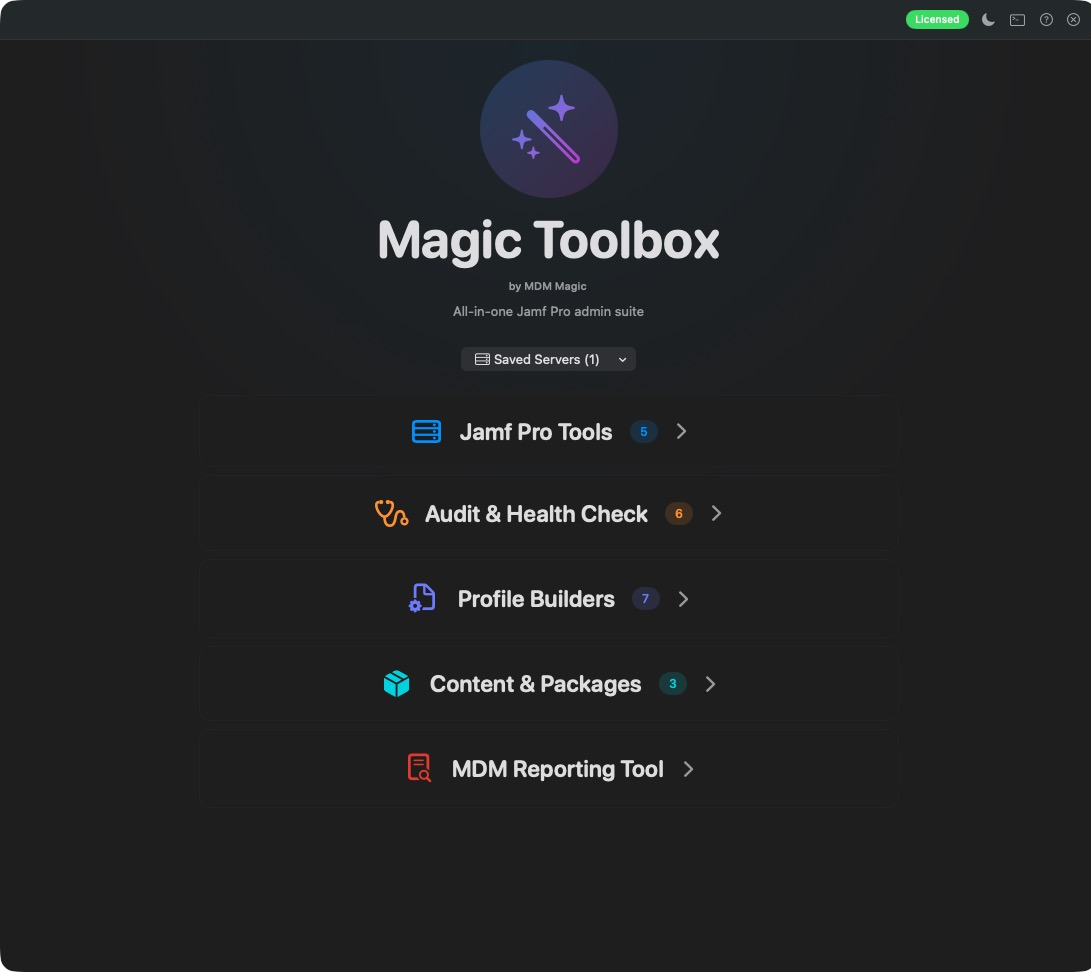

assets/images/blog/magic-toolbox/home.pngThe Magic Toolbox home screen: 21 tools in four tidy groupsBe honest. How many browser tabs, scripts, half-finished spreadsheets and “I’ll tidy that up later” utilities does it take to run your Jamf Pro server?
One for copying a policy to another instance. One for working out which profile is fighting which. A script you found on a forum for PPPC. Another for checking when the VPP token expires. And a test server that nobody has cleaned up since 2023.
What if all of that lived in one app, worked the same way every time, and actually looked good?
Meet Magic Toolbox.
Your new Jamf Pro Swiss Army knife
Magic Toolbox is a native macOS app with 21 tools for the jobs Jamf Pro admins come back to again and again. Copying configuration between servers. Finding conflicting profiles. Auditing smart groups and admin accounts. Watching certificate and token expiry. Testing firewall access. Building, signing and unsigning profiles. Inspecting installers. And cleaning up test servers when you’re done.
The home screen keeps it tidy. Tools sit in four groups: Jamf Pro Tools, Audit & Health Check, Profile Builders and Content & Packages, with a shortcut to the MDM Reporting Tool underneath. Click a group, pick a tool, and you’re away.
Every tool works the same way: connect, check permissions, scan, act. Learn one and you’ve learnt them all. Prefer the dark side? The whole app switches between light and dark with one click.
Connect once, use everywhere
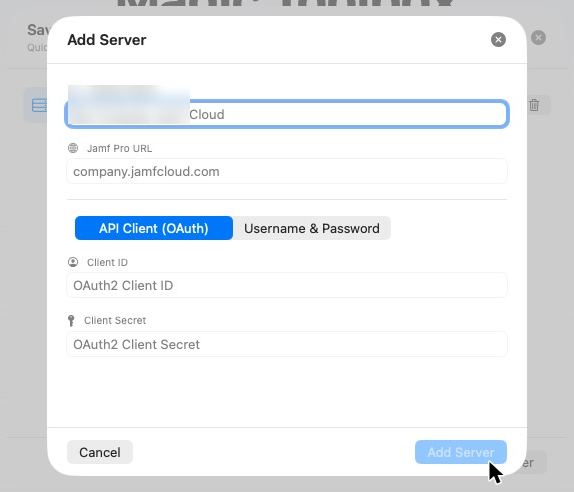
Add your servers once and pick them from any tool. Use an API client (recommended) or a username and password. Passwords and client secrets live in the macOS Keychain, never in plain text on disk.
Even better, each tool checks your privileges before it does anything. A missing Update Policies permission shows up on the permissions screen, not halfway through a clone.
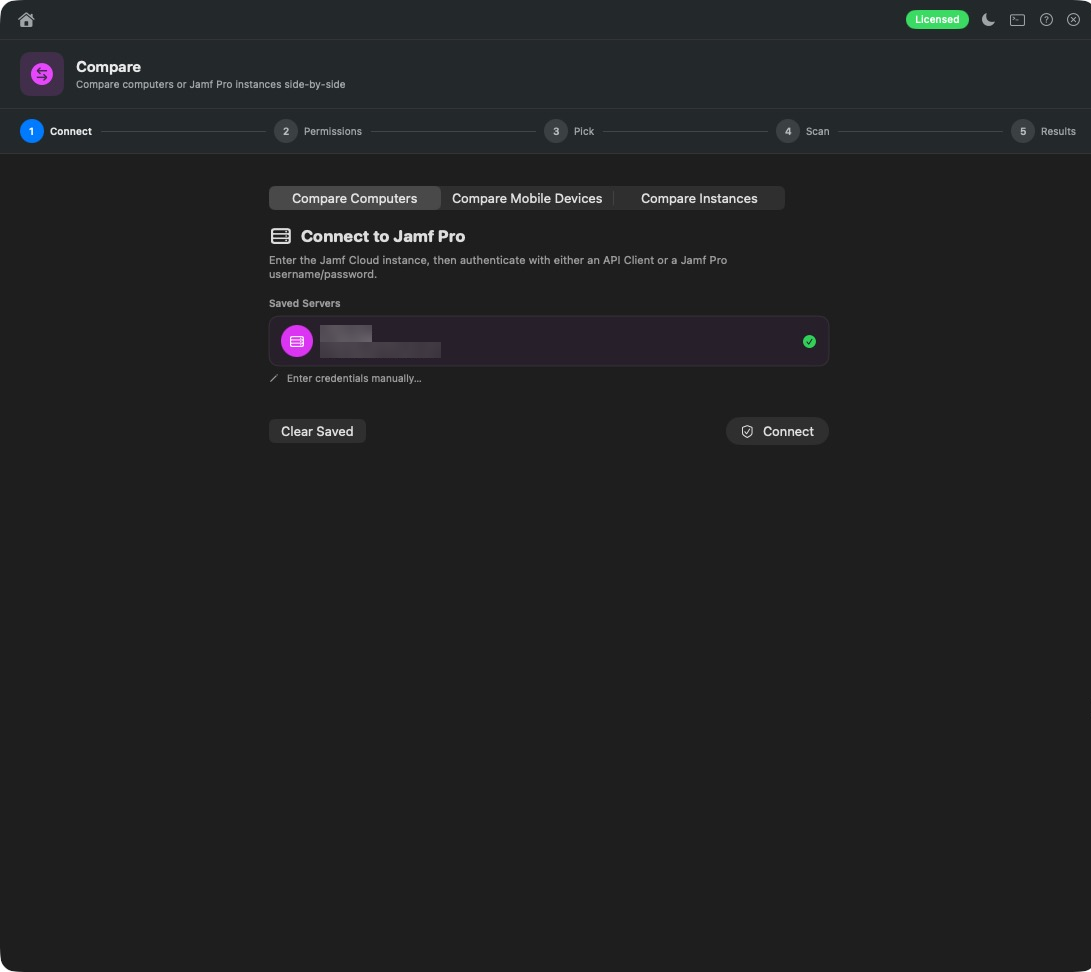
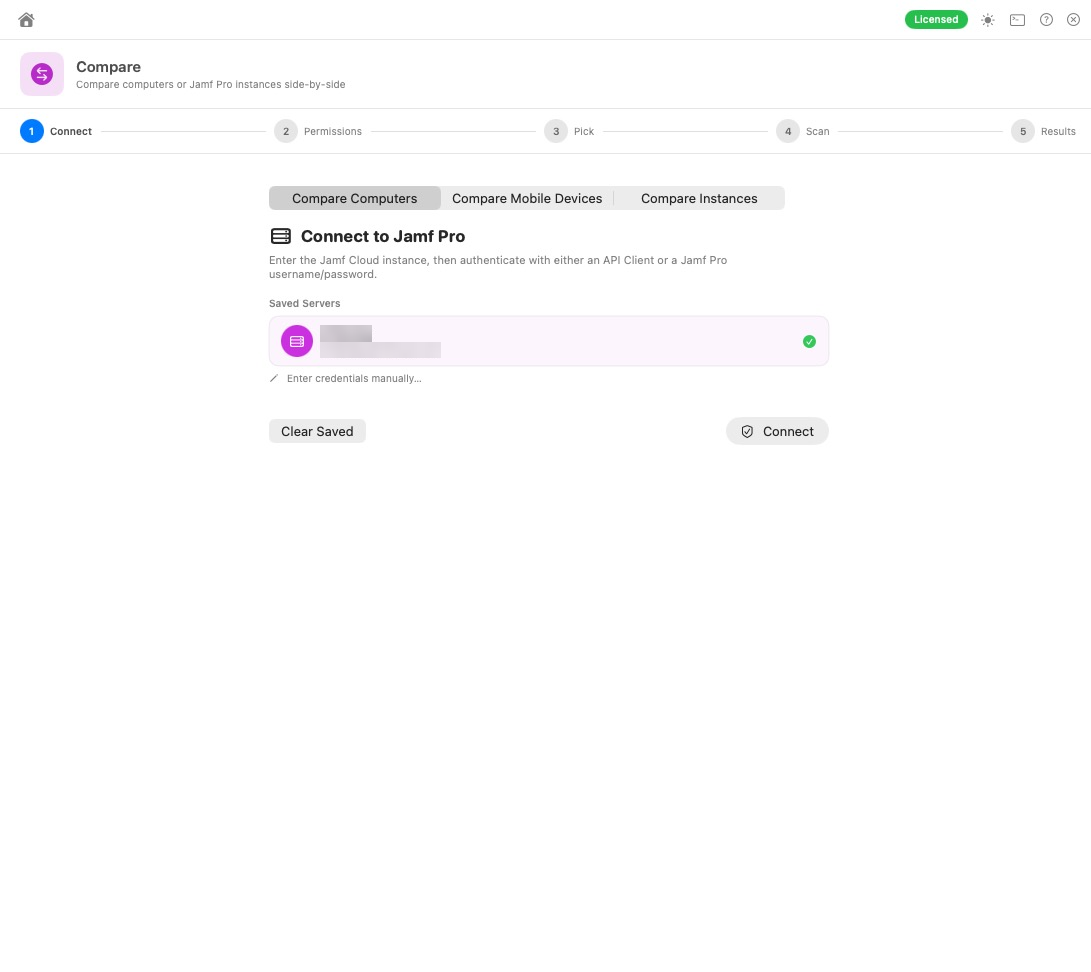
assets/images/blog/magic-toolbox/connect-form.pngConnect to Jamf Pro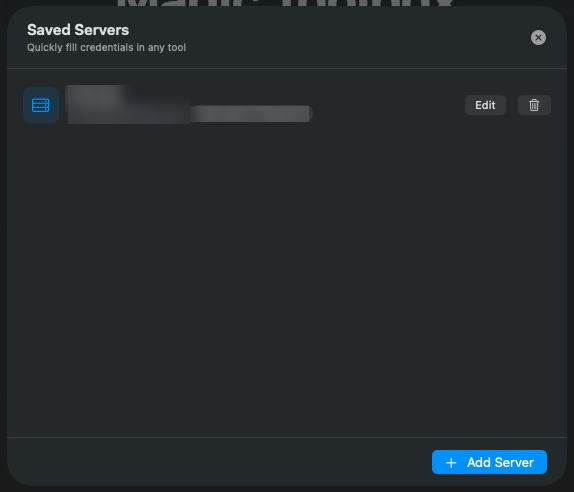
assets/images/blog/magic-toolbox/saved-servers.pngSaved servers, available in every tool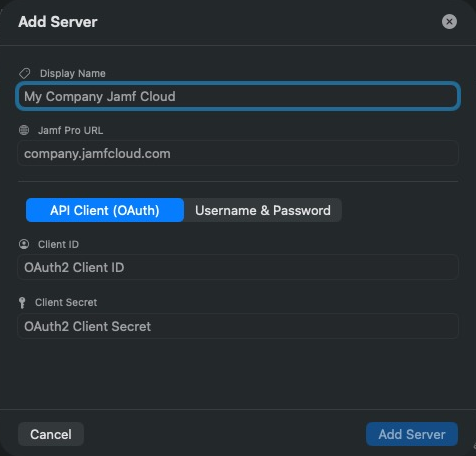
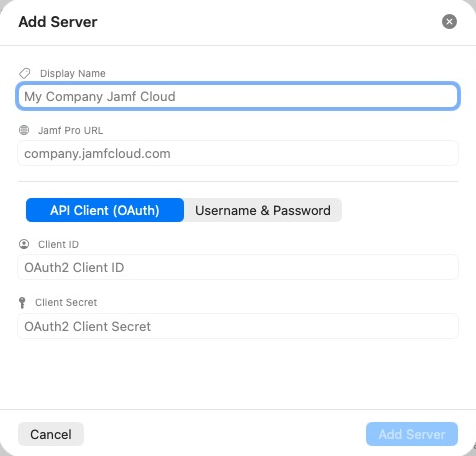
assets/images/blog/magic-toolbox/add-server.pngAdding a serverMove configuration between servers in minutes
Clone
Built something brilliant on your test server? Clone copies it to production, or to several servers at once. Policies, profiles, scripts, extension attributes, smart and static groups, apps, categories, buildings, sites and more.
The clever bit: it brings missing dependencies along with it automatically, asks before overwriting anything with the same name, and saves an encrypted backup of anything it overwrites. No more “the policy copied but the script it needs didn’t”.
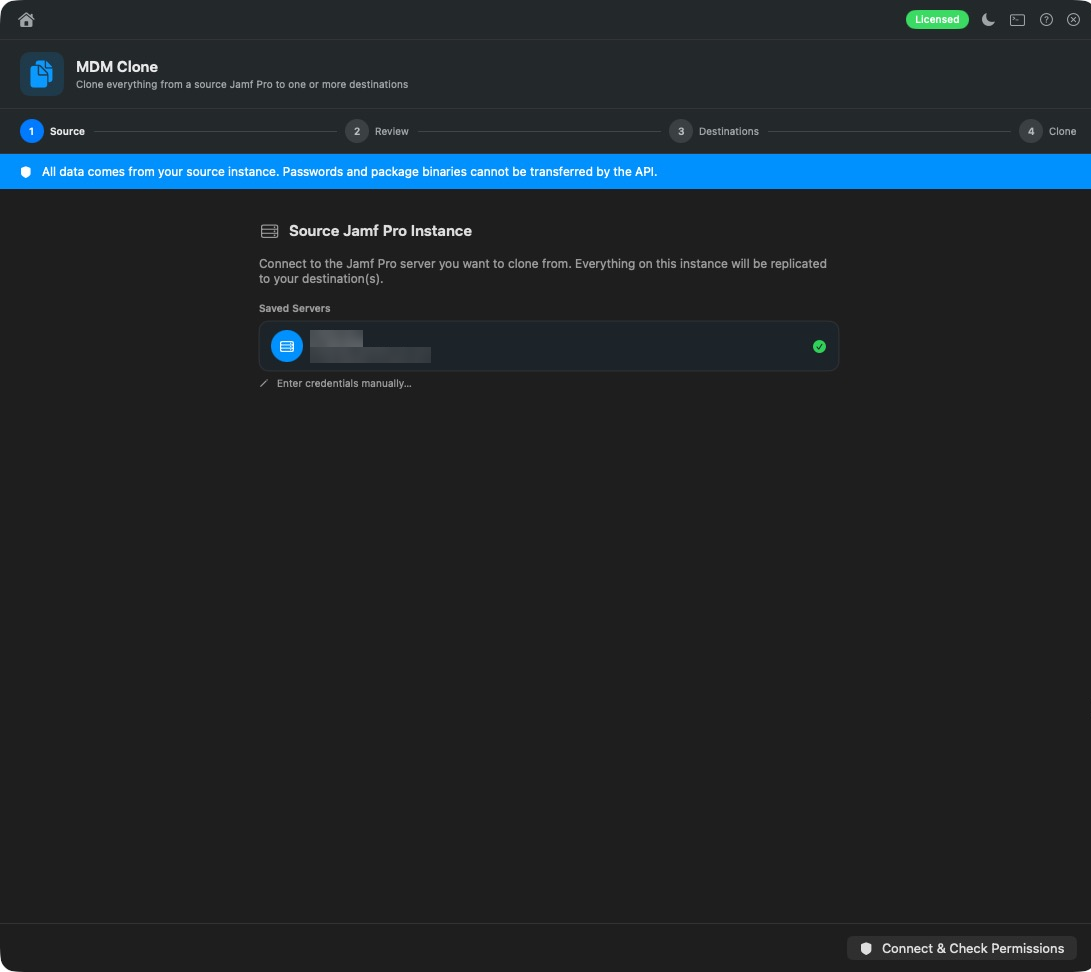
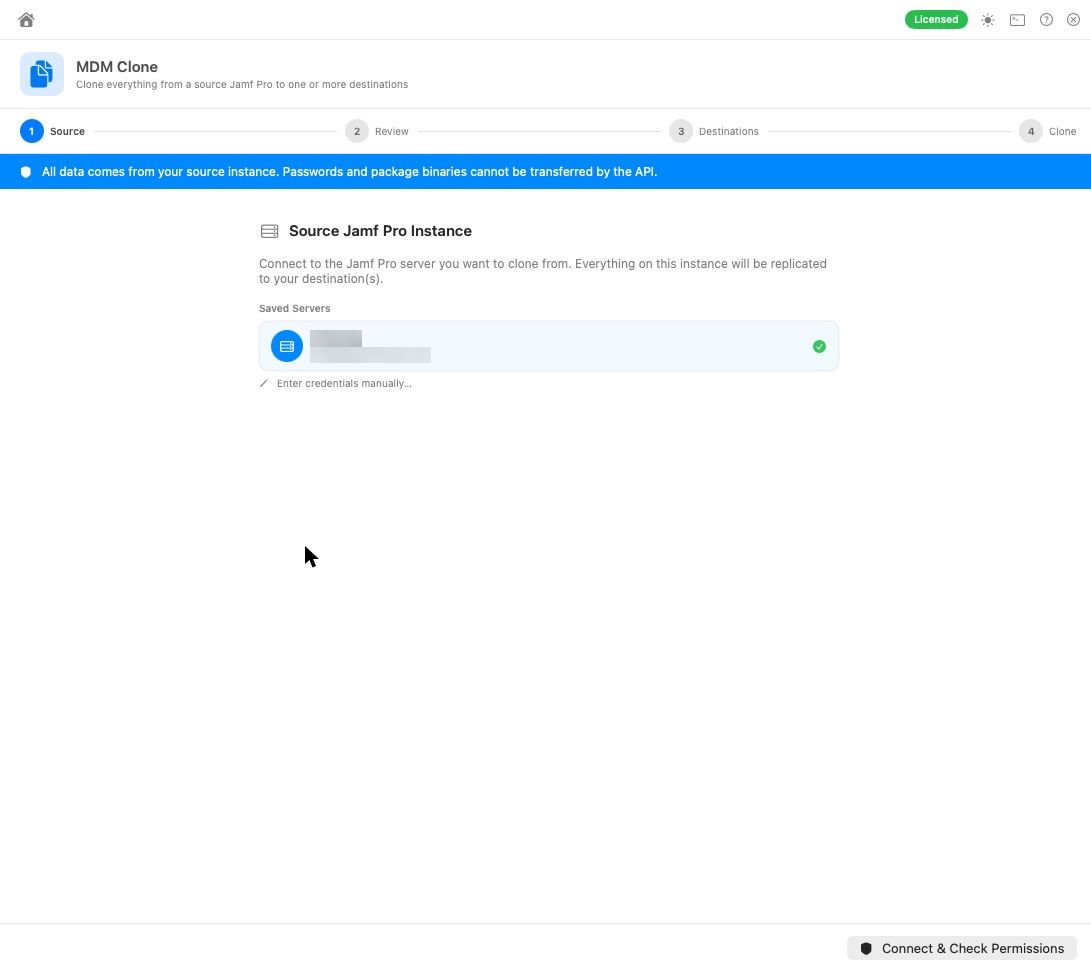
assets/images/blog/magic-toolbox/clone-source.pngChoose the source server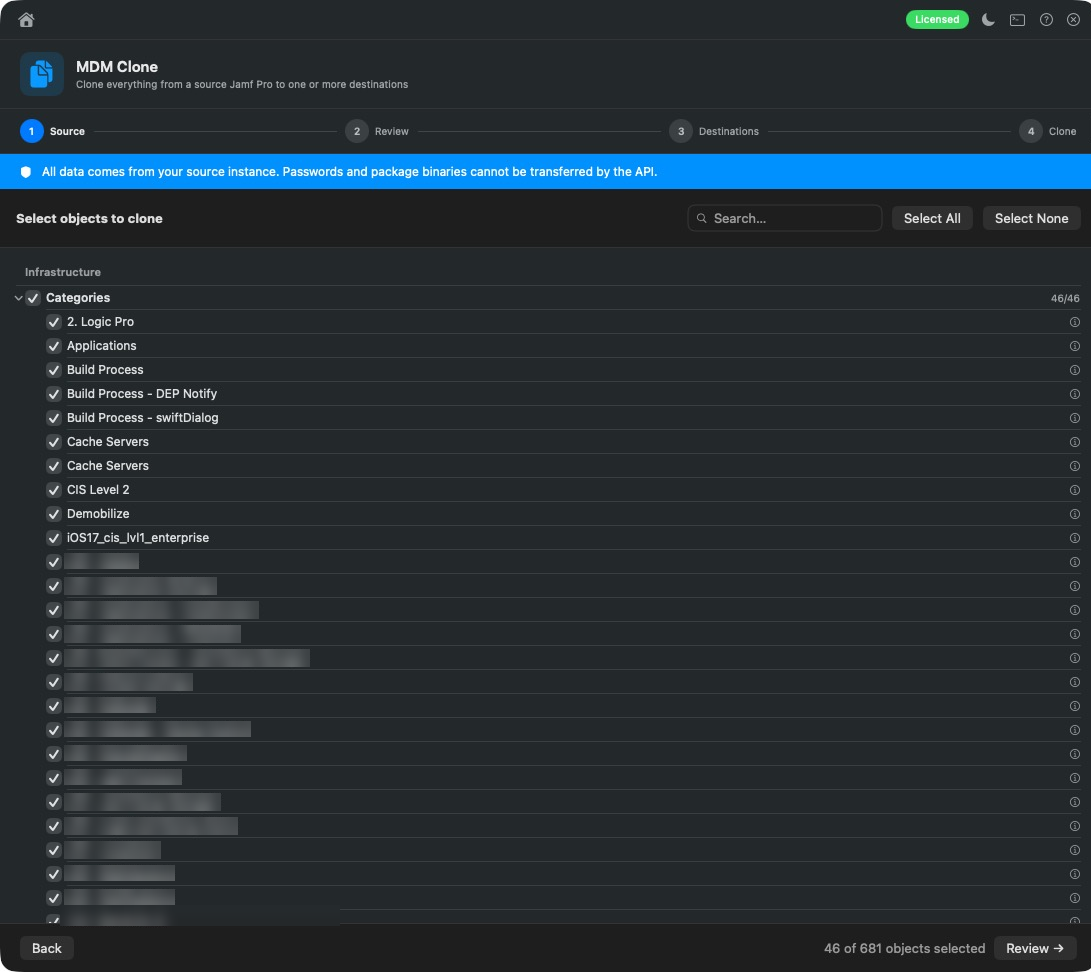
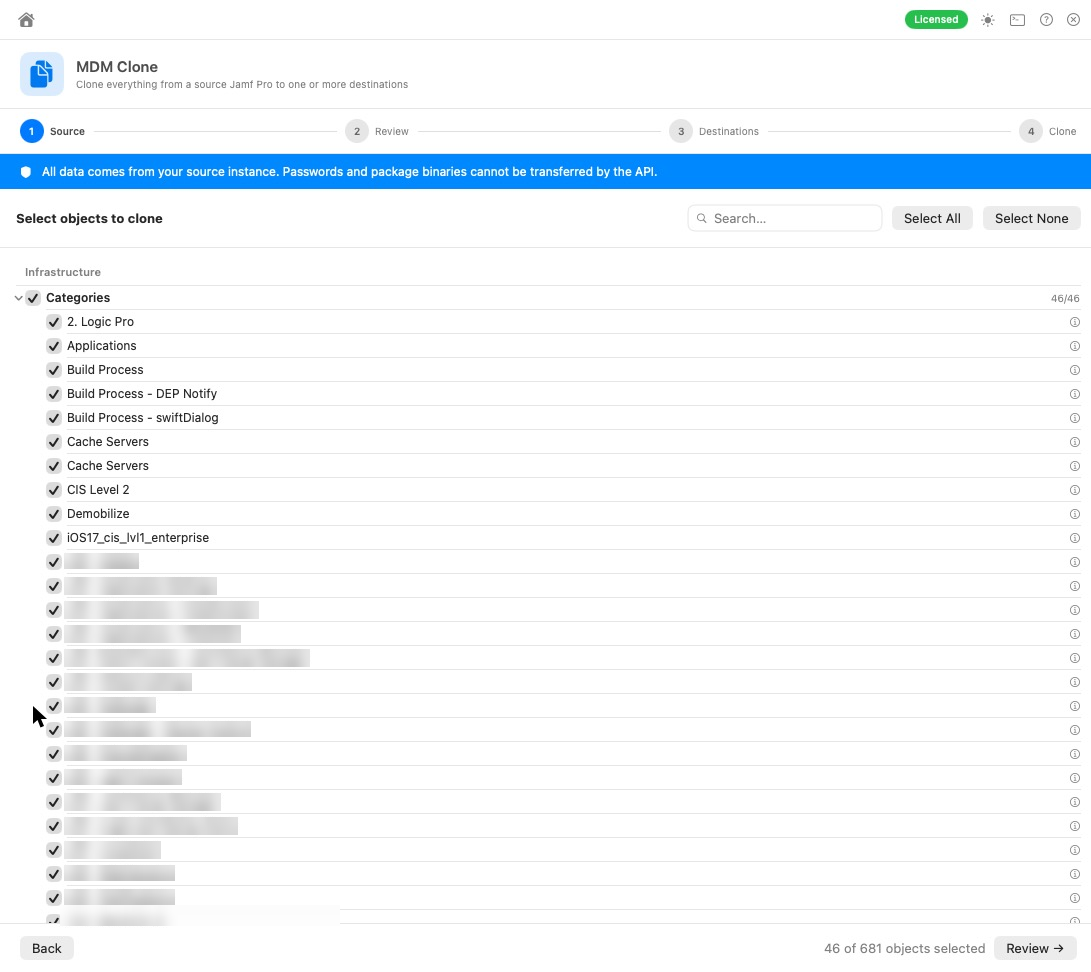
assets/images/blog/magic-toolbox/clone-select.pngPick what to clone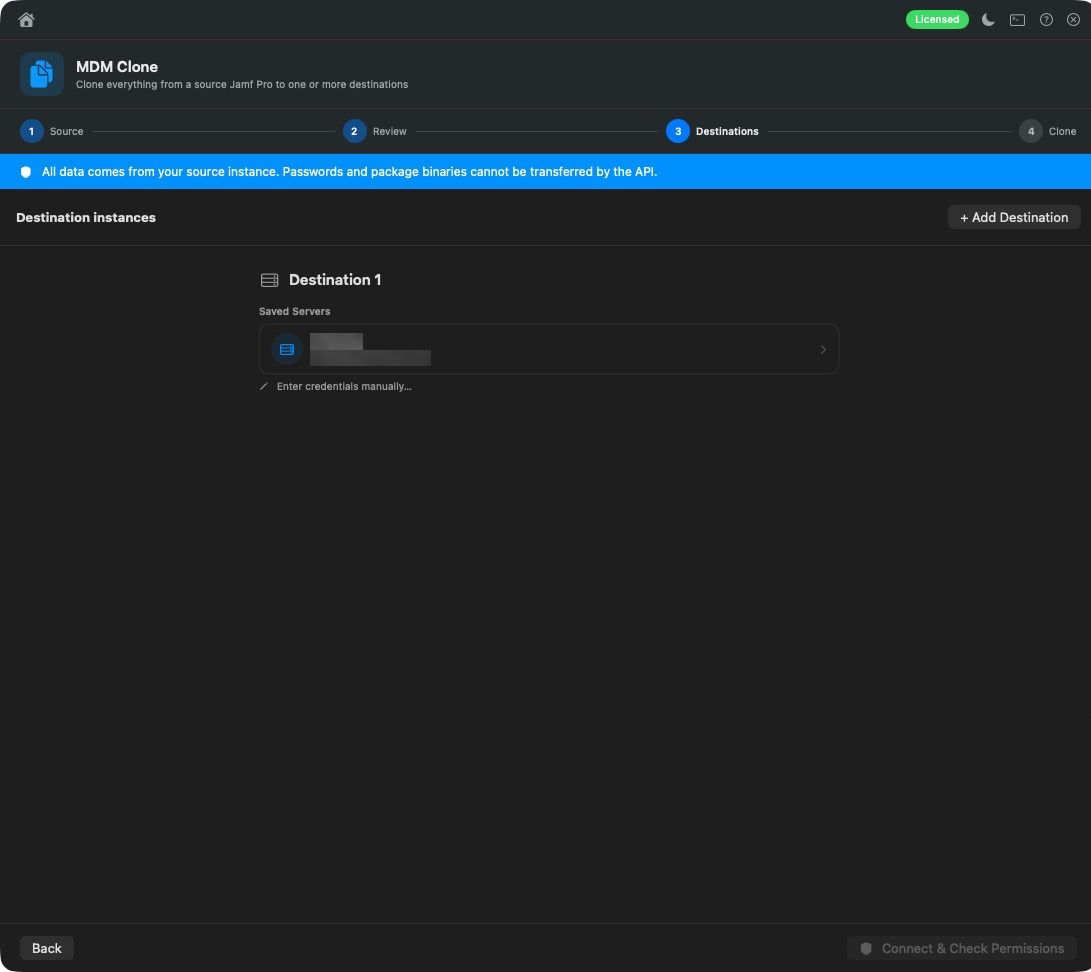
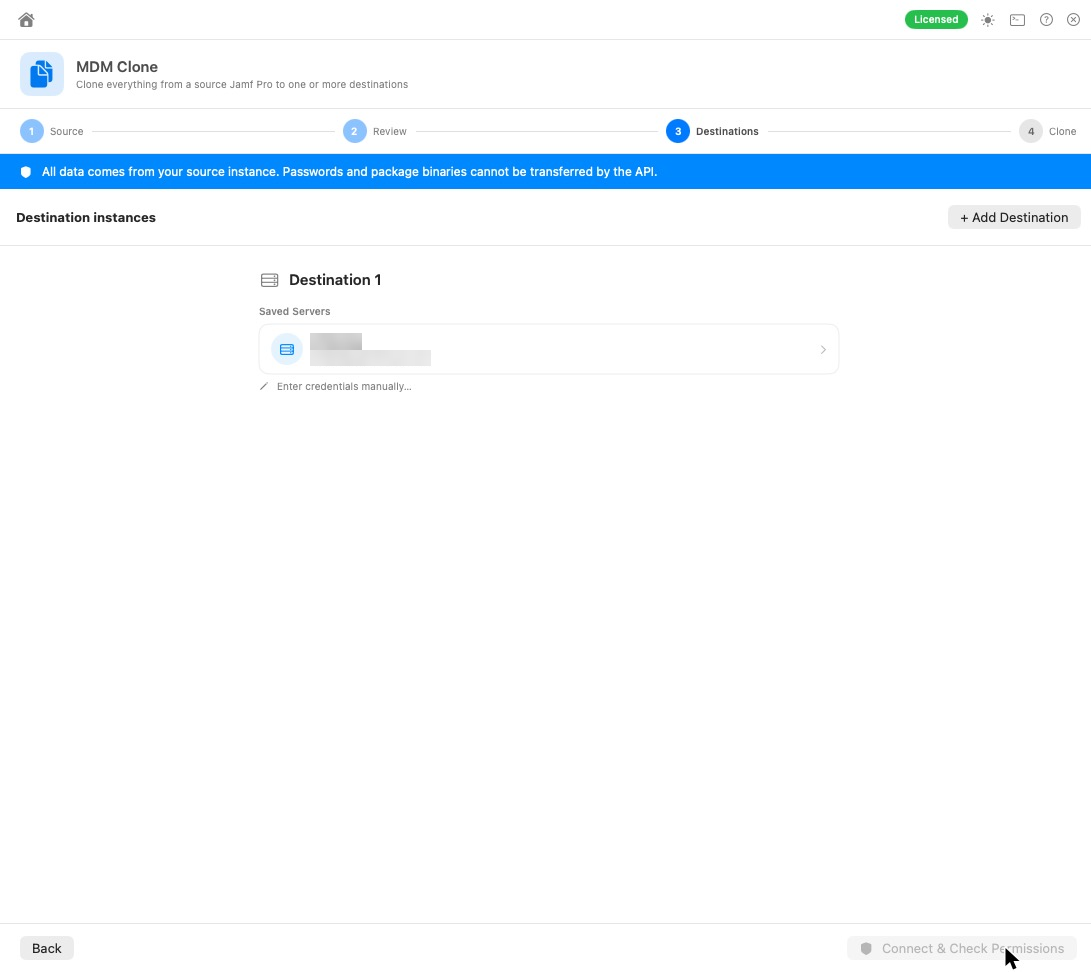
assets/images/blog/magic-toolbox/clone-destinations.pngOne or more destinations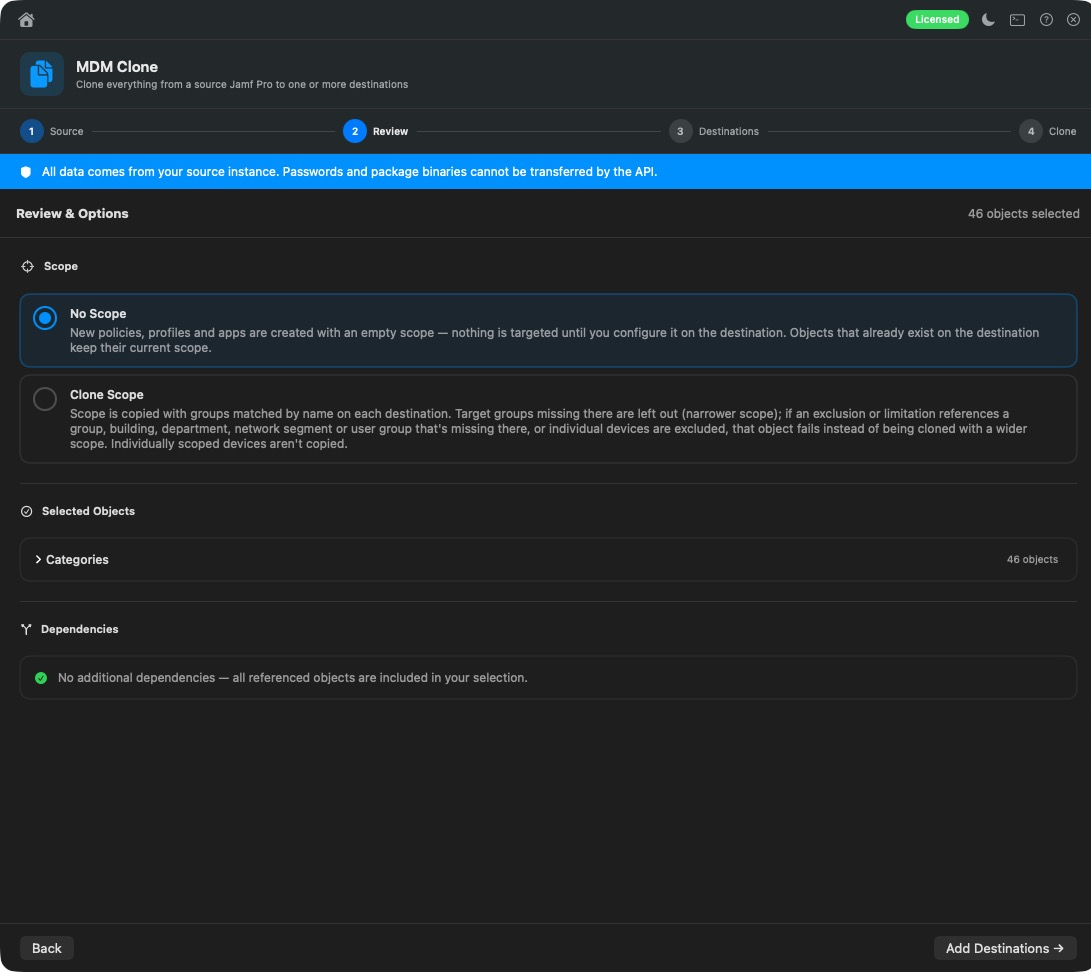
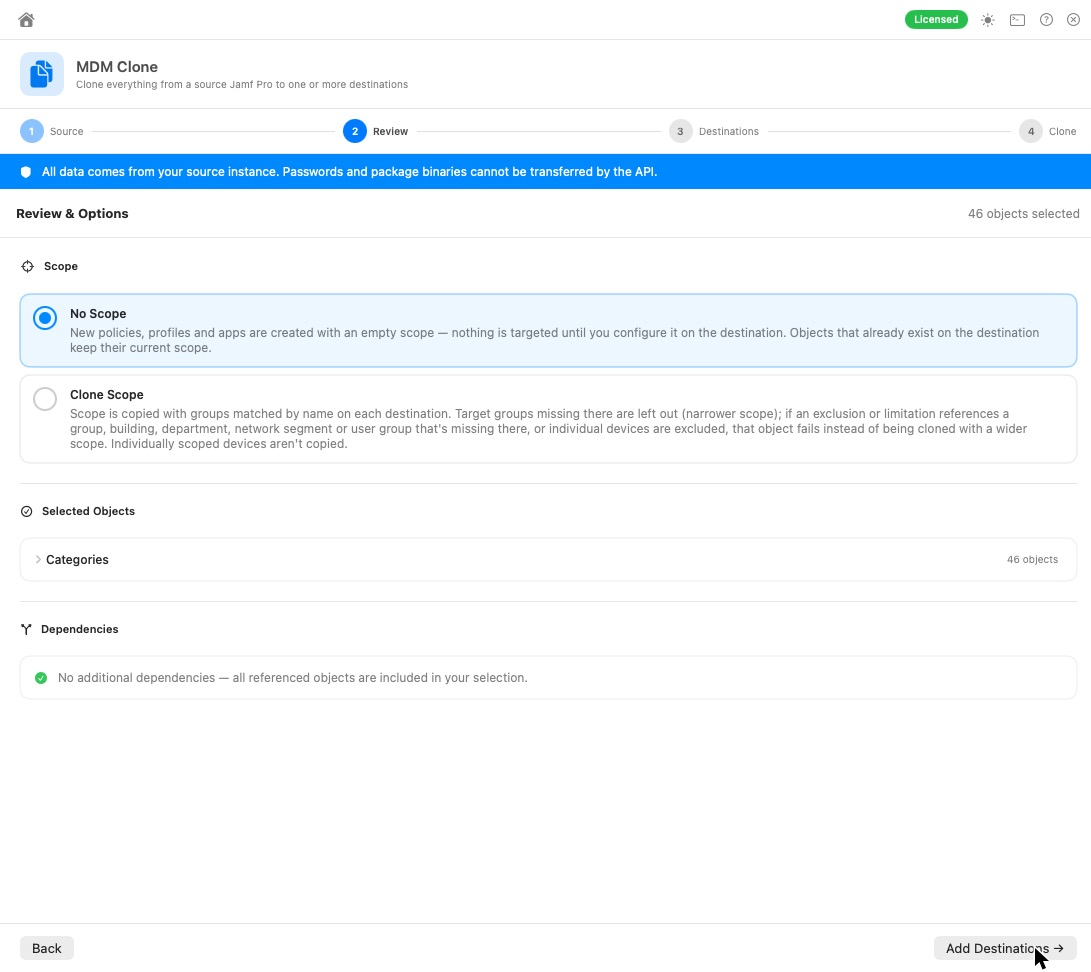
assets/images/blog/magic-toolbox/clone-review.pngReview before anything changesCompare
“Why does this Mac get the policy and that one doesn’t?” Compare answers it in seconds. Put two Macs, or two iPhones or iPads, side by side and see exactly which policies, groups, profiles and apps they share and where they differ.
Or go big with Compare Instances: policies, groups, profiles, scripts, EAs and packages across two to four servers at once. Perfect for checking dev, test and production really match. Export the whole thing as an HTML report.
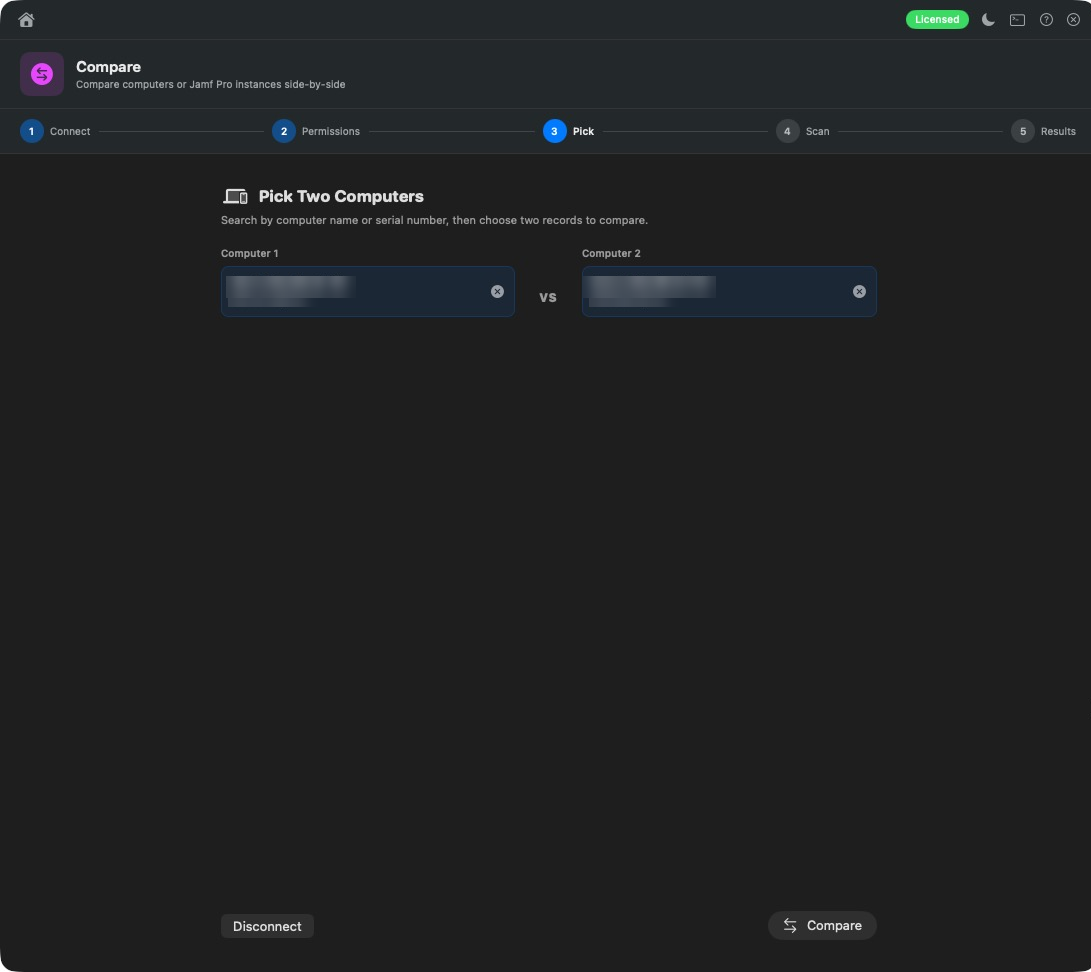
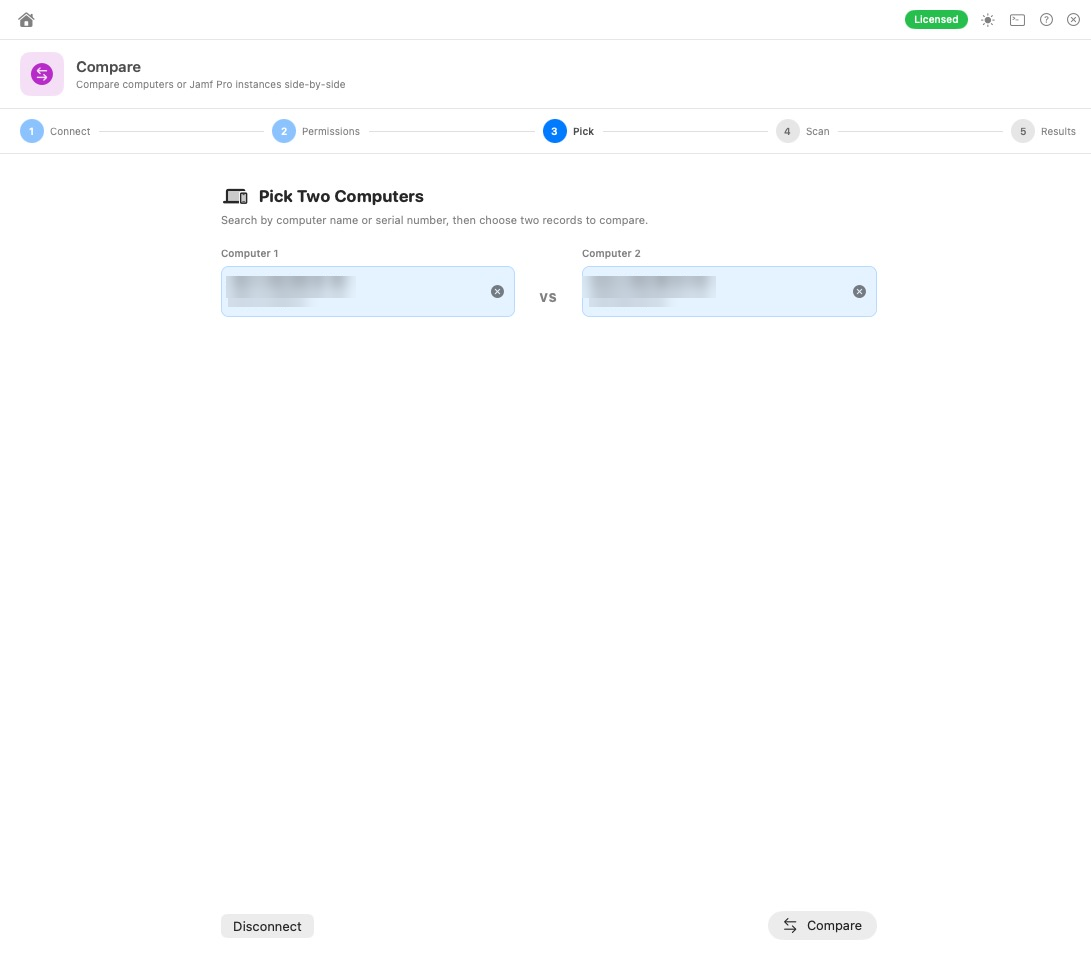
assets/images/blog/magic-toolbox/compare-pick-computers.pngPick two computers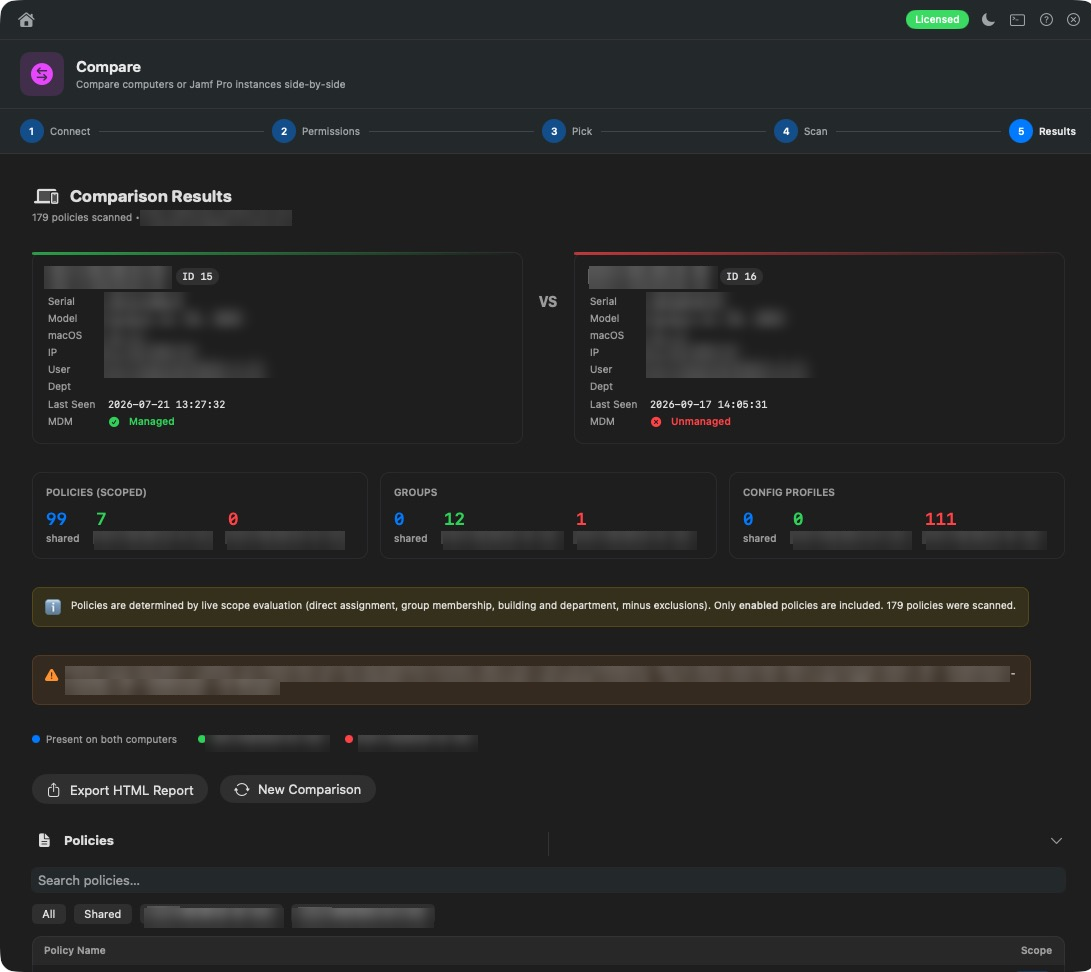
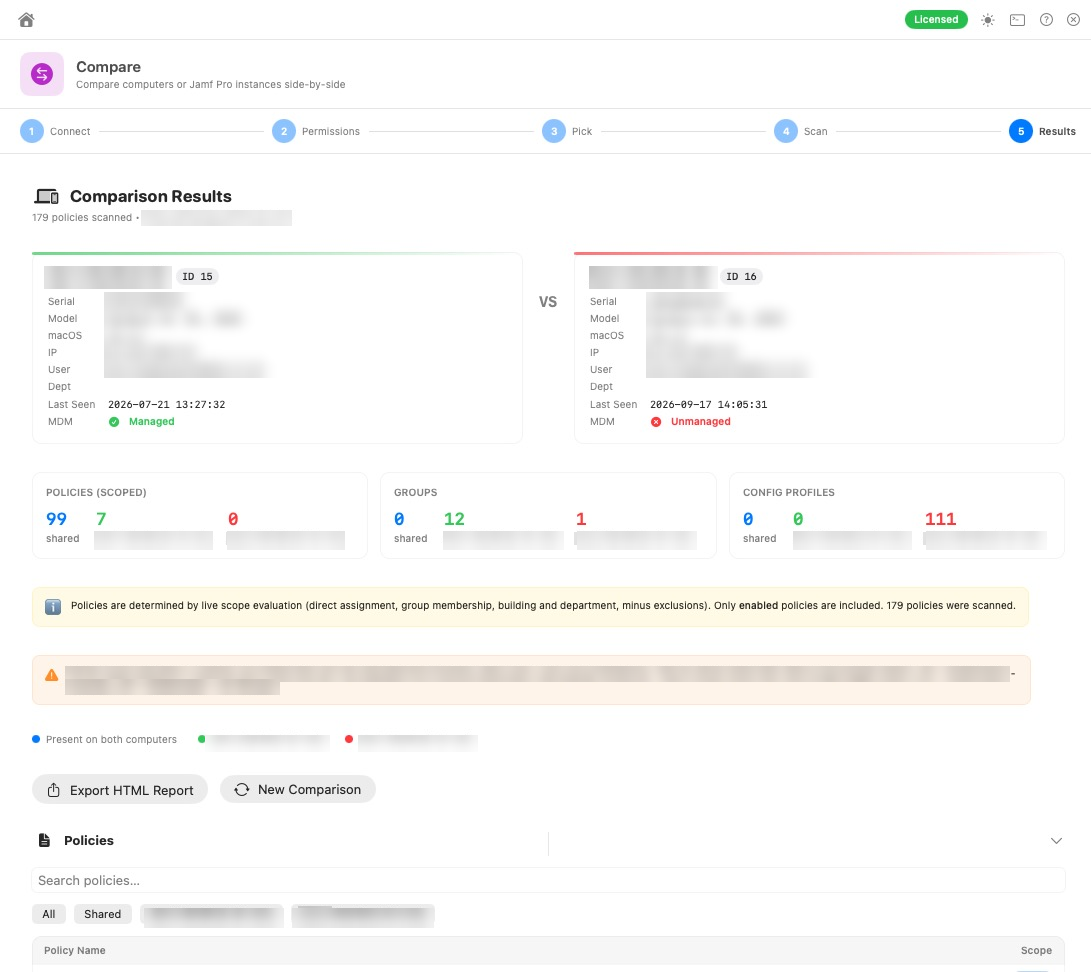
assets/images/blog/magic-toolbox/compare-computers.pngSee exactly what they share and where they differ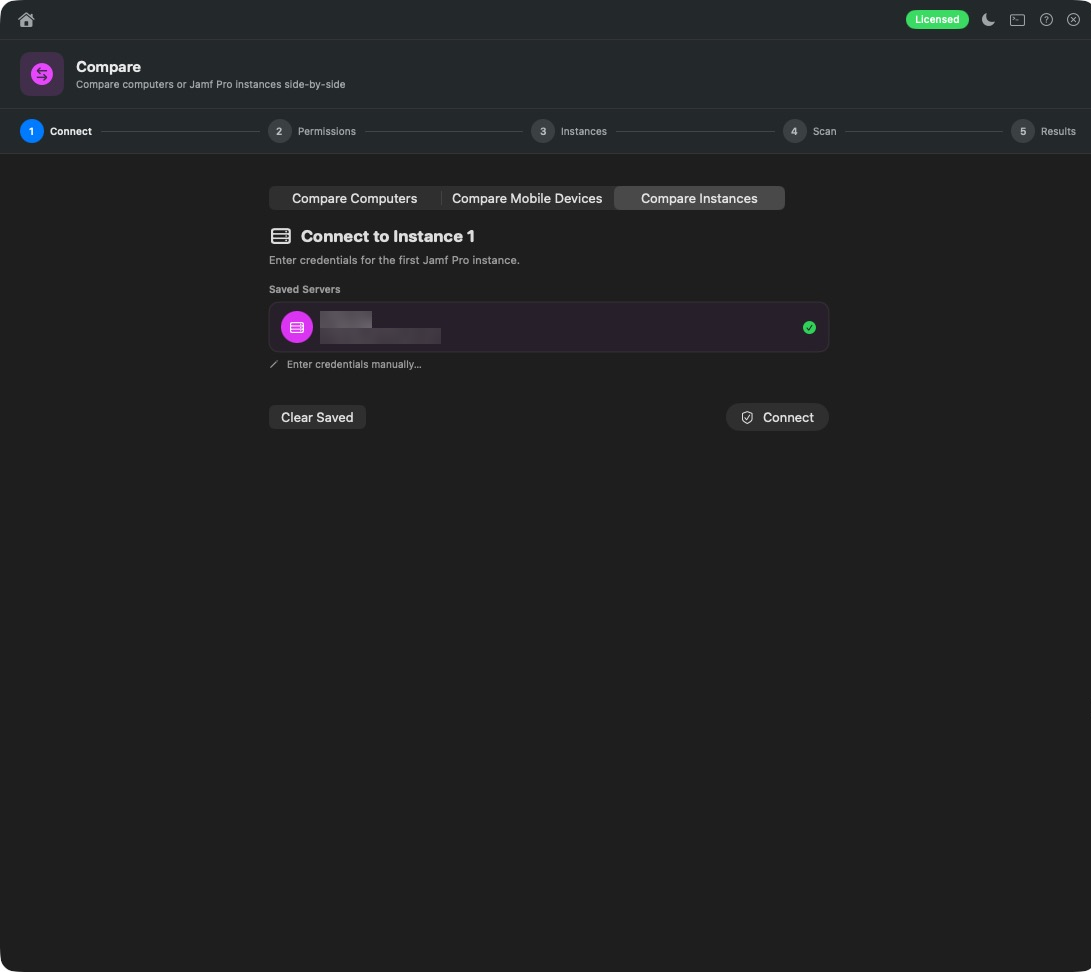
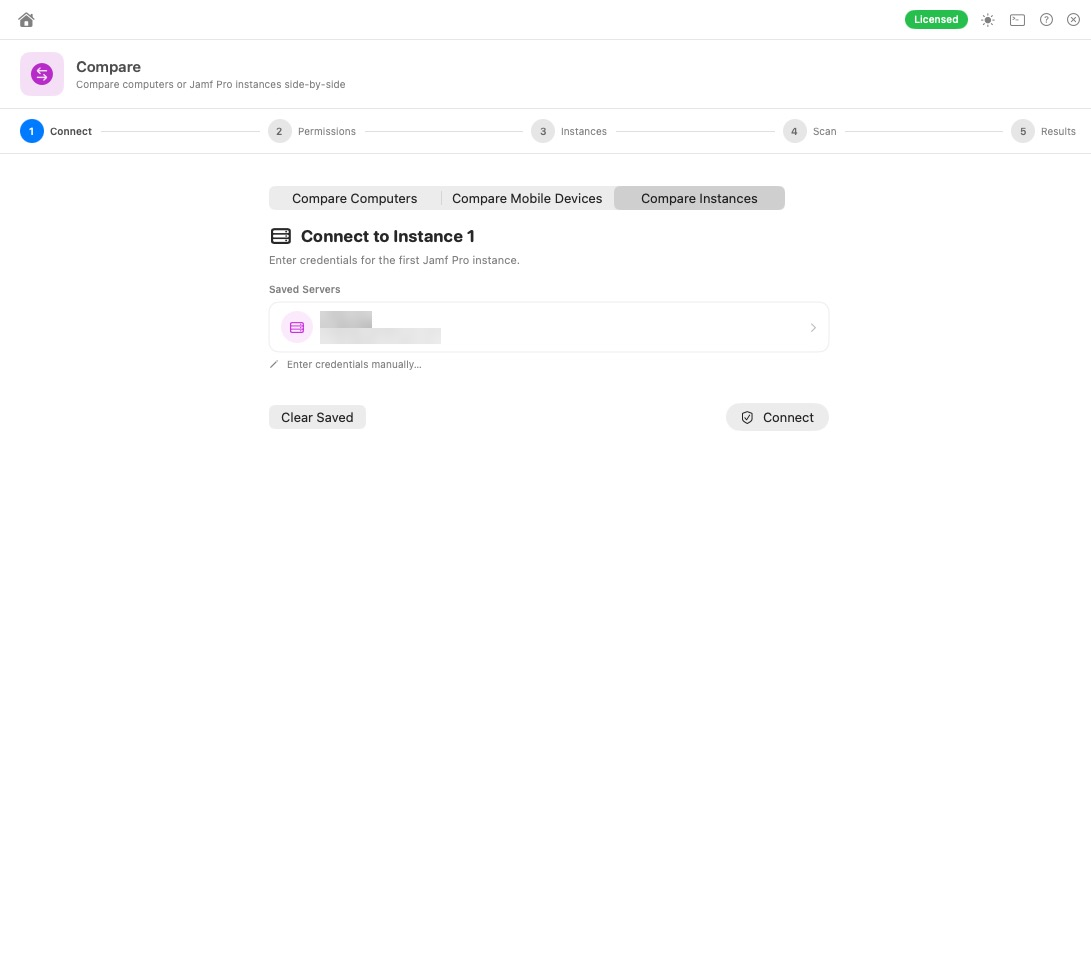
assets/images/blog/magic-toolbox/compare-instances.pngOr compare two to four Jamf Pro serversAudit and health checks that find problems before users do
- Profile Conflicts: finds macOS and iOS profiles managing the same payloads or keys on the same devices, with exclusions taken into account. Mark each one reviewed as you go.
- Smart Group Audit: catches empty, overly complex, duplicate, contradictory and looping criteria. Export to HTML or CSV.
- Account Audit: lists admin accounts, API roles and API clients, and flags broad-access clients and single-admin risk.
- Cert & Token Expiry: see when your ADE and VPP tokens expire and whether your APNs certificate is flagged. No more surprise outages.
- Unused: finds the clutter: unused packages and scripts, unscoped profiles and apps, disabled policies, empty smart groups and more. Delete what you don’t need in bulk, with an encrypted backup taken first.
- Network Check: devices won’t enrol or check in? Test whether a Mac can reach the endpoints Jamf, Apple, Microsoft and Google need, and spot the firewall or proxy getting in the way.
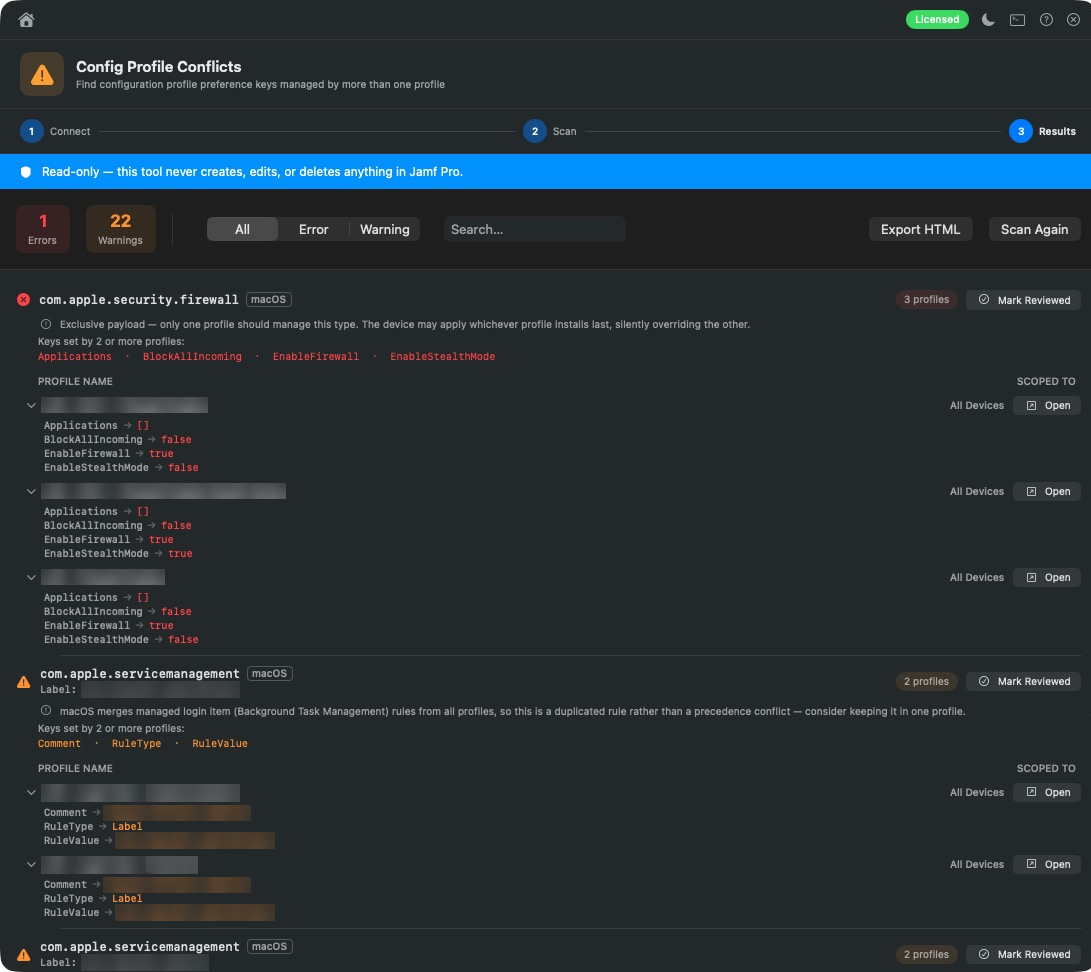
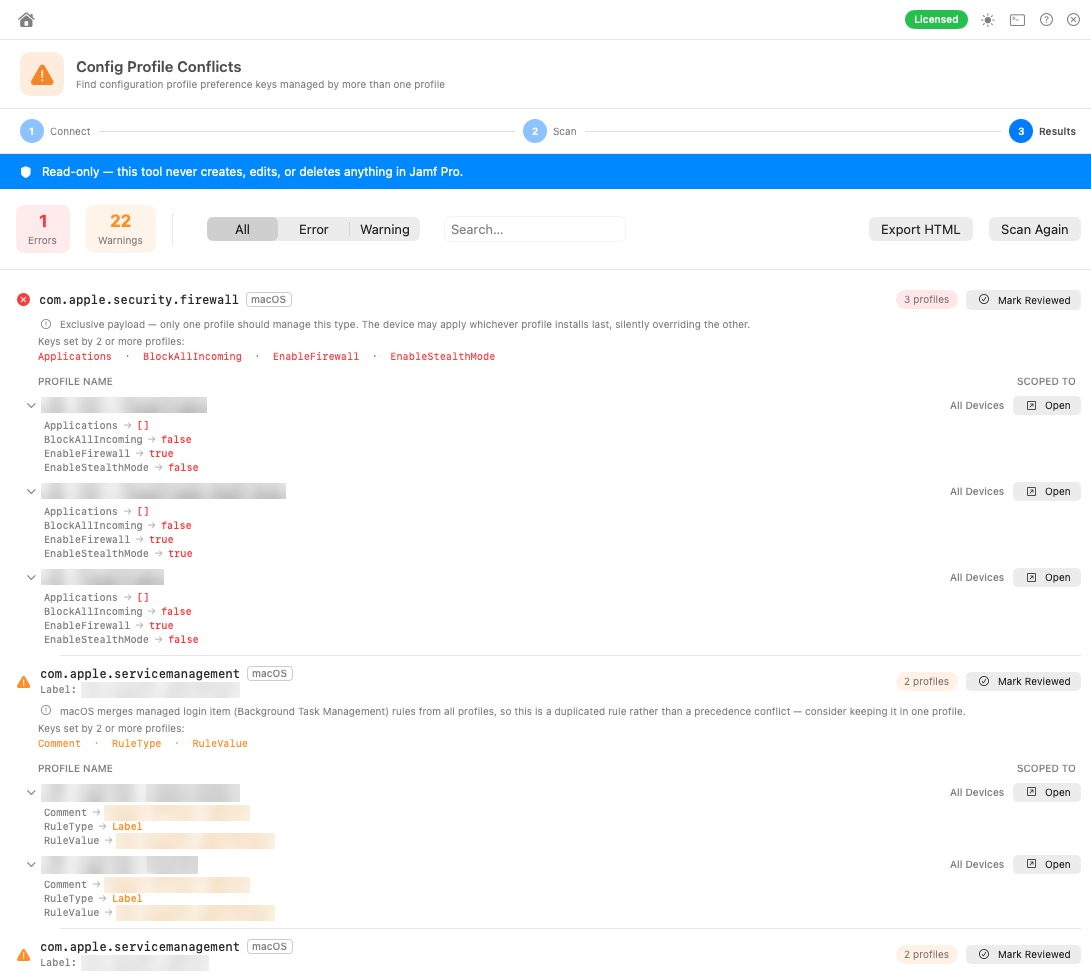
assets/images/blog/magic-toolbox/profile-conflicts-scan.pngProfile Conflicts: who's fighting whom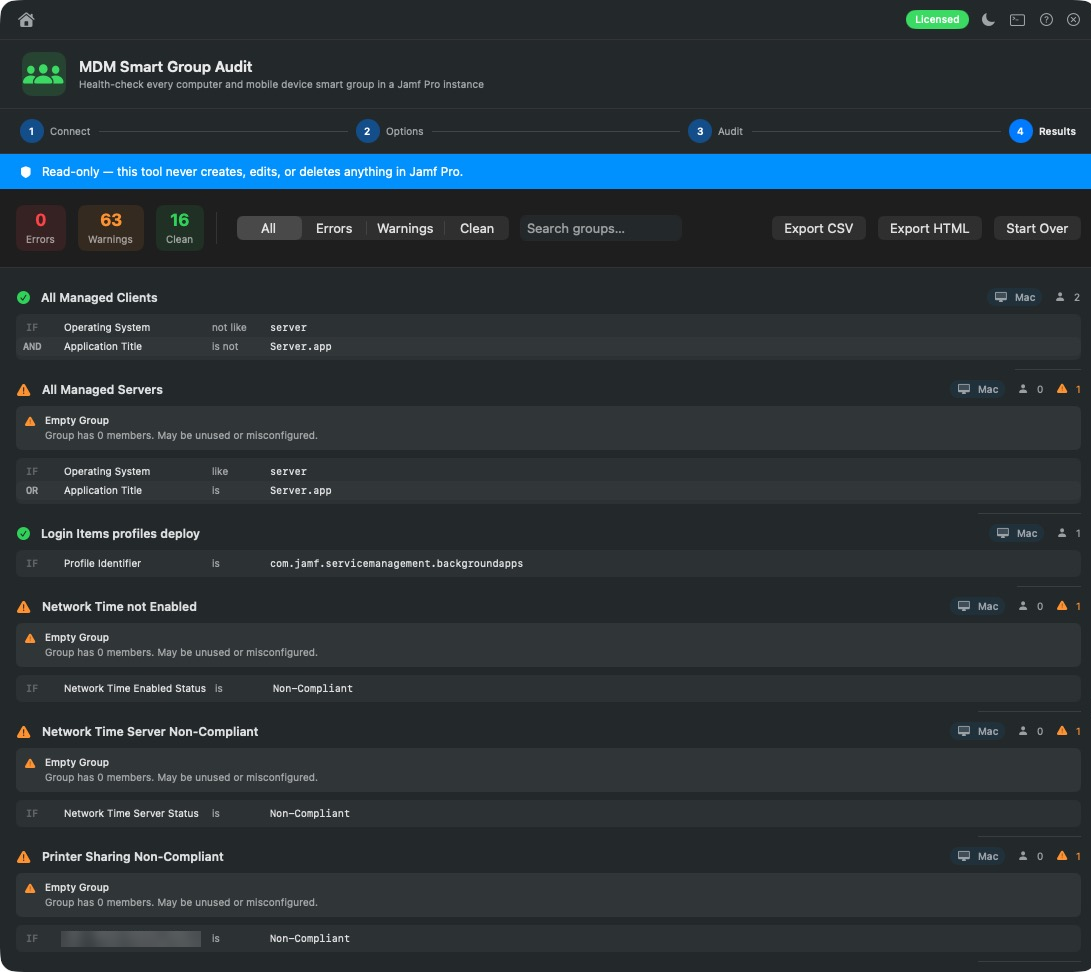
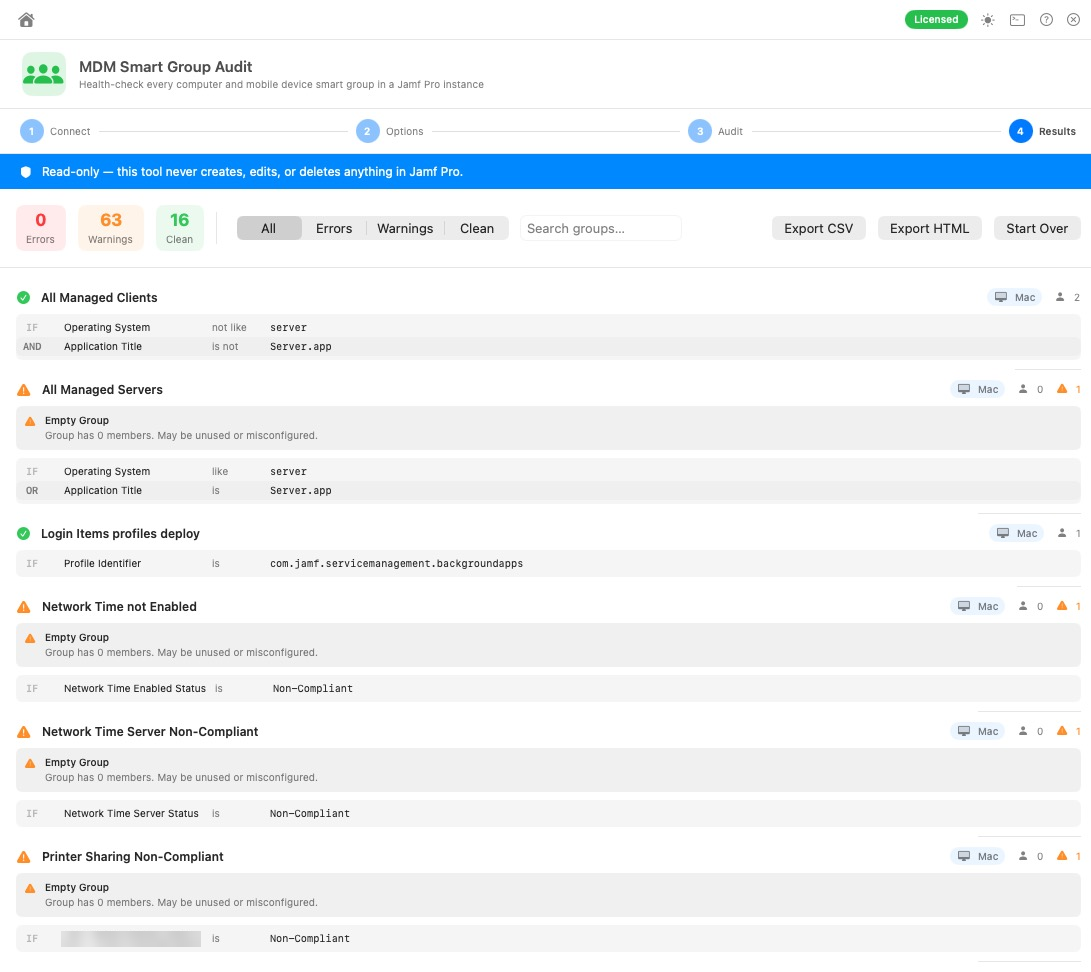
assets/images/blog/magic-toolbox/smart-group-audit-results.pngSmart Group Audit results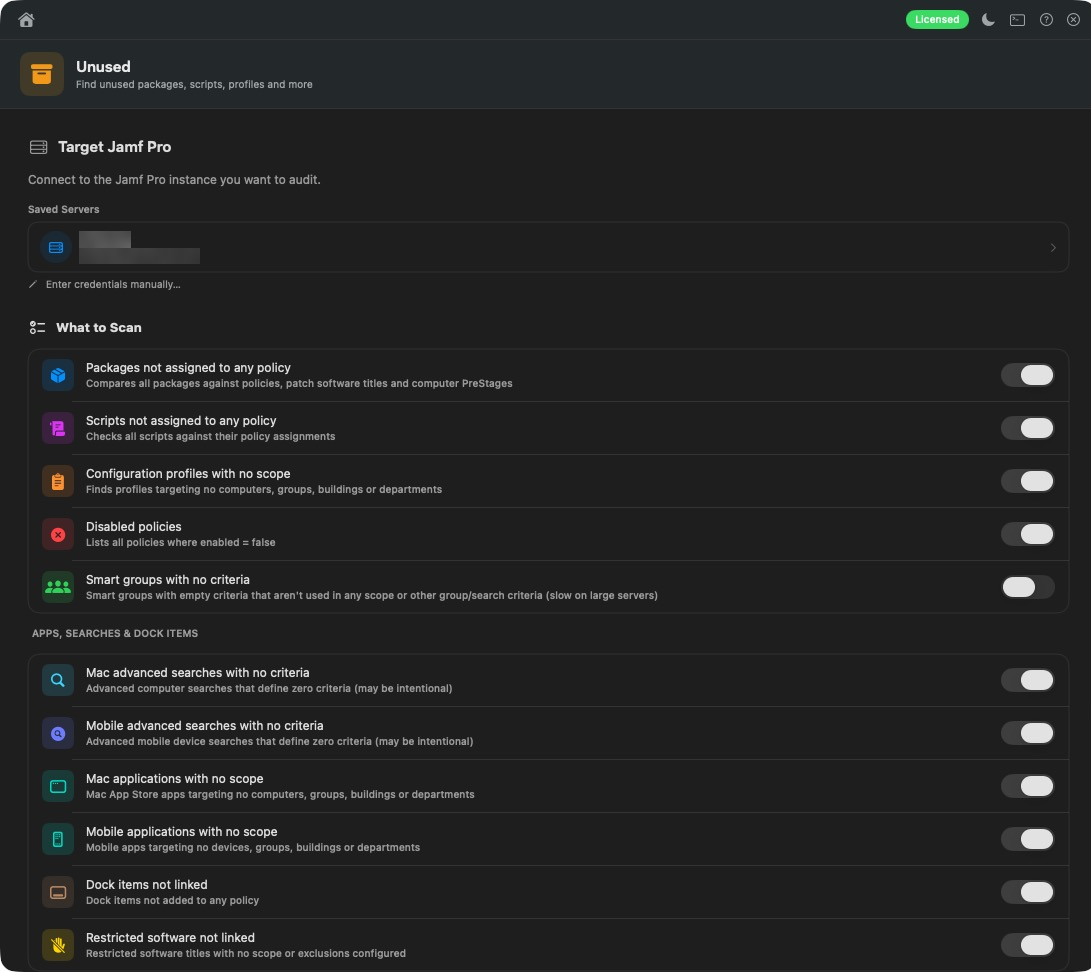
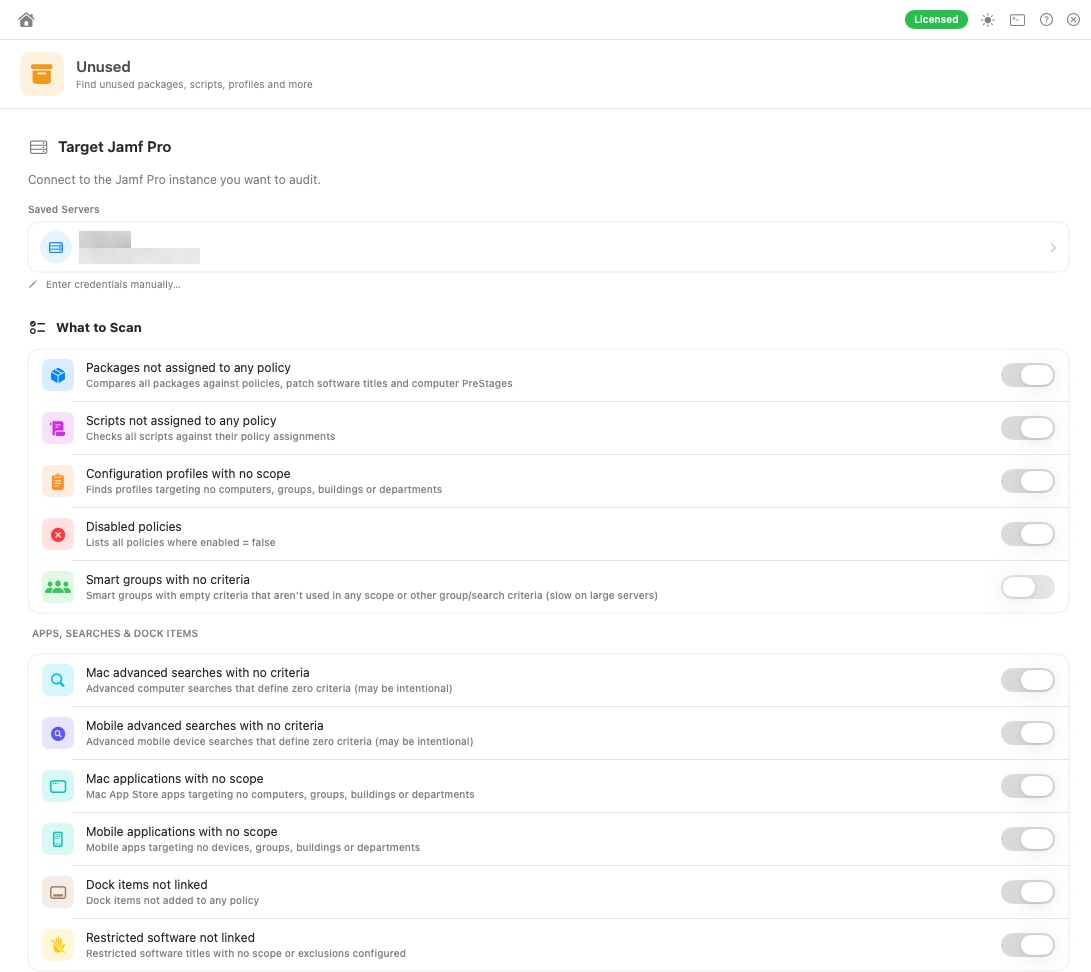
assets/images/blog/magic-toolbox/unused-setup.pngFind unused objects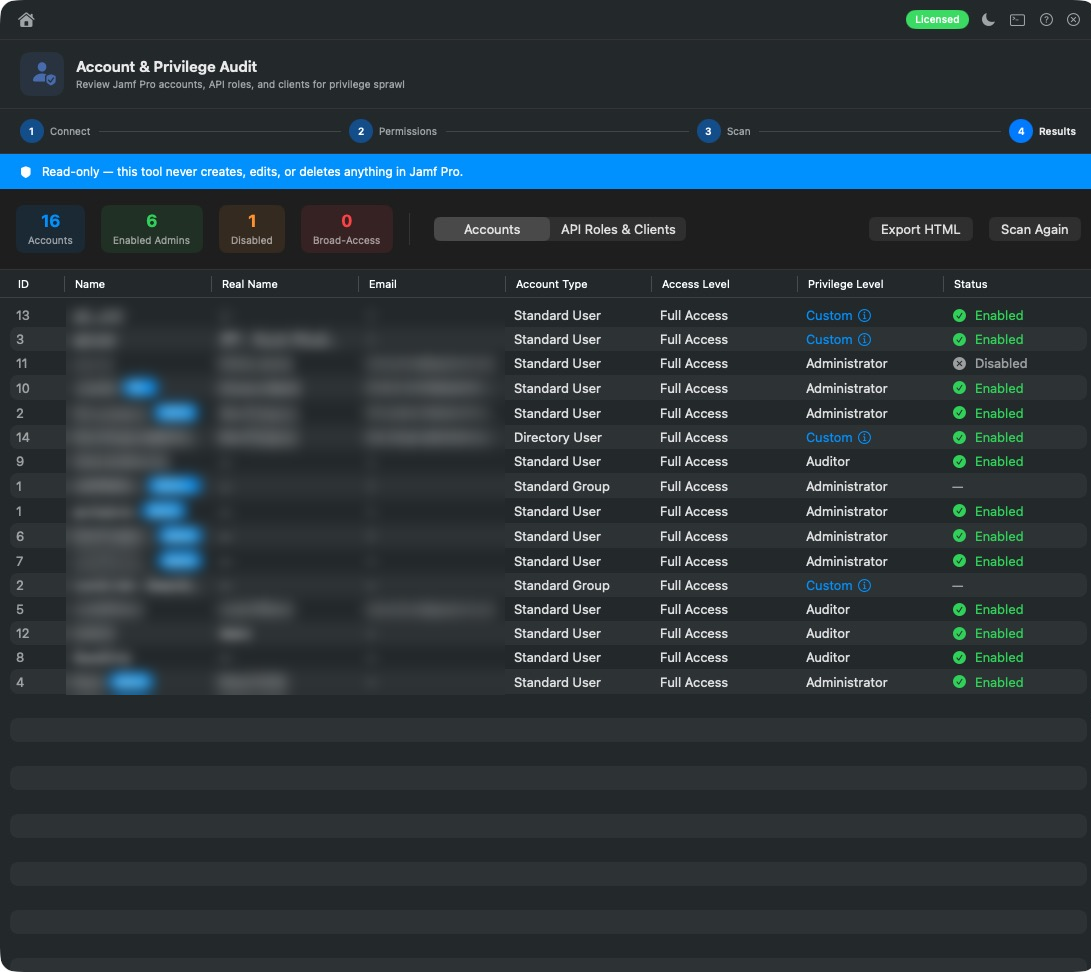
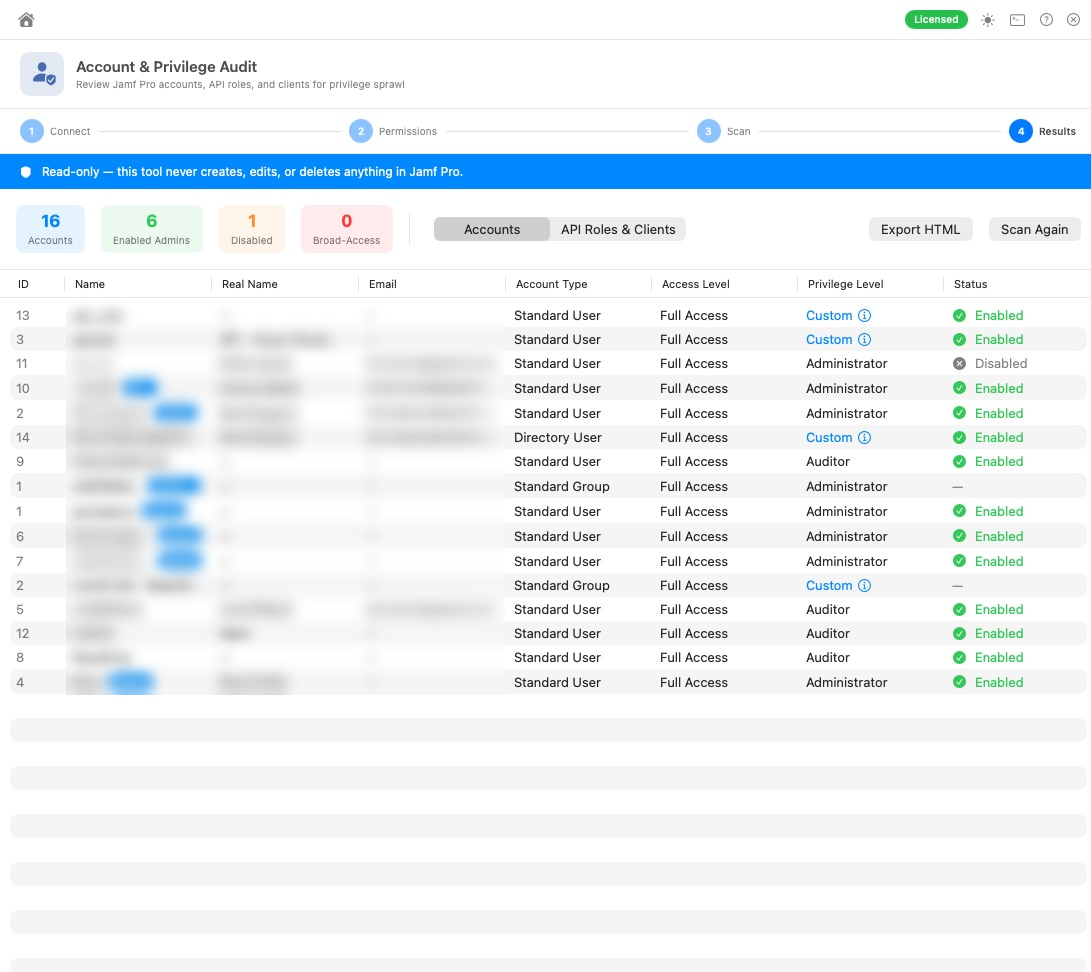
assets/images/blog/magic-toolbox/account-audit.pngAccount Audit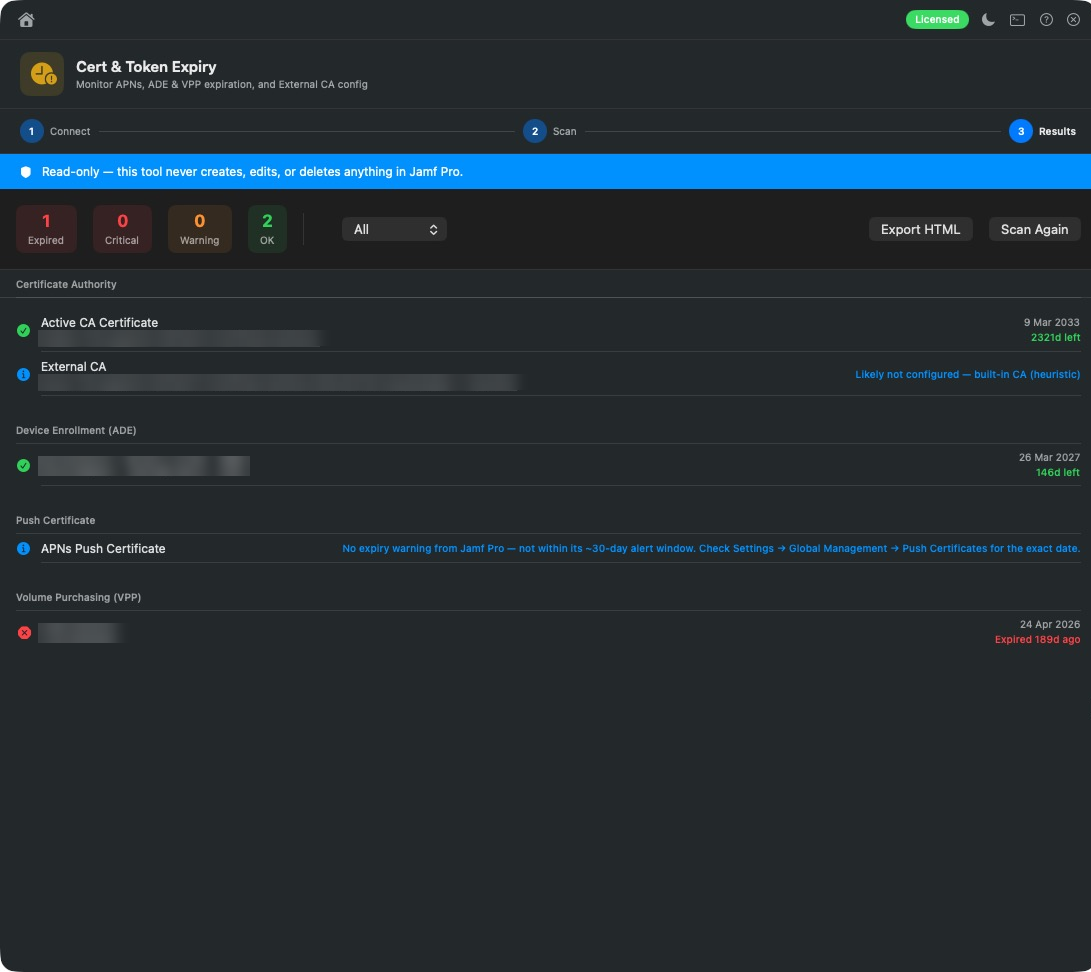
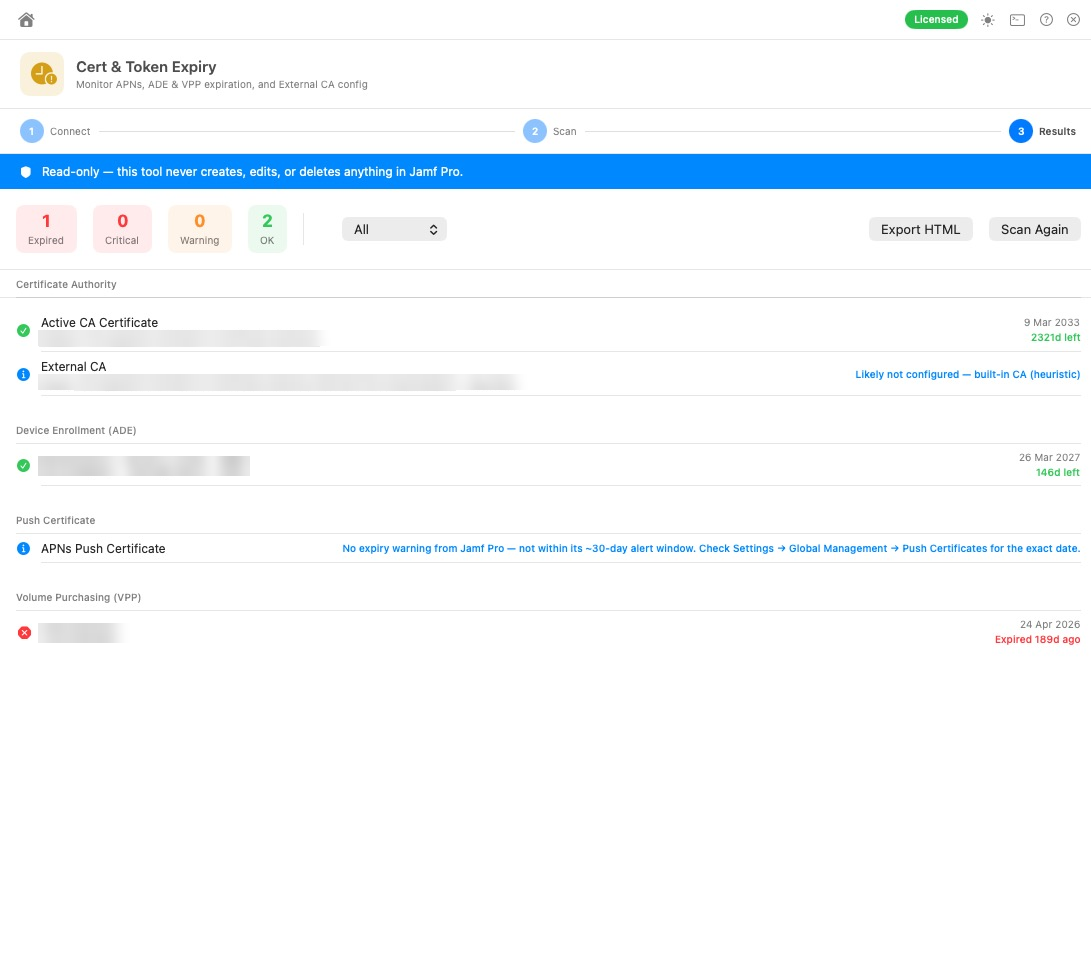
assets/images/blog/magic-toolbox/cert-token-expiry.pngCert & Token Expiry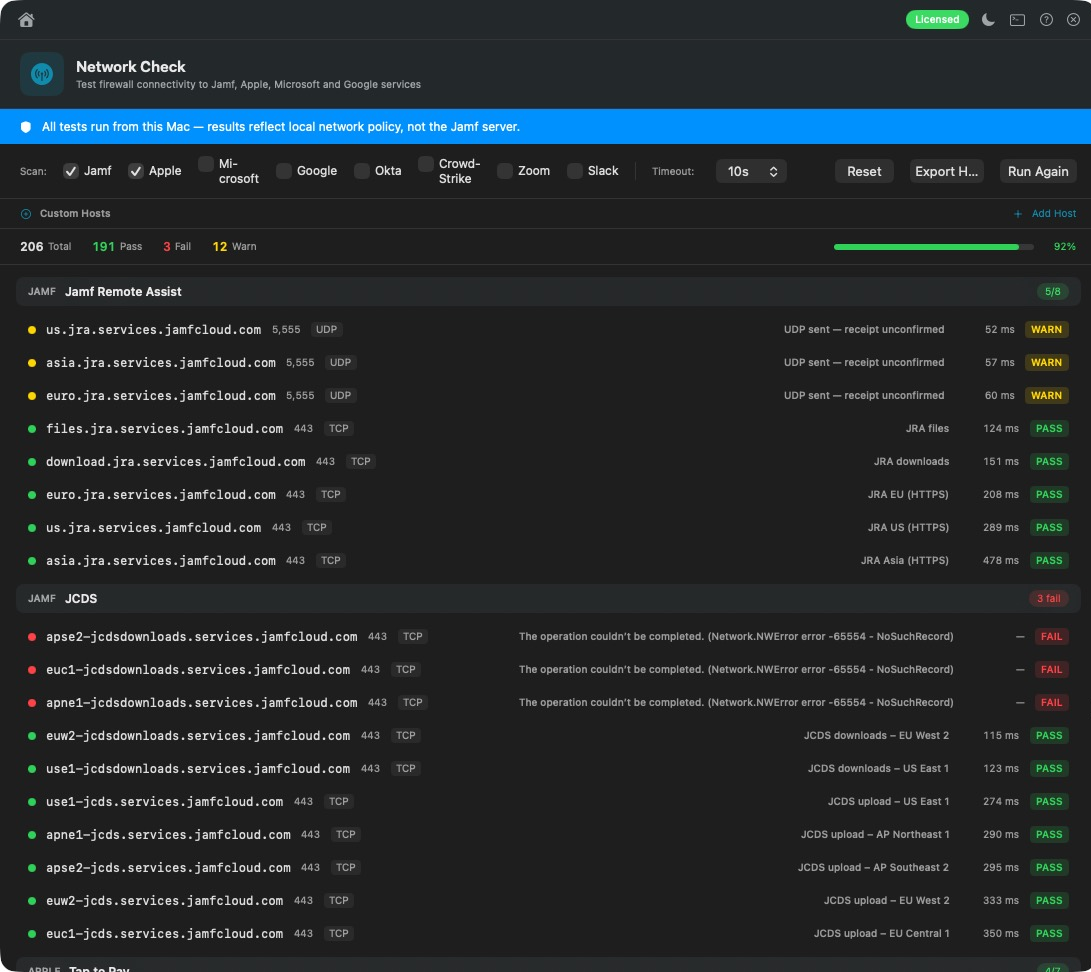
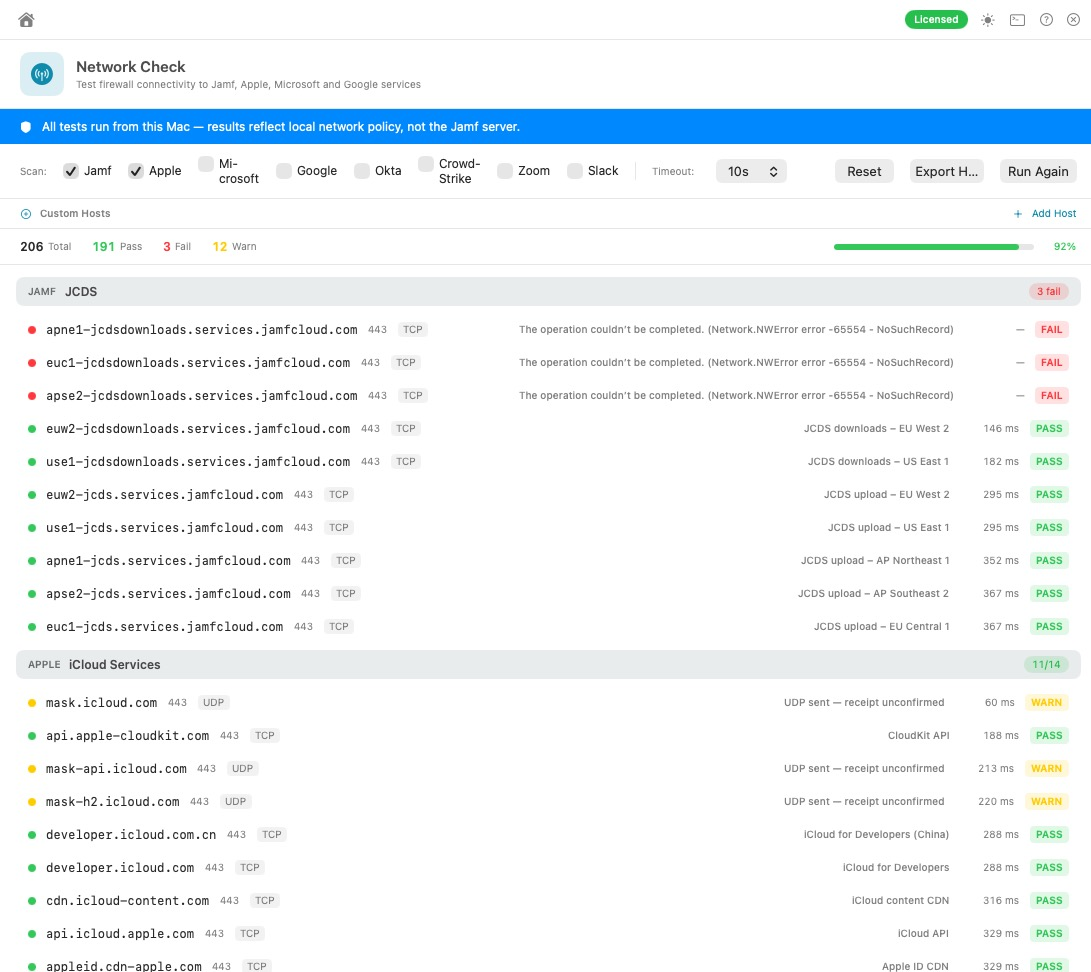
assets/images/blog/magic-toolbox/network-check.pngNetwork Check: every endpoint Jamf and Apple need, tested from your MacBuild profiles by dropping in an app
This is the part people love. Drag an app onto the window and Magic Toolbox works out what it needs.
- PPPC Analyser: works out which privacy (TCC) permissions an app asks for and builds the PPPC profile for you. It can also export a macOS 27+ AppSettings declaration.
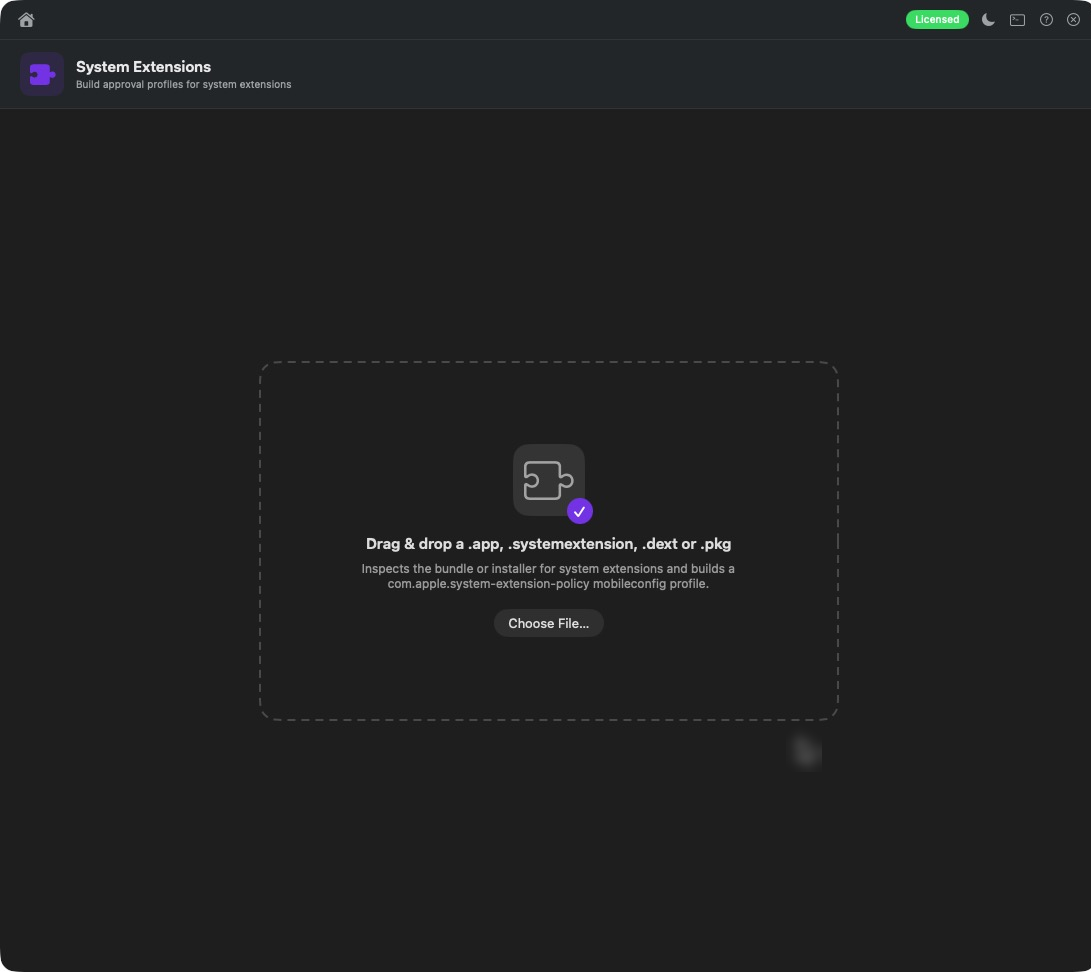
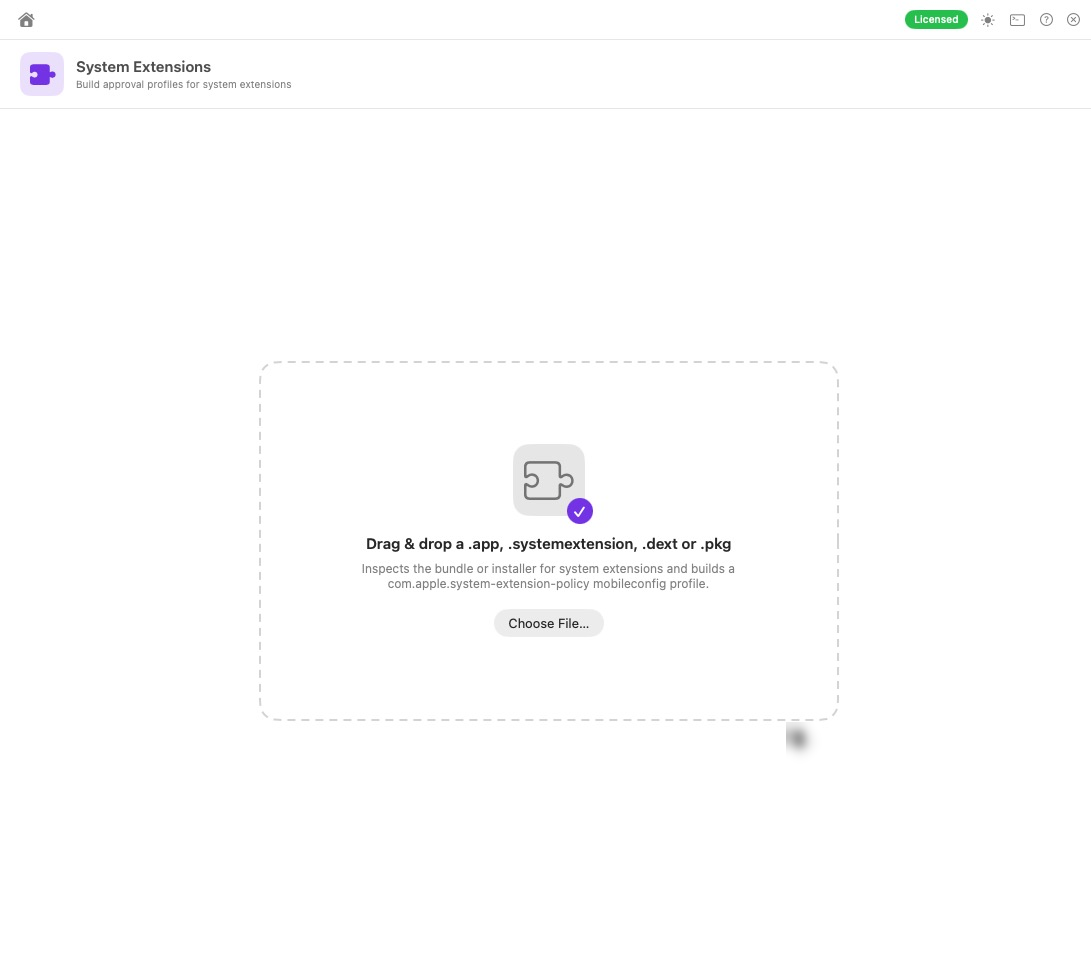
- System Extensions: finds endpoint security, network and driver extensions and builds the approval profile with the right Team IDs and bundle IDs.
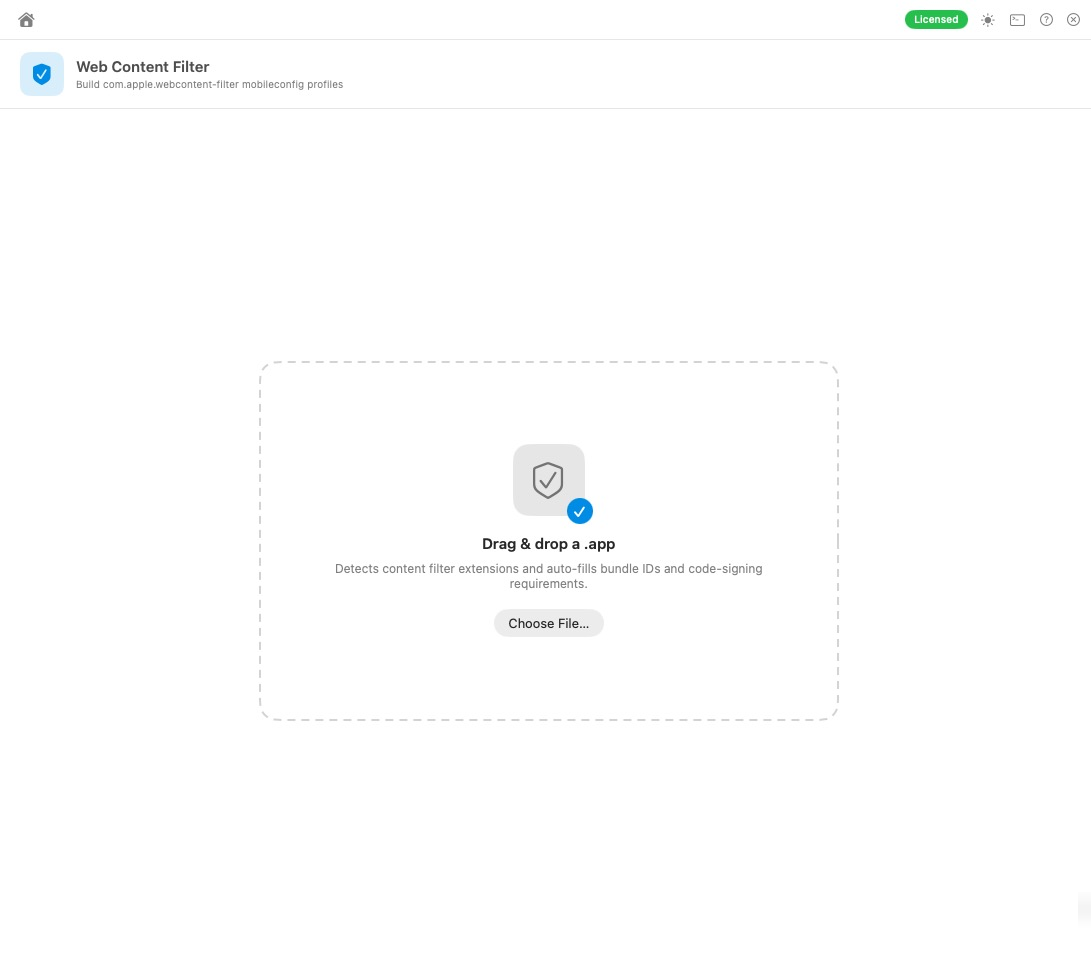
- Web Content Filter: builds content filter profiles, with known vendors’ details filled in automatically.
- Notifications: builds notification settings profiles for any app.
- Login Item Profiles: scans the Mac’s launch agents, daemons and login items and walks you through a Managed Login Items profile.
- Profile Signer and Unsigner: sign profiles and packages with a certificate from your keychain, or strip a signature so you can read and edit a profile. All done locally.
Save a .mobileconfig, or upload straight to Jamf Pro with the category and scope you choose. No more copying and pasting bundle IDs out of Terminal.

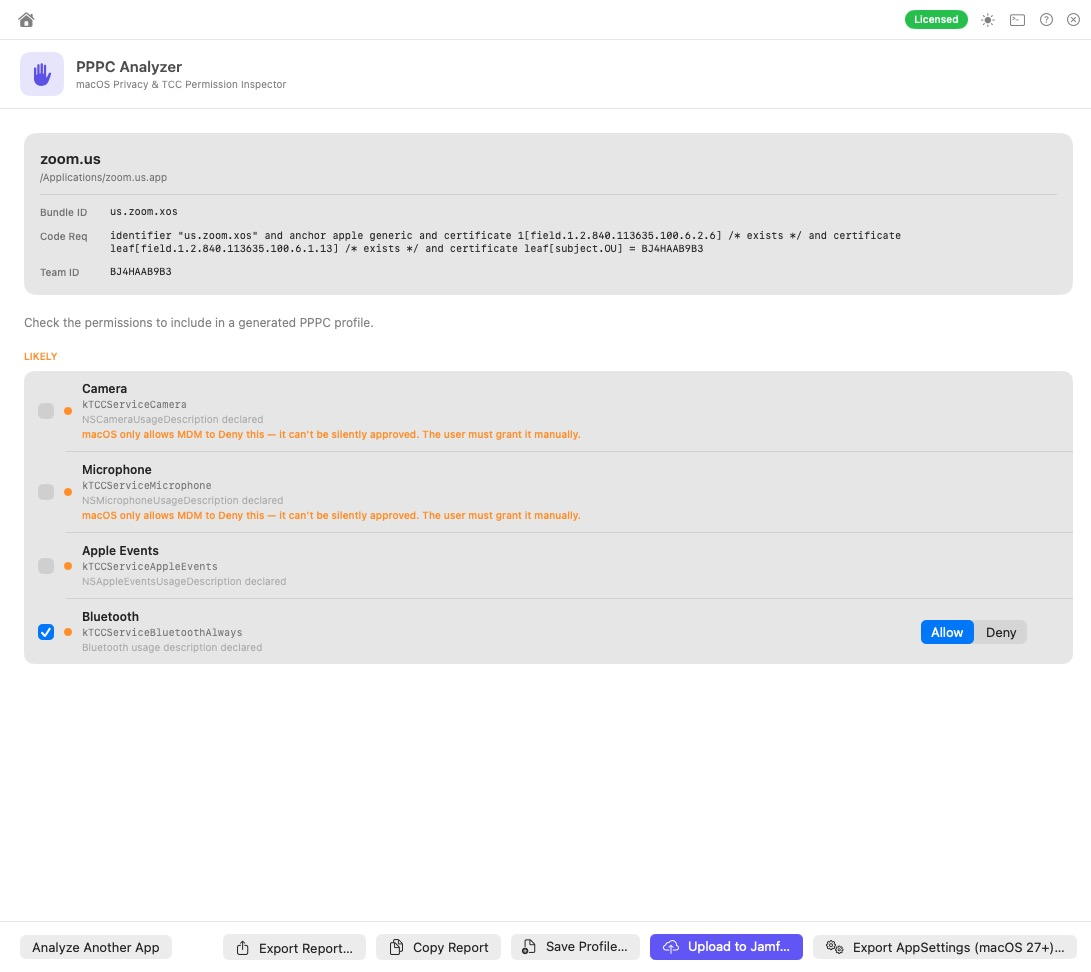
assets/images/blog/magic-toolbox/pppc-analyser.pngPPPC Analyser: drop in an app, get a profile, upload it to Jamf ProOnly need PPPC profiles? There’s also a light, standalone PPPC Analyser app.
assets/images/blog/magic-toolbox/system-extensions.pngSystem Extensions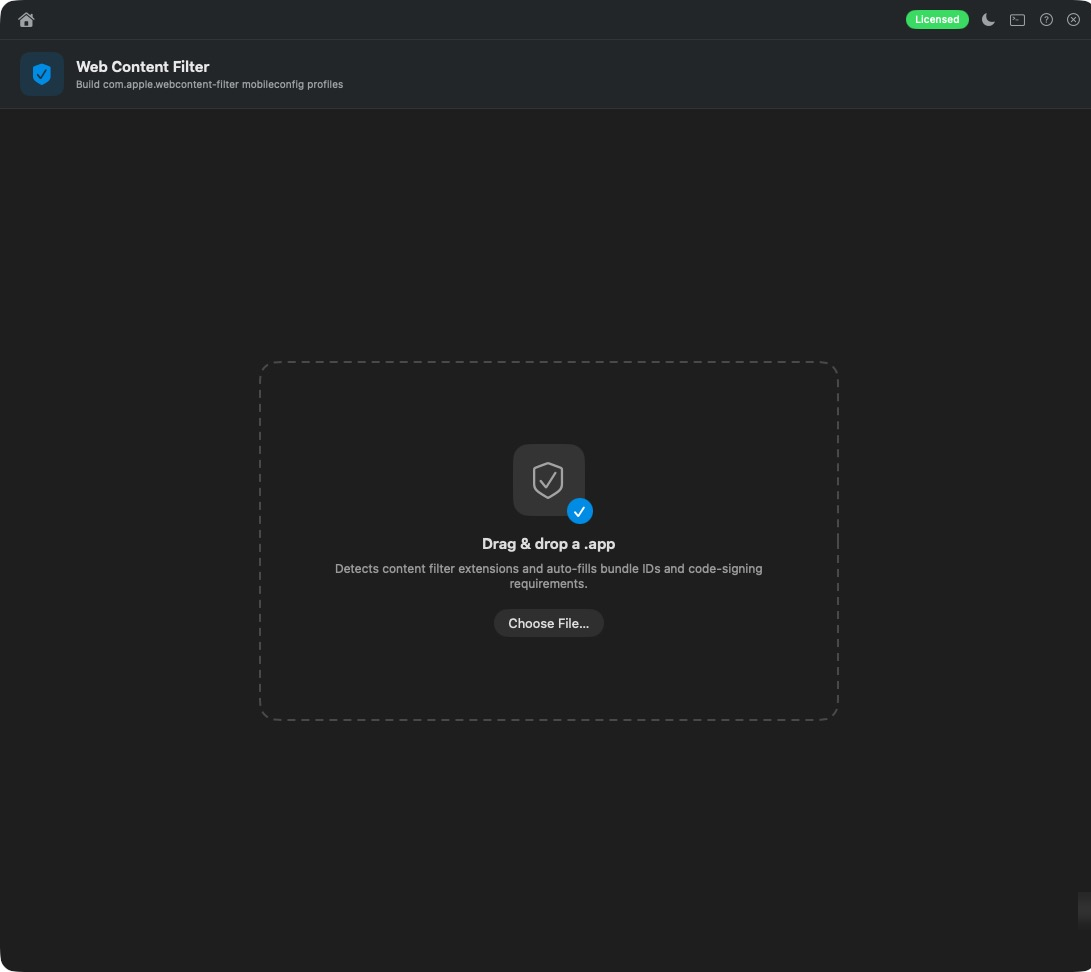
assets/images/blog/magic-toolbox/web-content-filter.pngWeb Content Filter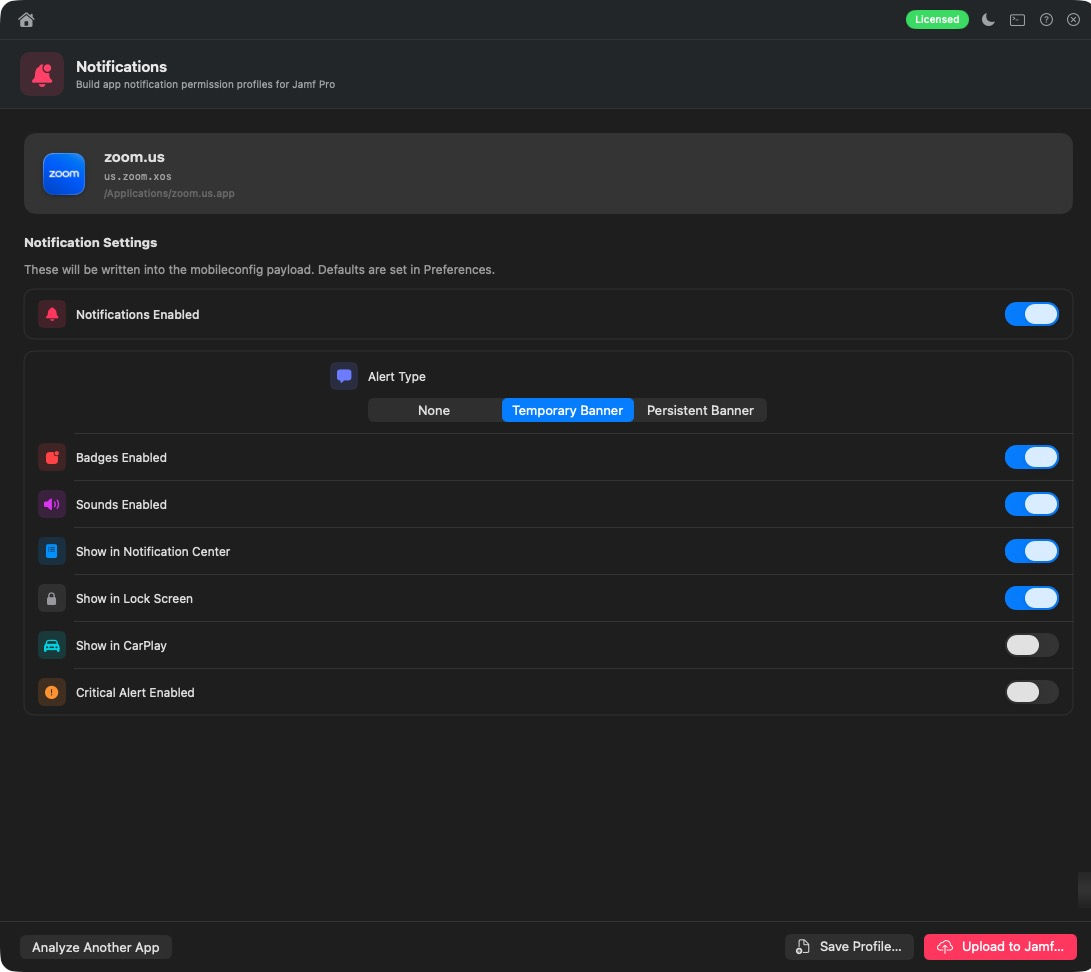
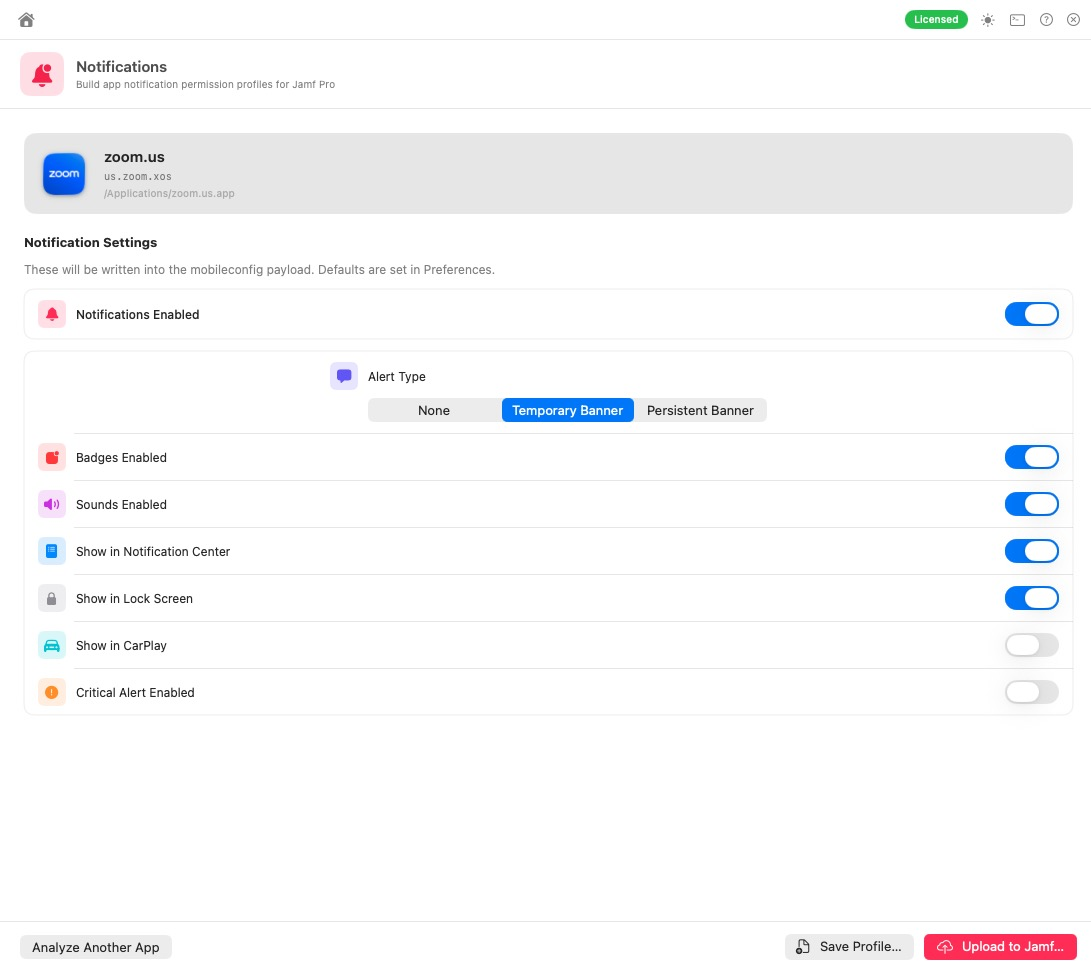
assets/images/blog/magic-toolbox/notifications.pngNotifications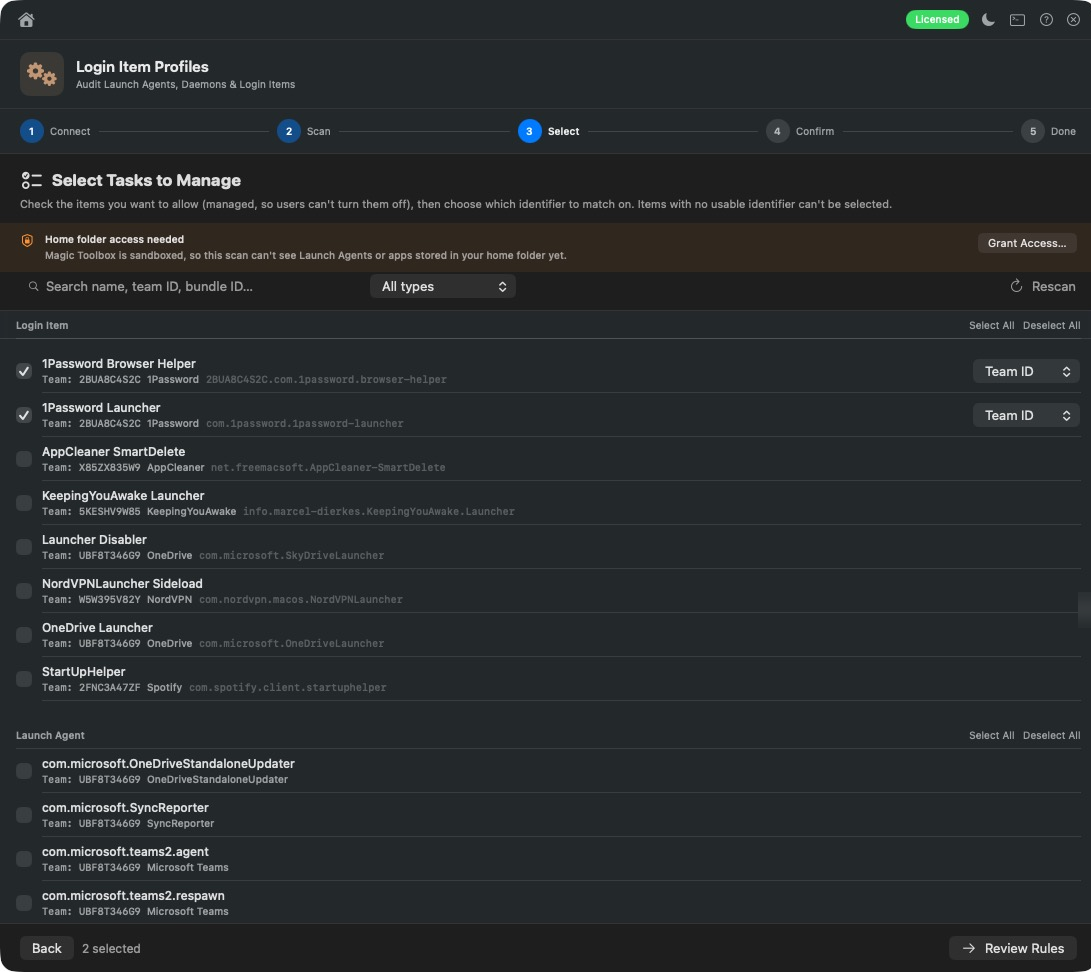
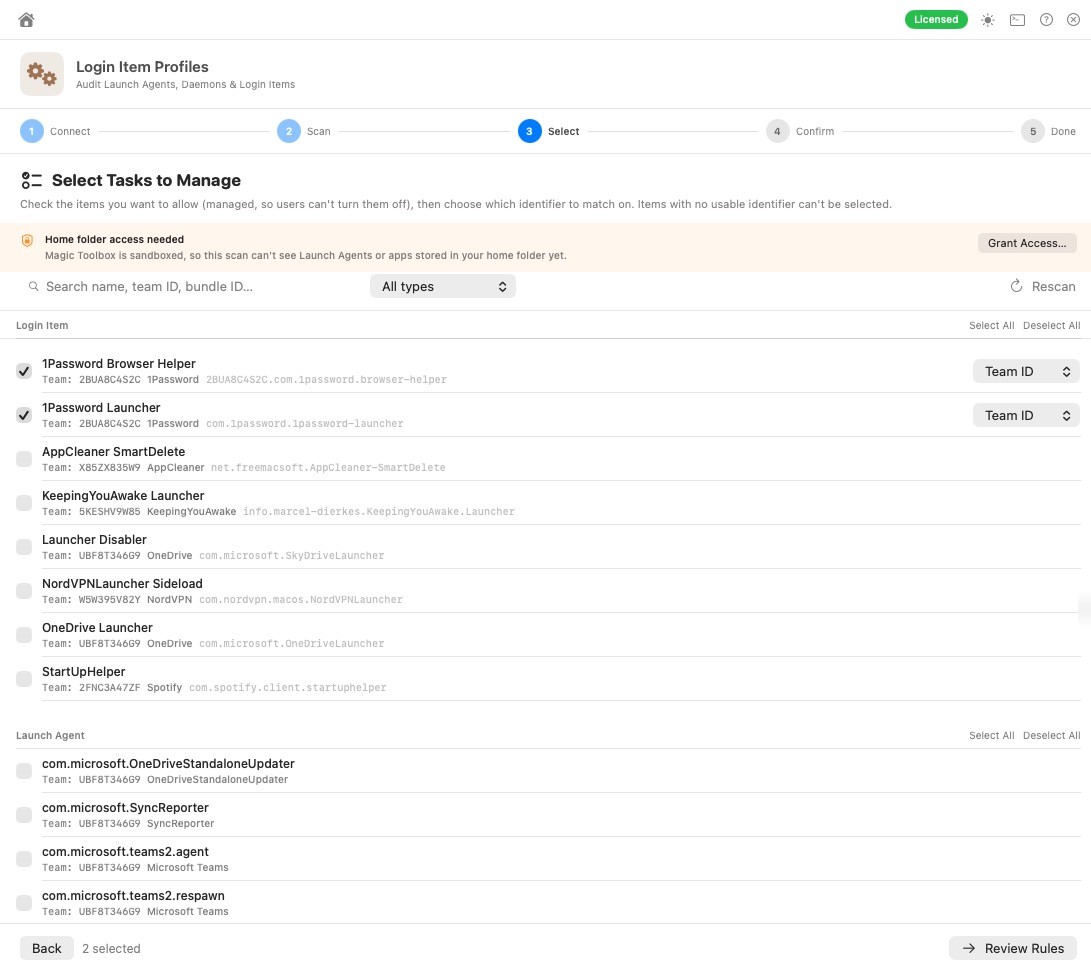
assets/images/blog/magic-toolbox/login-item-profiles.pngLogin Item Profiles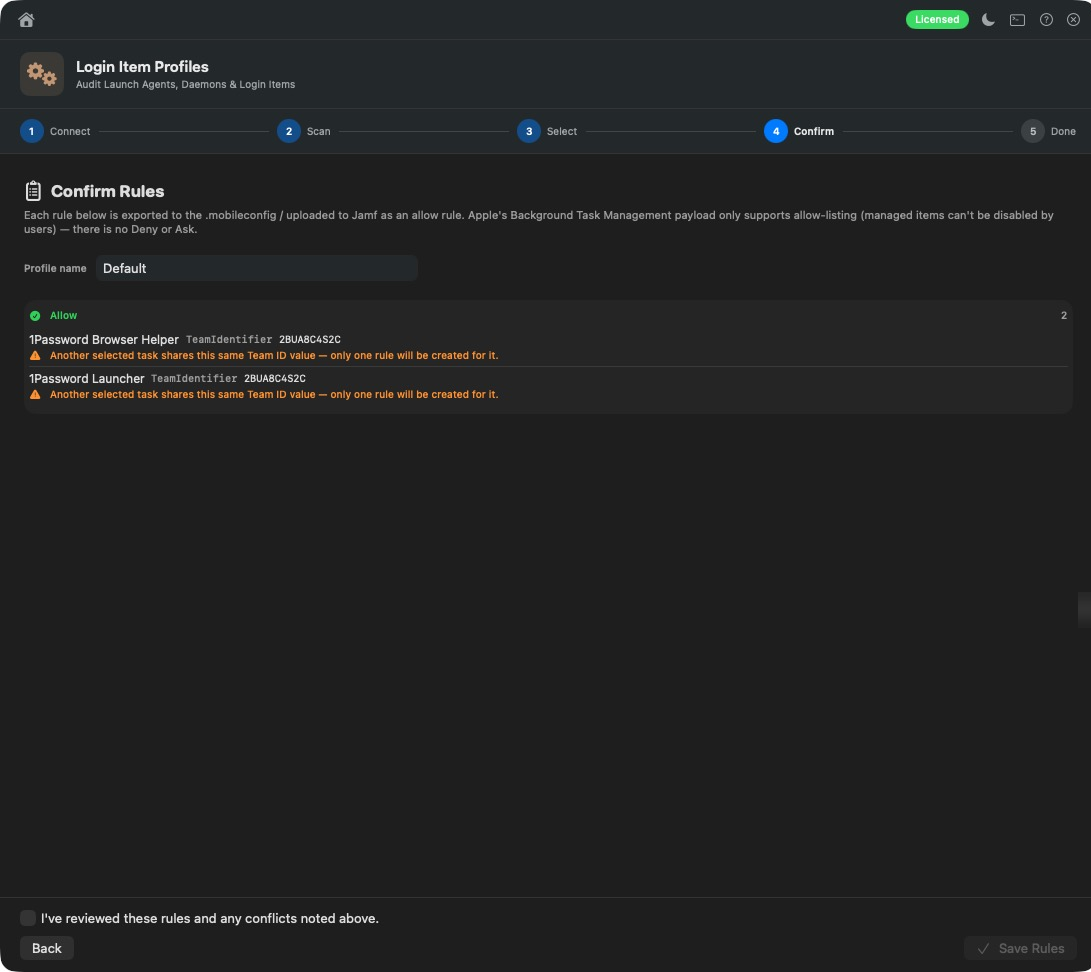
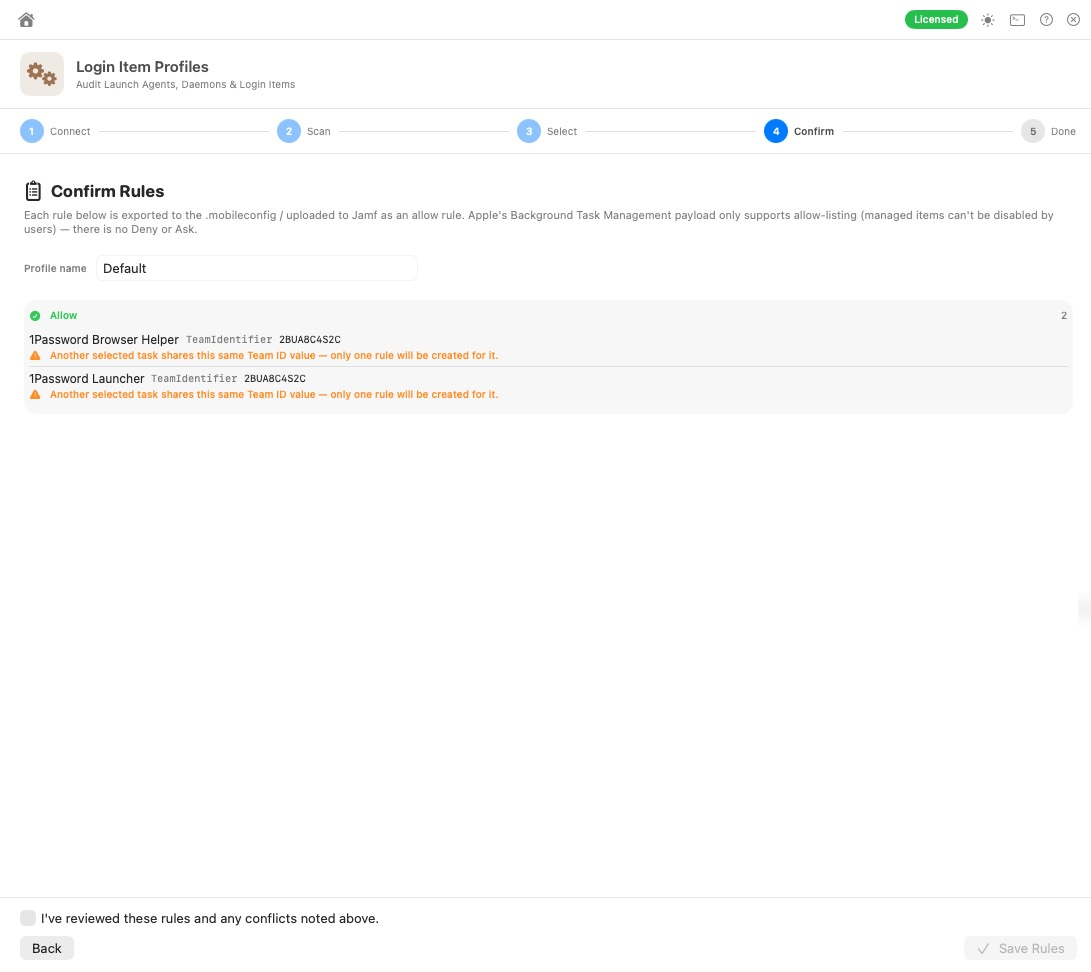
assets/images/blog/magic-toolbox/login-item-profiles-detail.pngConfirming the rules before building a Managed Login Items profileLook inside anything before you deploy it
- Inspector: open up a
.pkgor.appwithout installing or running it. See signing, entitlements, installed files, scripts and receipts, plus a review that highlights risky patterns. It doesn’t touch the network at all. - Downloader: preview and download scripts, EAs and profiles from Jamf Pro as ready-to-use files, with an HTML report.
- Icons: grab every Self Service icon and branding image in one go, and turn any app’s icon into a PNG ready for Self Service.
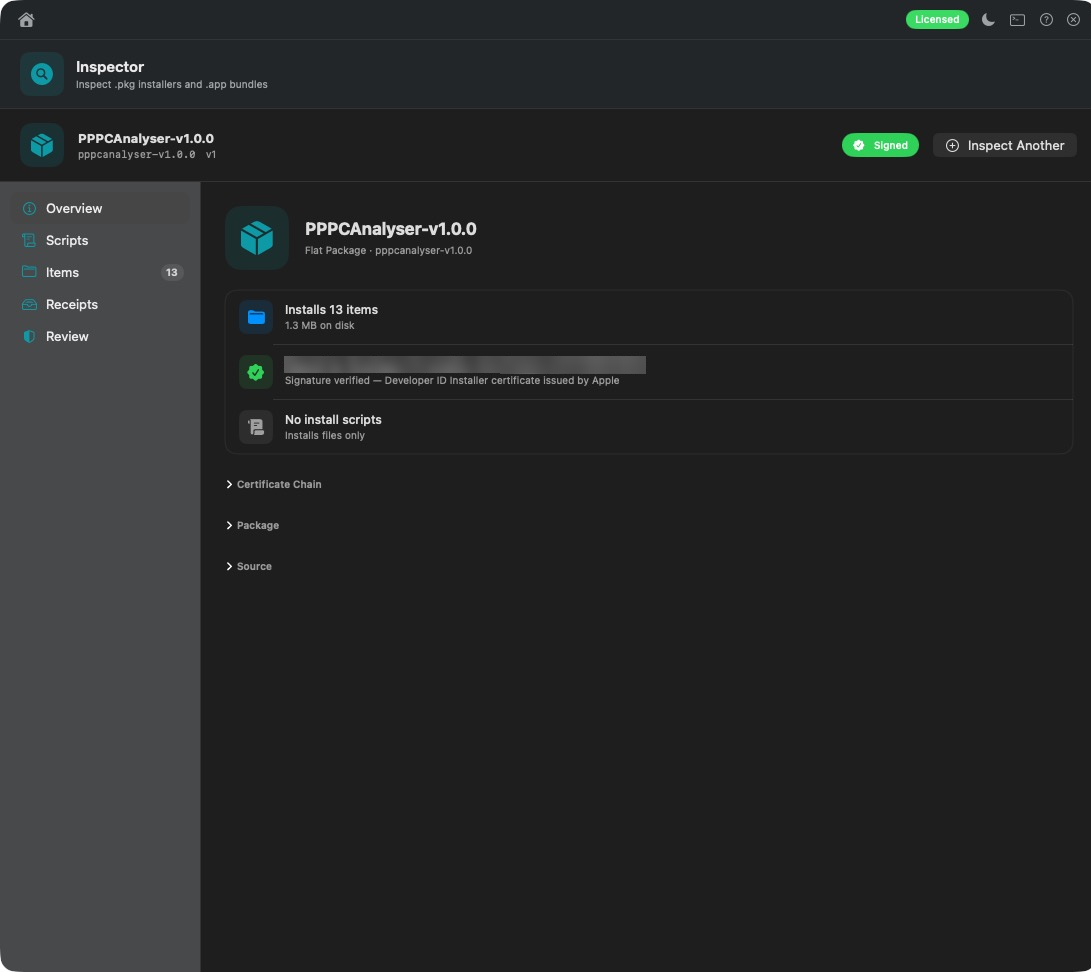
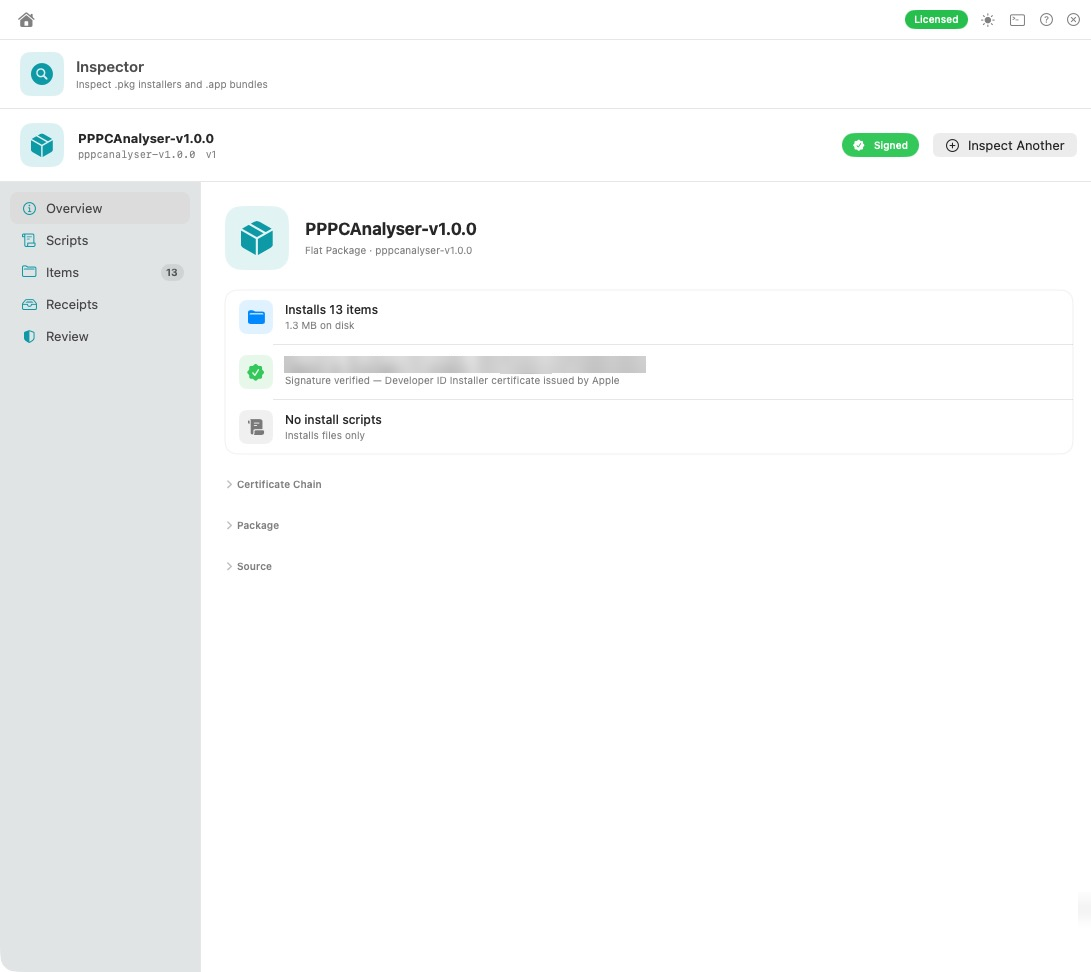
assets/images/blog/magic-toolbox/inspector-overview.pngInspector: look inside a package without installing it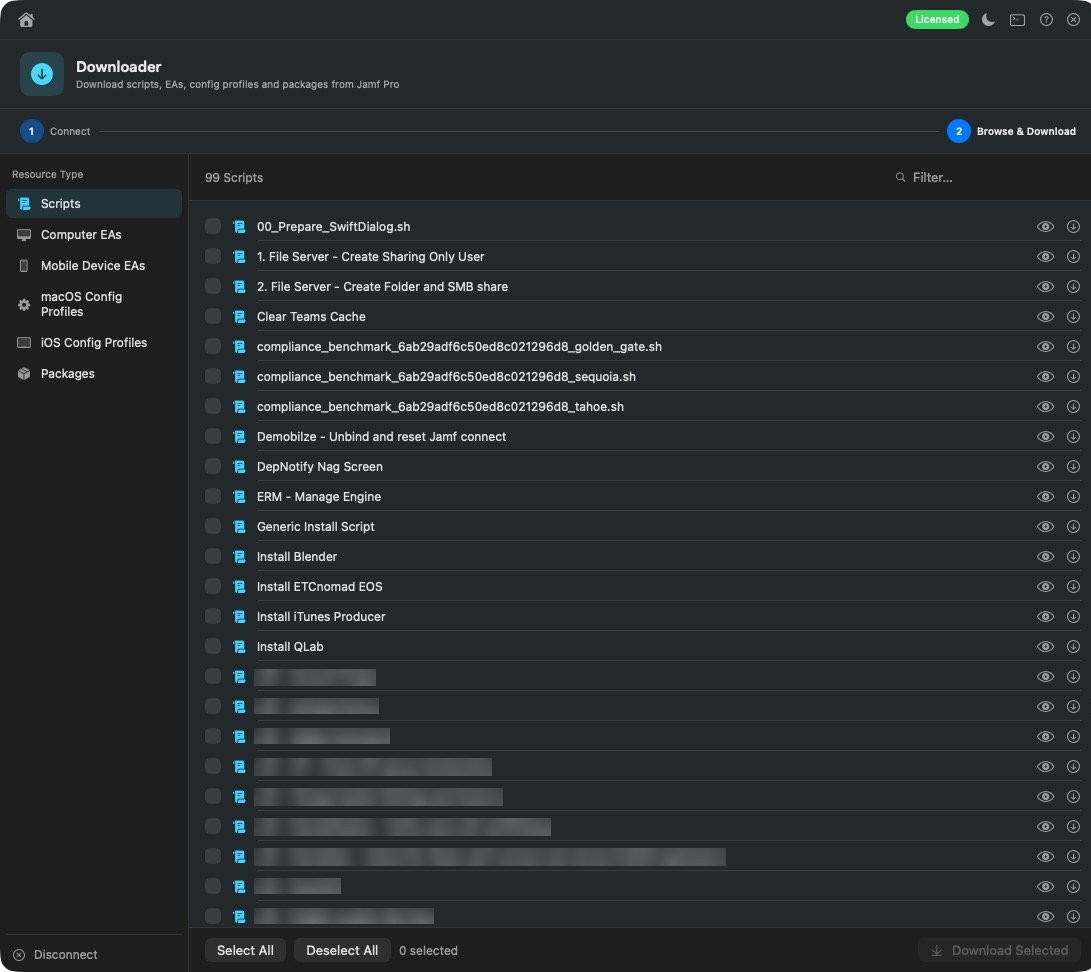
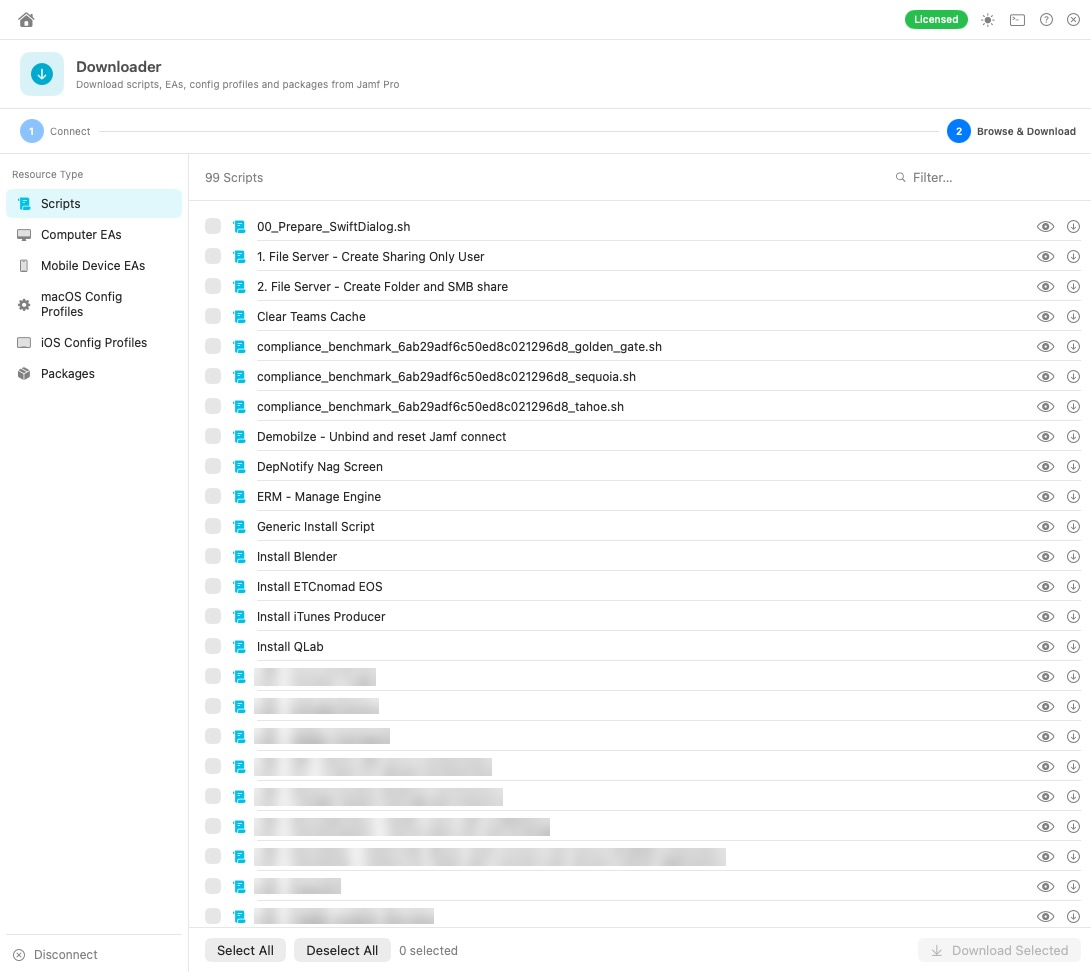
assets/images/blog/magic-toolbox/downloader.pngDownloader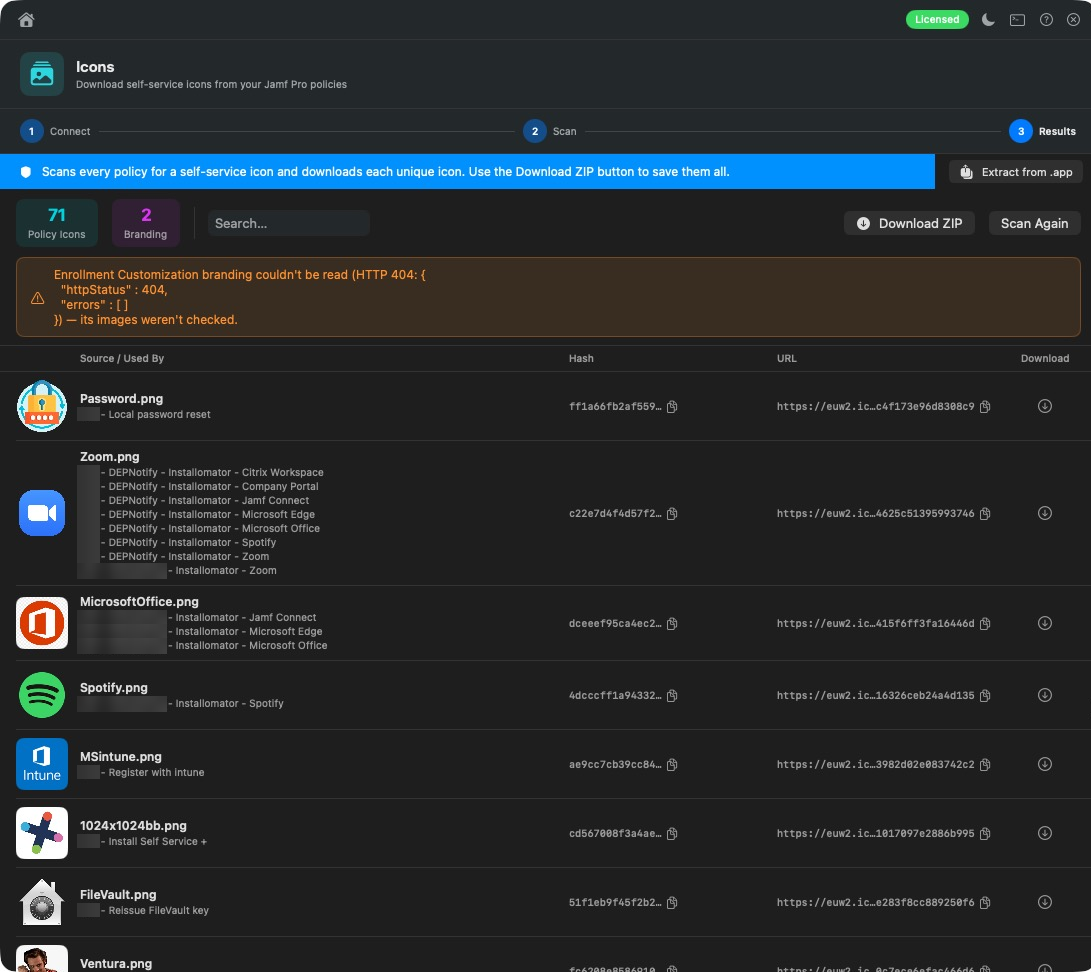
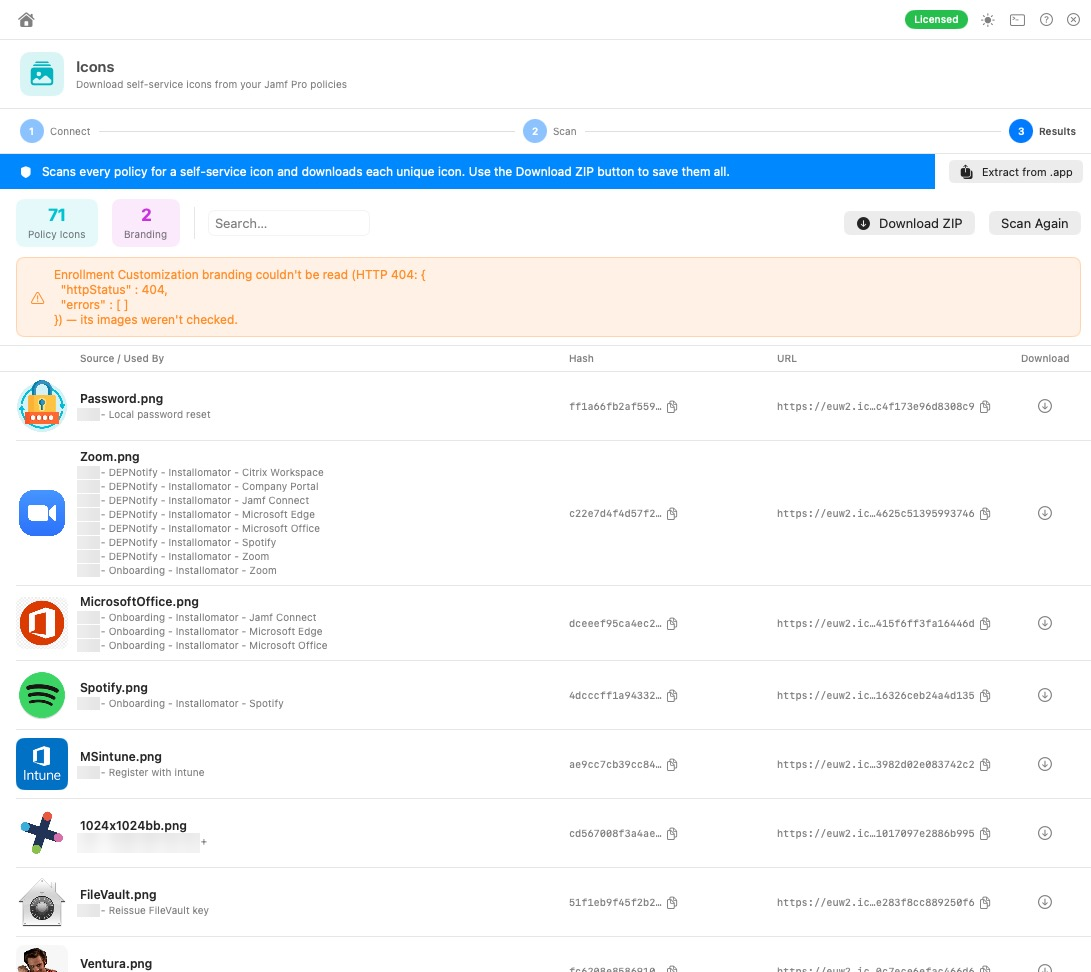
assets/images/blog/magic-toolbox/icons-scan.pngIconsClean up your test server, safely
Every admin has one: the test server full of “test-policy-final-v3”. Wipe takes an encrypted backup first, then deletes the objects you choose in a safe order. Changed your mind? Restore re-creates them from the backup, in dependency order, on any server.
And if you just want things switched off rather than deleted, Disable turns off policies, accounts and App Installers and removes scope from profiles and apps, without deleting a thing. It saves an encrypted undo backup first, so you can reverse a run.
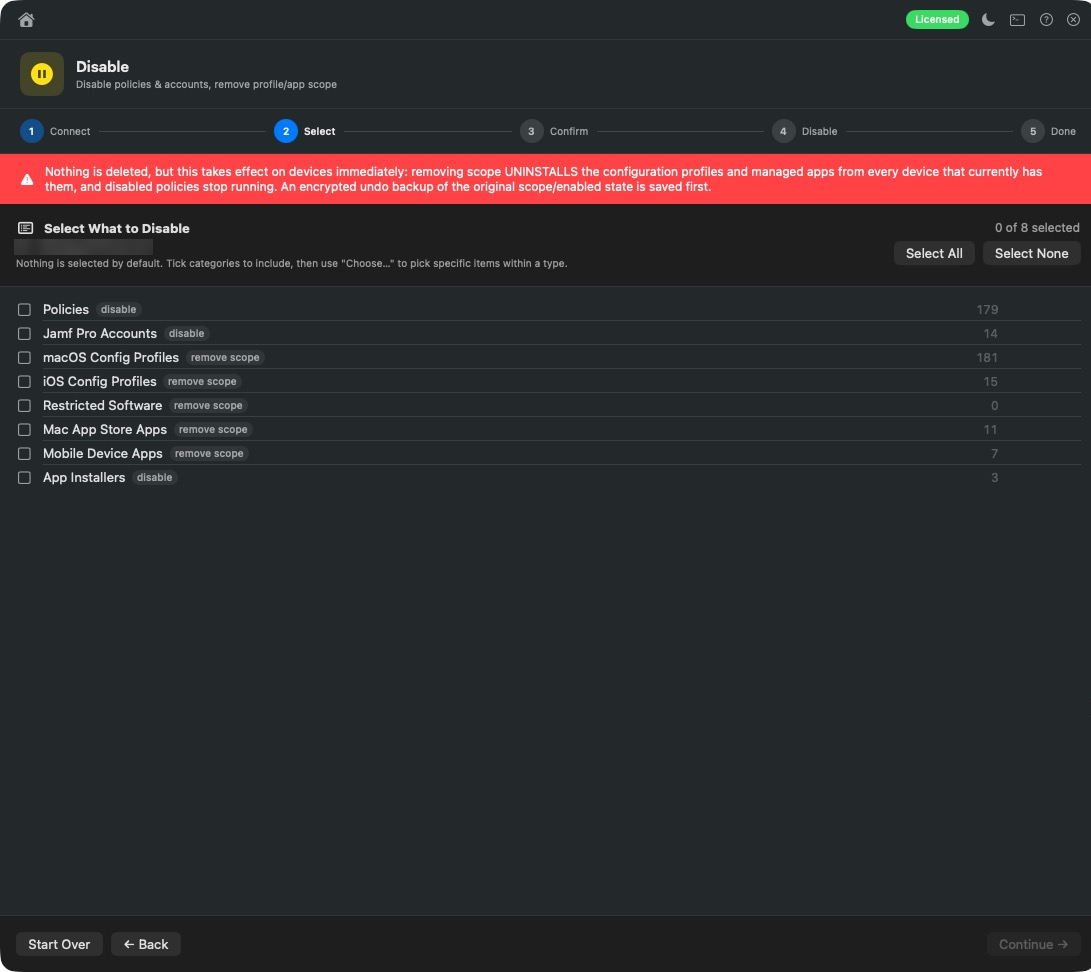
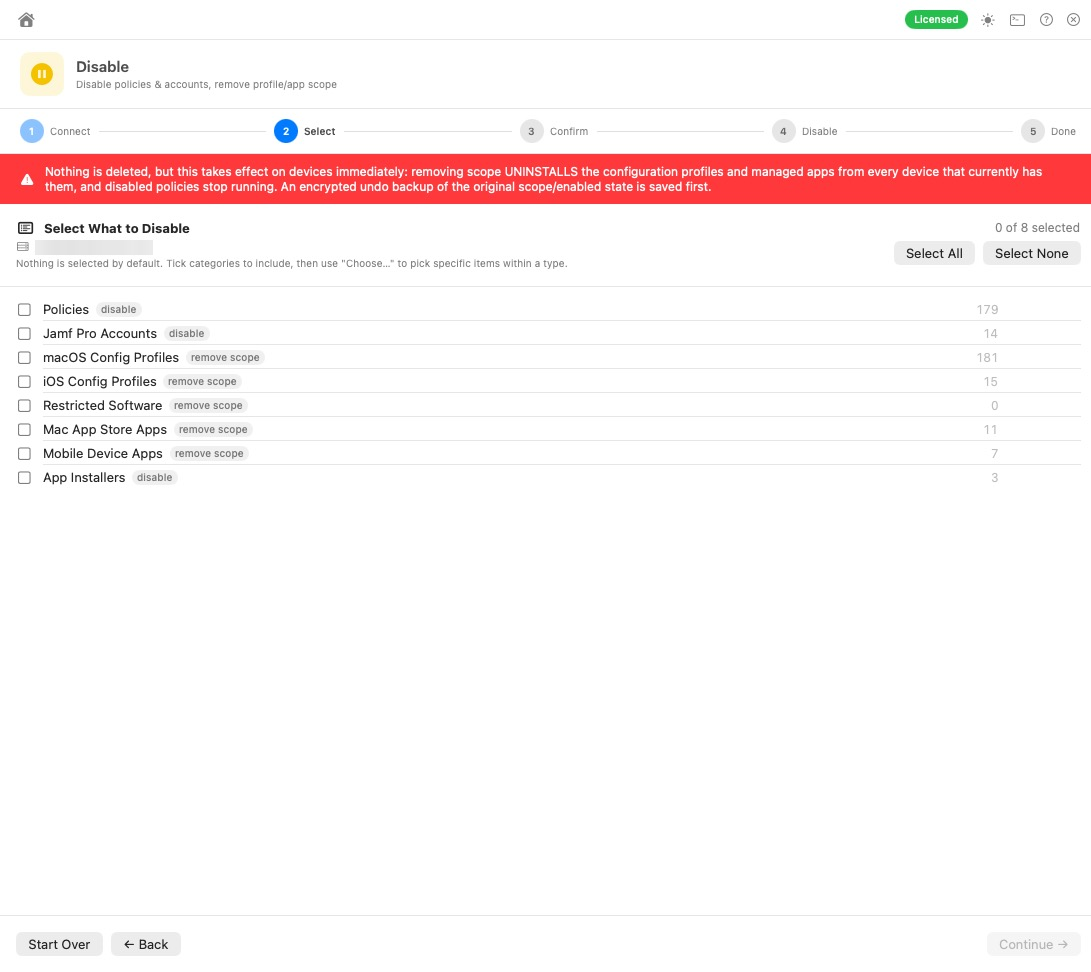
assets/images/blog/magic-toolbox/disable-select.pngDisable: nothing is ticked until you choose it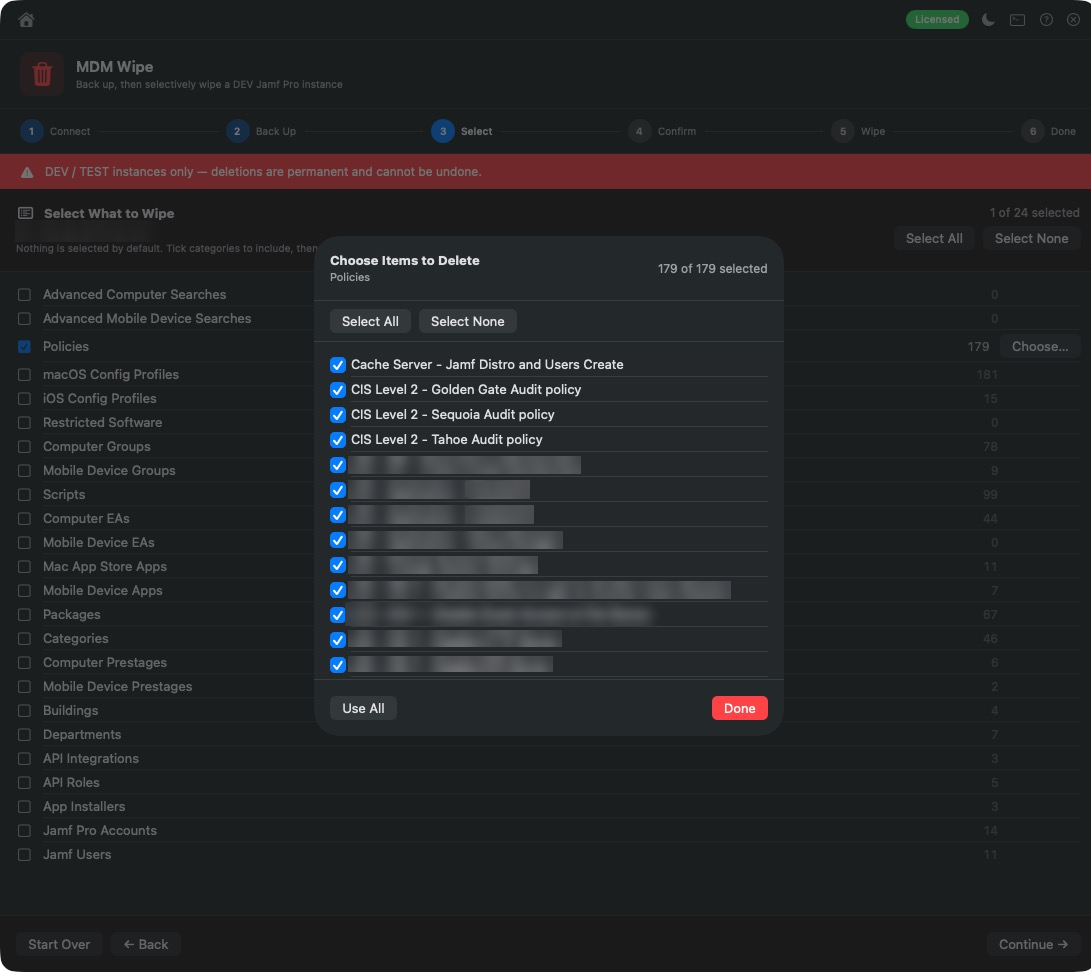
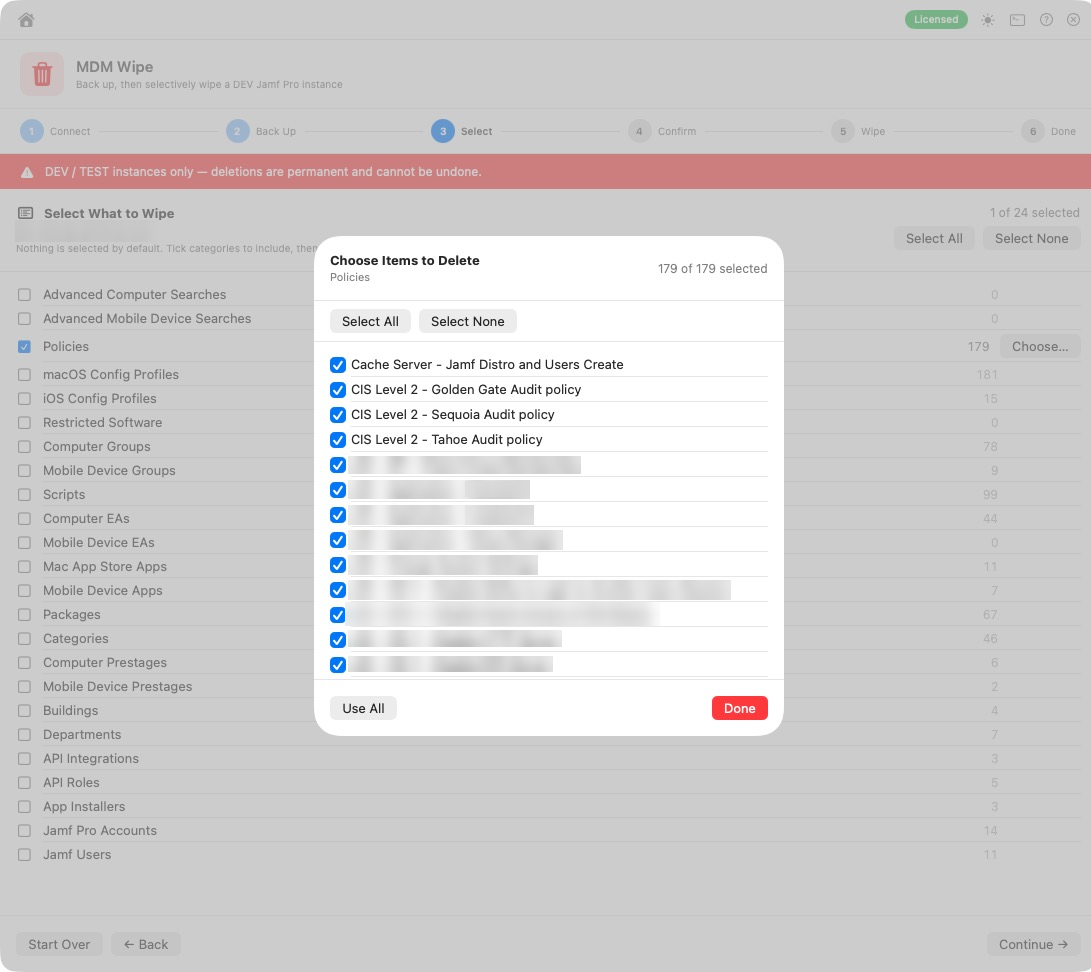
assets/images/blog/magic-toolbox/wipe-choose-items.pngChoose what to wipe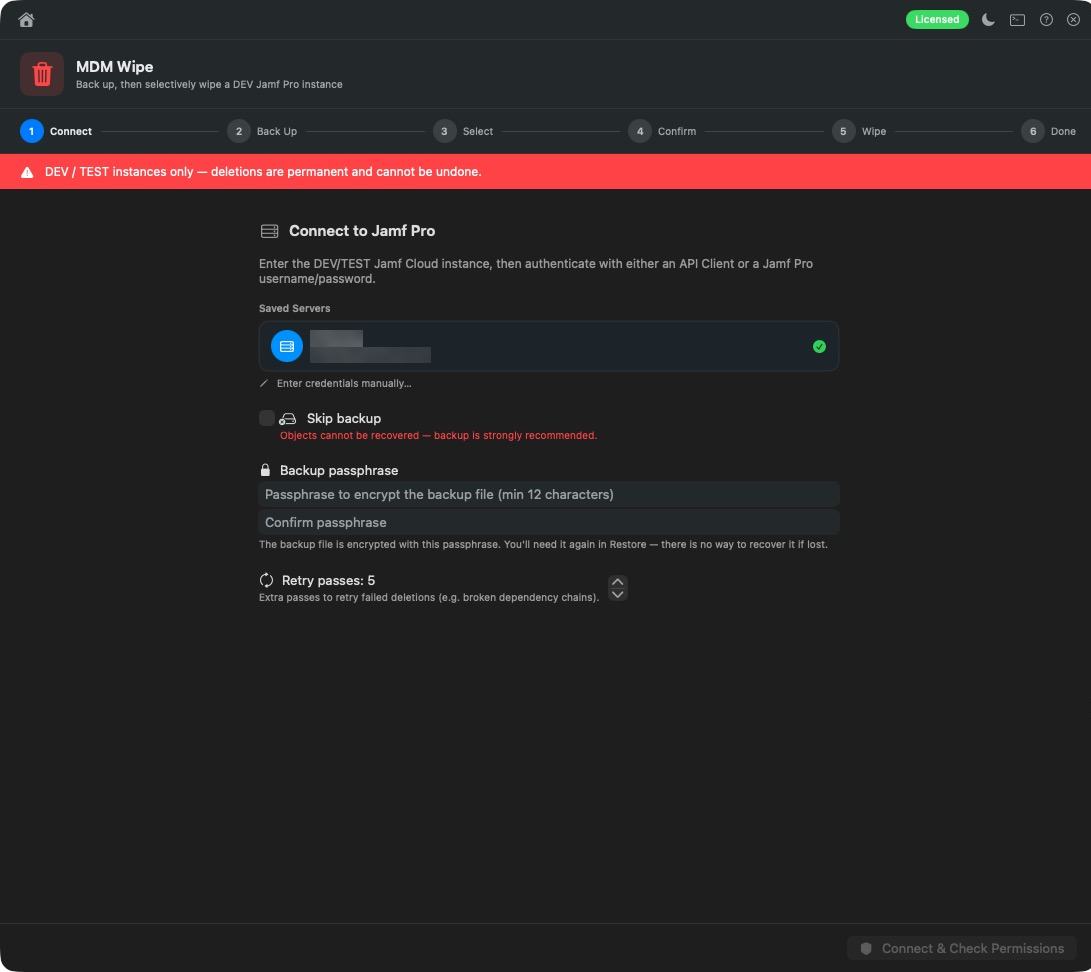
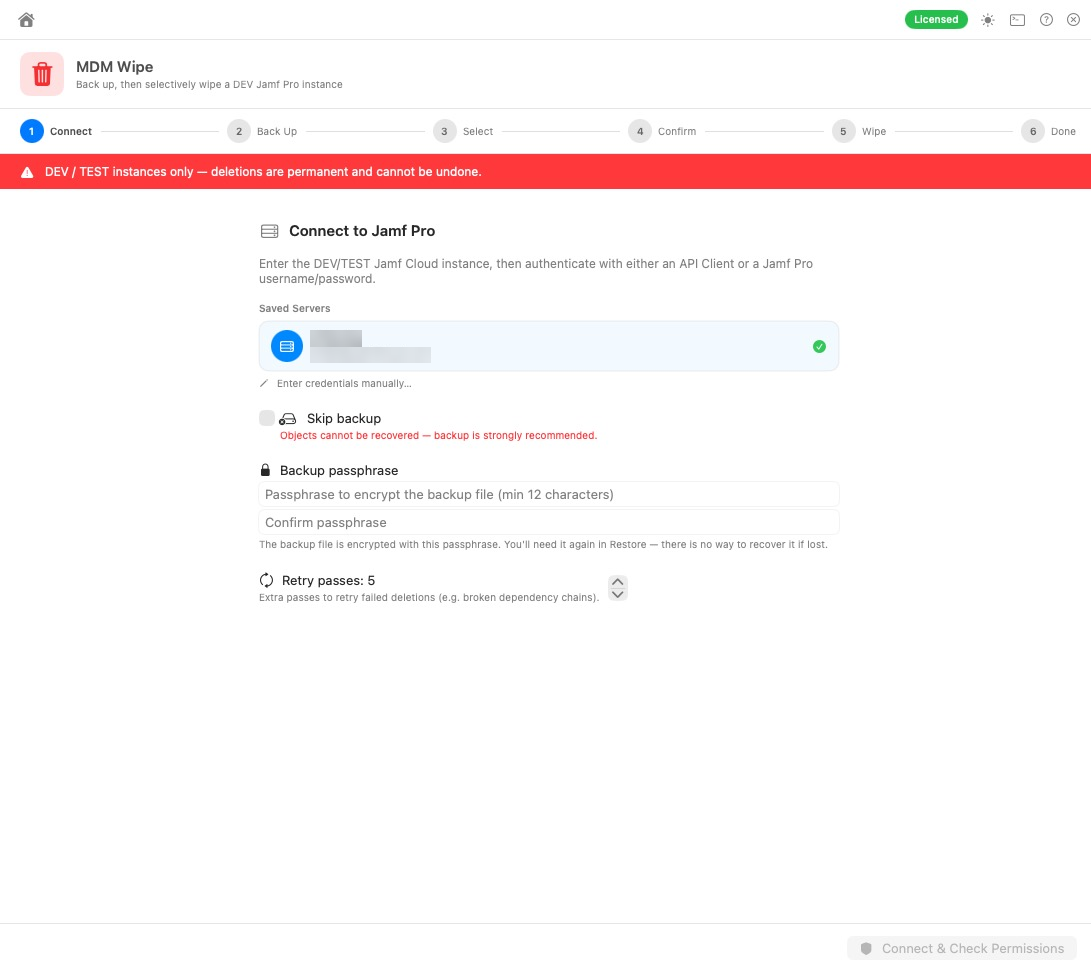
assets/images/blog/magic-toolbox/wipe-backup.pngEncrypted backup first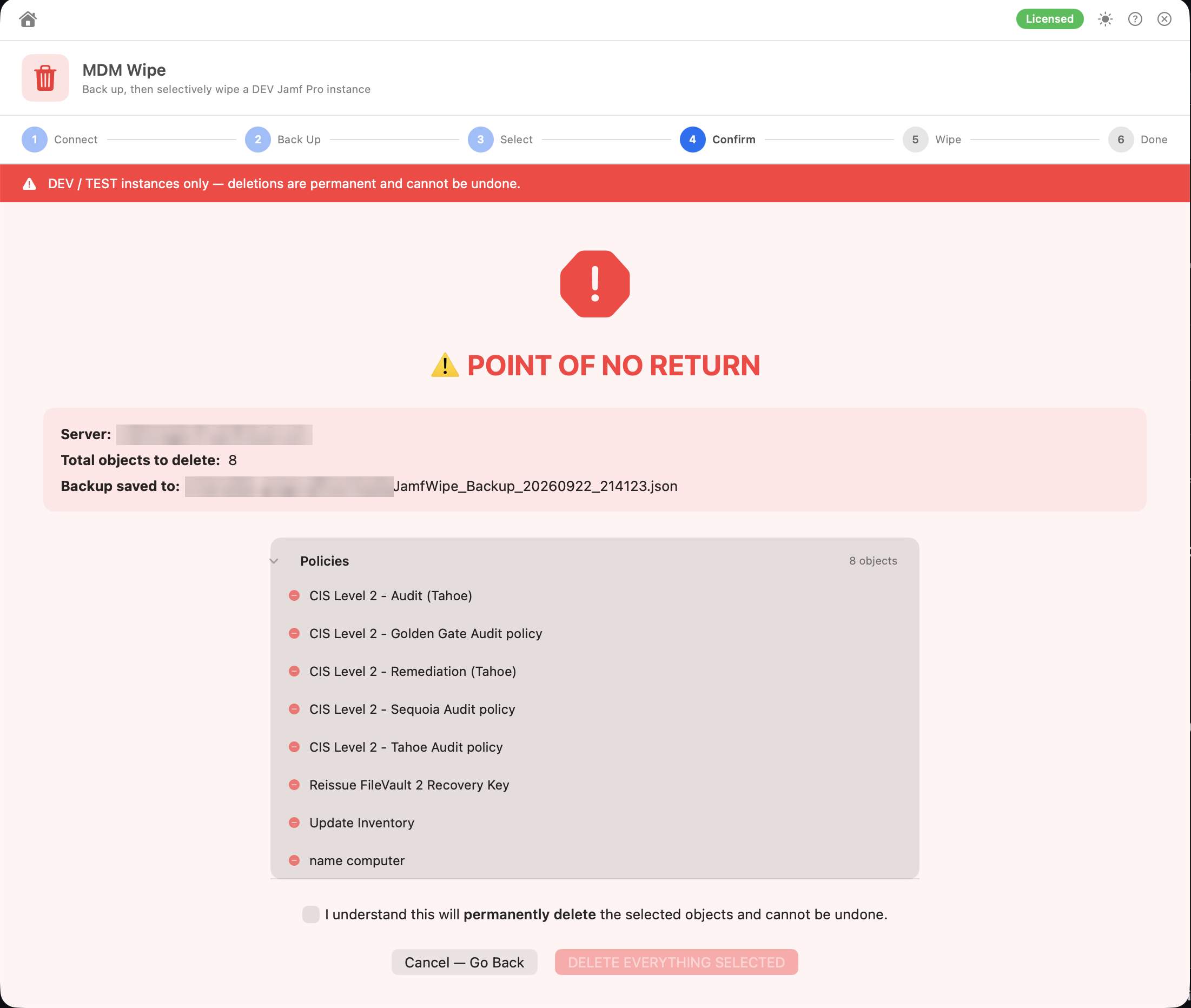
assets/images/blog/magic-toolbox/wipe-confirm.pngConfirm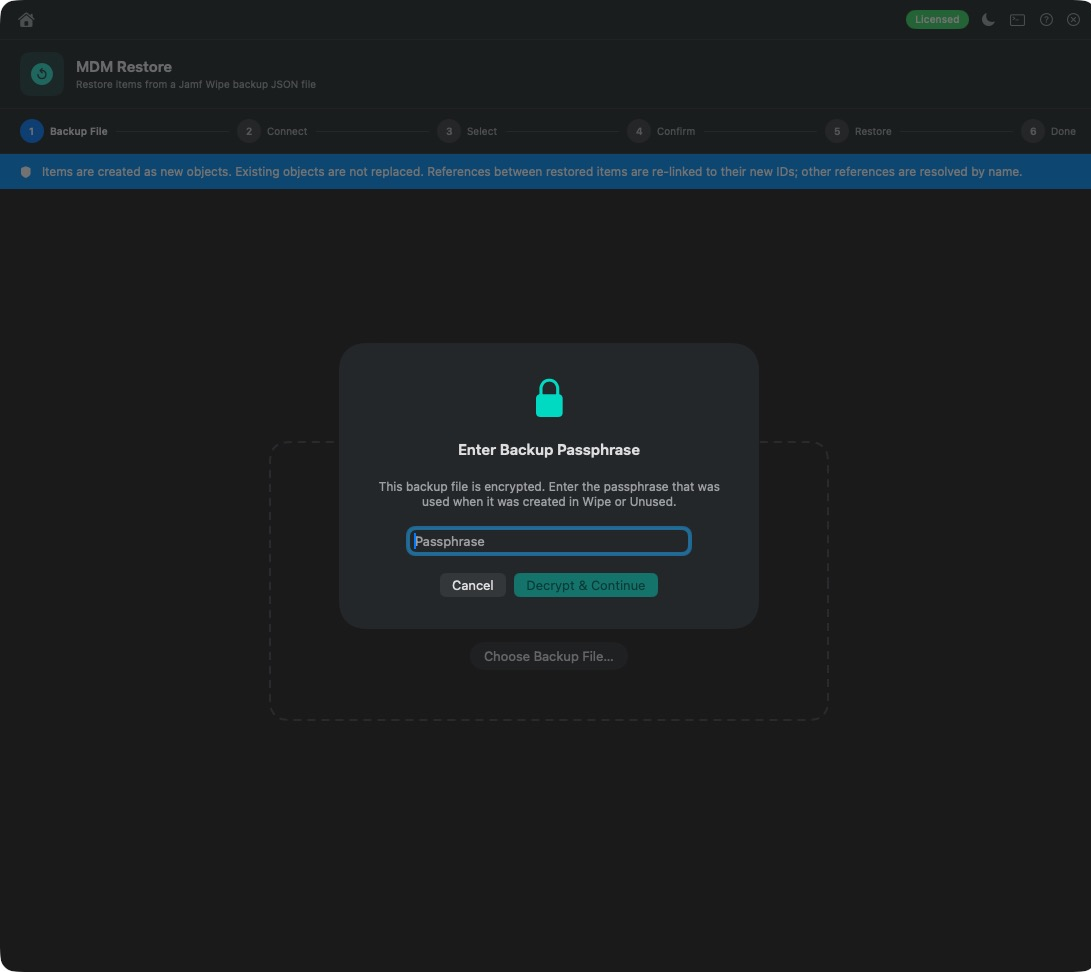
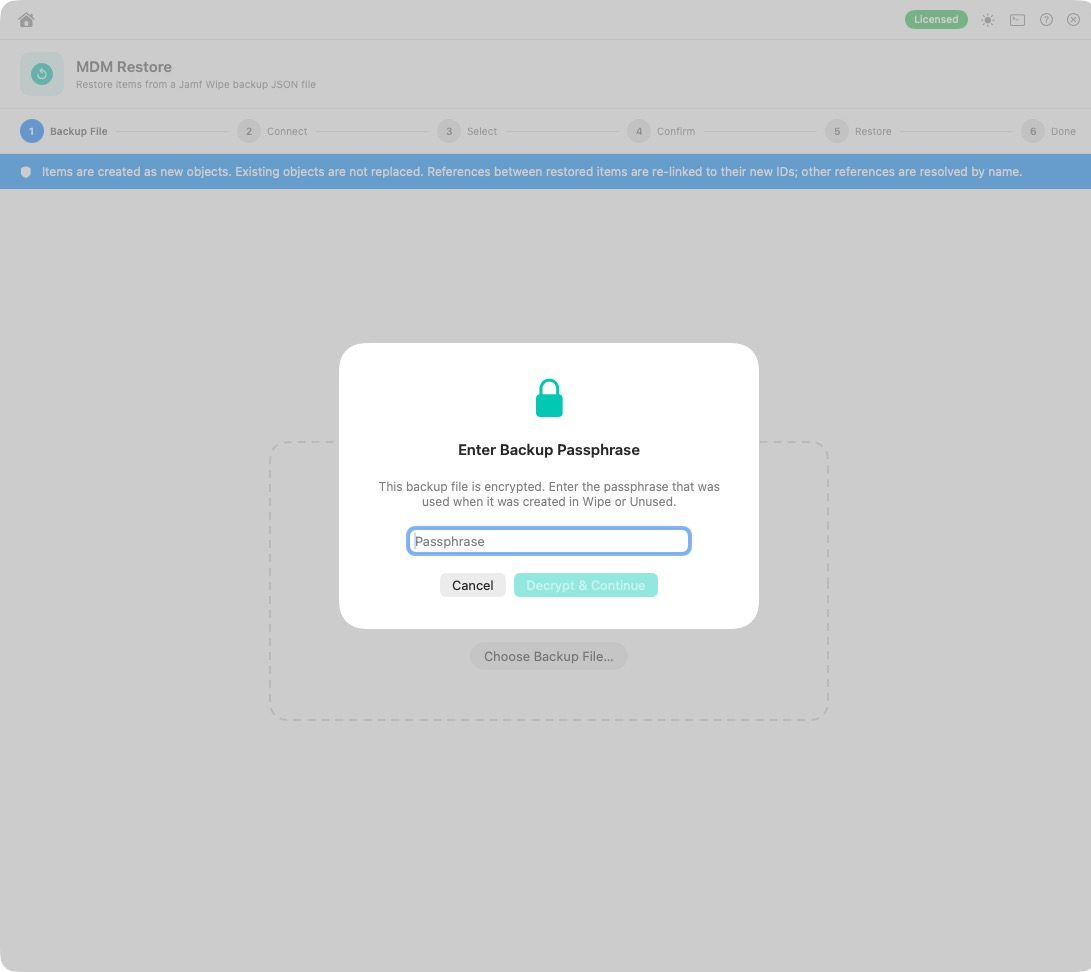
assets/images/blog/magic-toolbox/restore-passphrase.pngRestore unlocks the encrypted backup firstA quick word of care: Wipe, Clone, Disable and Unused all save an encrypted backup before they change anything, so keep those backups and their passphrases safe. A restored object gets a new ID, so scope and anything else that pointed at the old one may need re-linking. As always, try the tools that change Jamf Pro on a test server first.
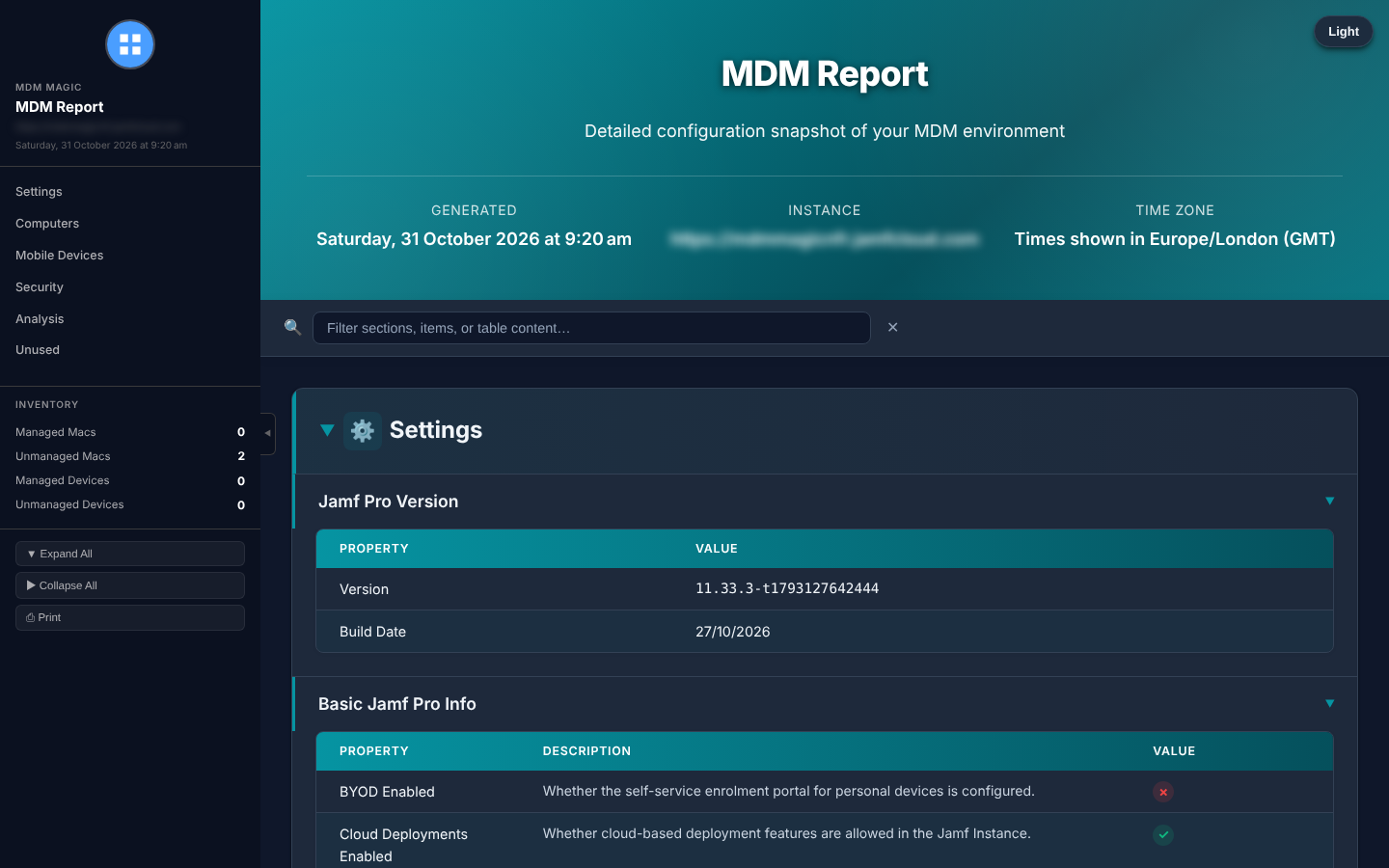
Reports with your name on them
Most tools export branded, self-contained HTML reports. Set your accent colour, organisation name and logo once in Preferences and every report looks like it came from you. Ideal for change records, handovers and client work.
You can also set a name prefix for each profile builder, so everything you create follows your naming convention automatically.
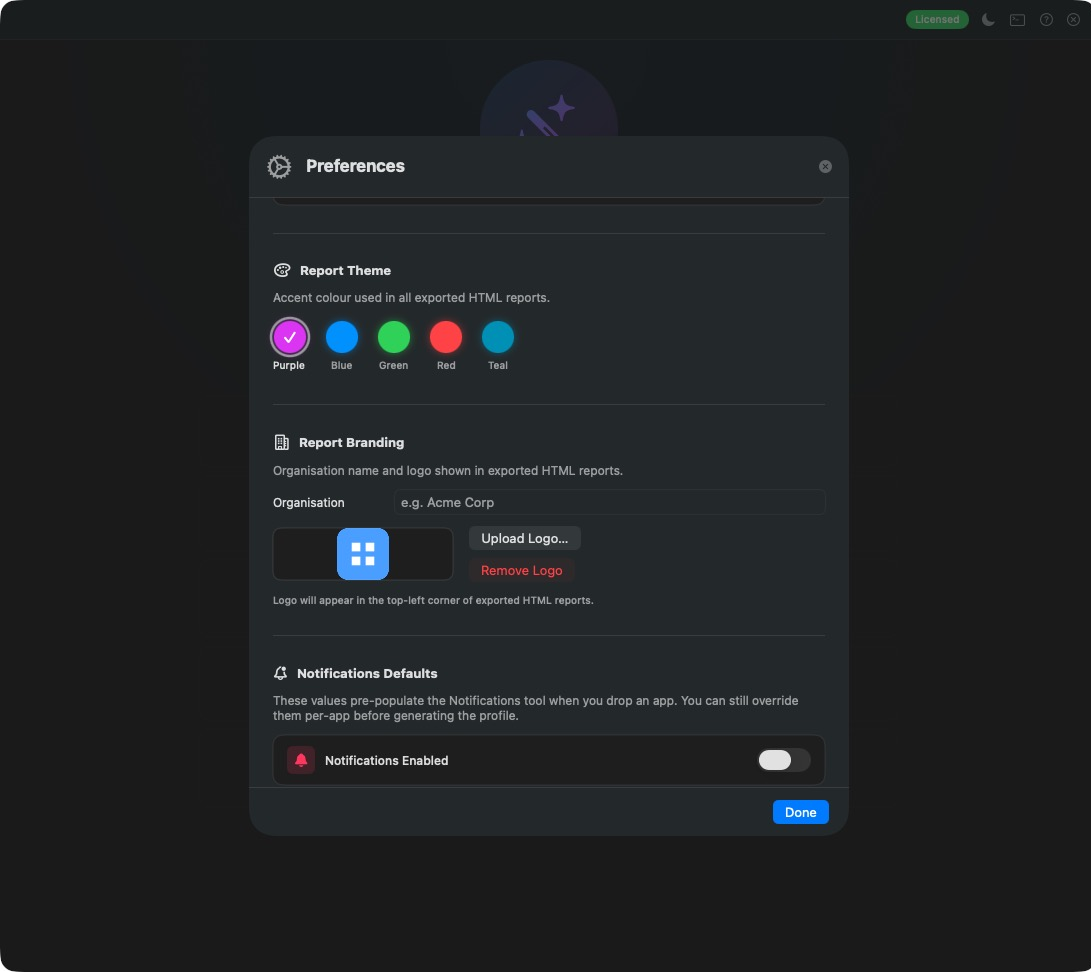

assets/images/blog/magic-toolbox/preferences-branding.pngYour logo and accent colour on every report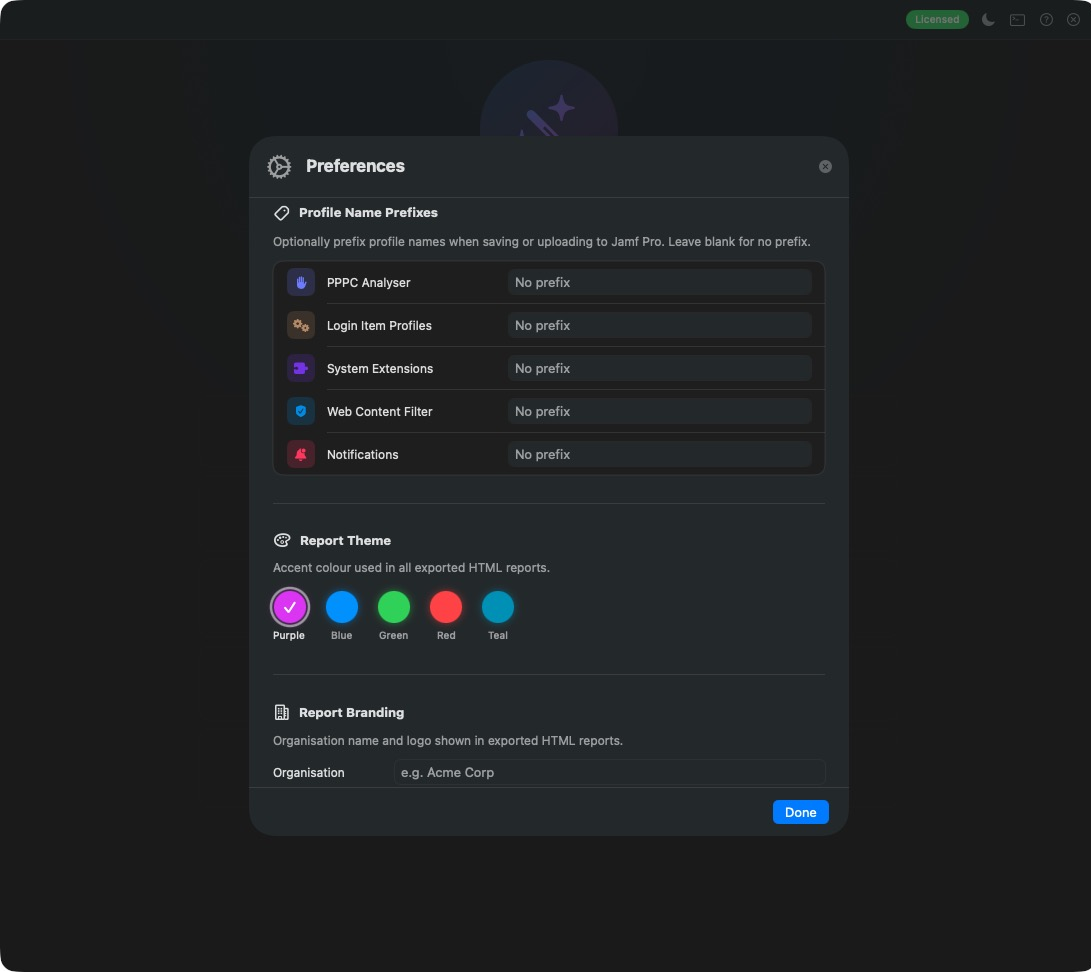
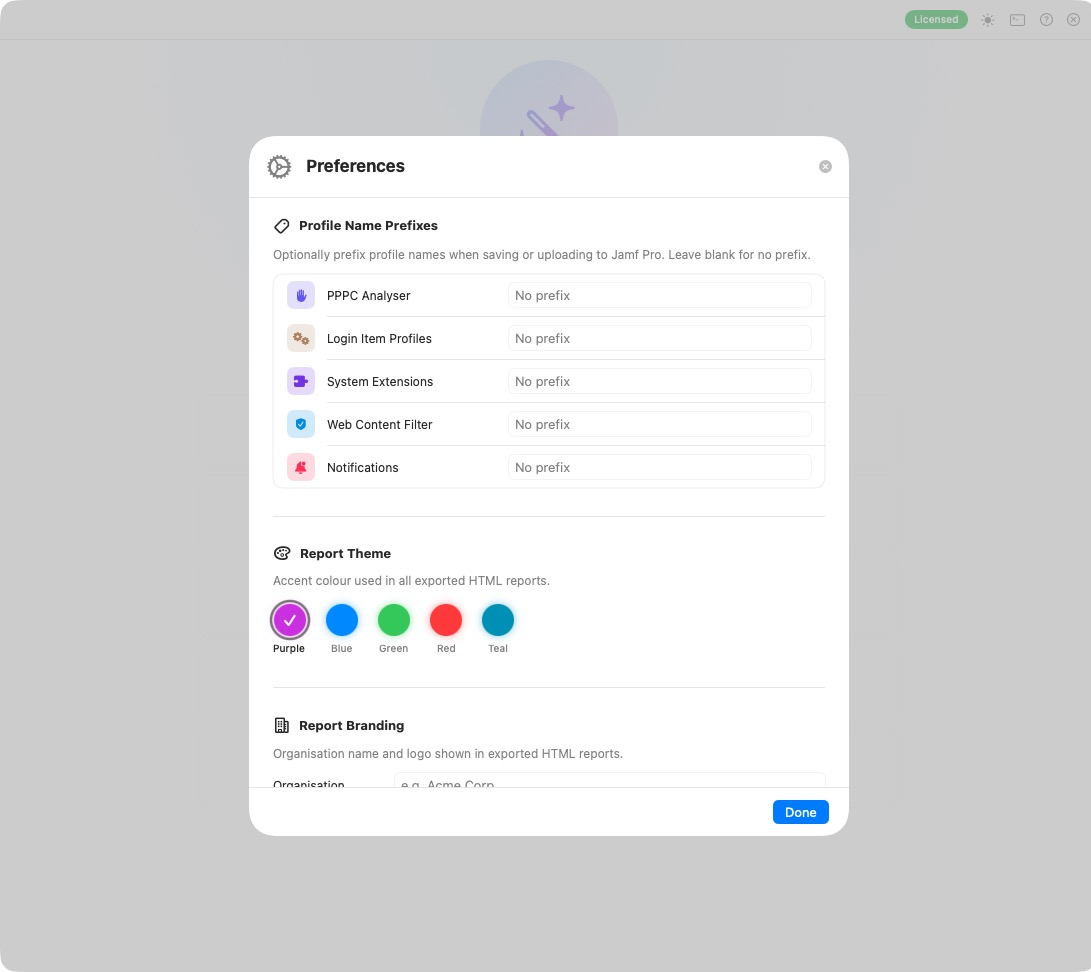
assets/images/blog/magic-toolbox/preferences-prefixes.pngProfile name prefixesBuilt to pass a security review
- Clear about changes. Most tools are read-only or run entirely on your Mac. The few that change Jamf Pro are clearly marked.
- Sandboxed. The app can only reach files you pick in a save or open panel.
- Keychain. Passwords and secrets are never stored in plain text.
- Private logs. Debug logging is per tool, held in memory only and cleared when you quit.
- Signed and notarised. Installs cleanly from a standard
.pkg.
There’s a full Security FAQ ready for whoever signs off new tools.
Up and running in two minutes
- Download the
.pkgfrom the Releases page. - Double-click and follow the installer.
- Open Magic Toolbox, add your server and pick a tool.
You’ll need macOS 15 Sequoia or later and a Jamf Pro server for the tools that connect to one.
Try every tool free for 72 hours
Every tool is unlocked for a 72-hour free trial. Clone something, audit something, build a profile. Then grab a one-time licence to keep the whole toolbox.
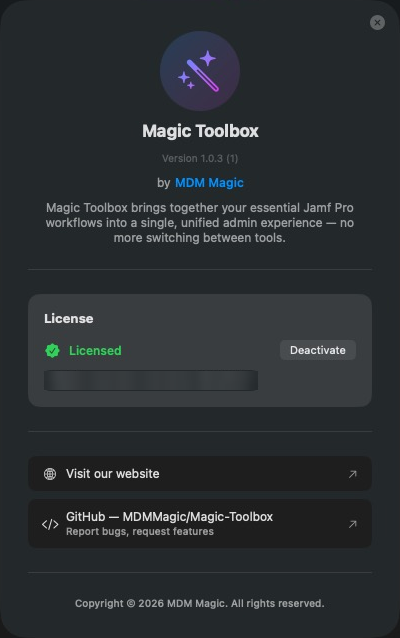
assets/images/blog/magic-toolbox/about-licence.pngActivate a one-time licenceStop juggling. Start fixing.
If you run Jamf Pro, Magic Toolbox replaces a drawer full of scripts and a lot of clicking. Download the trial and see how many tabs you can close.
Got an idea for tool number 22? Check the documentation or get in touch.