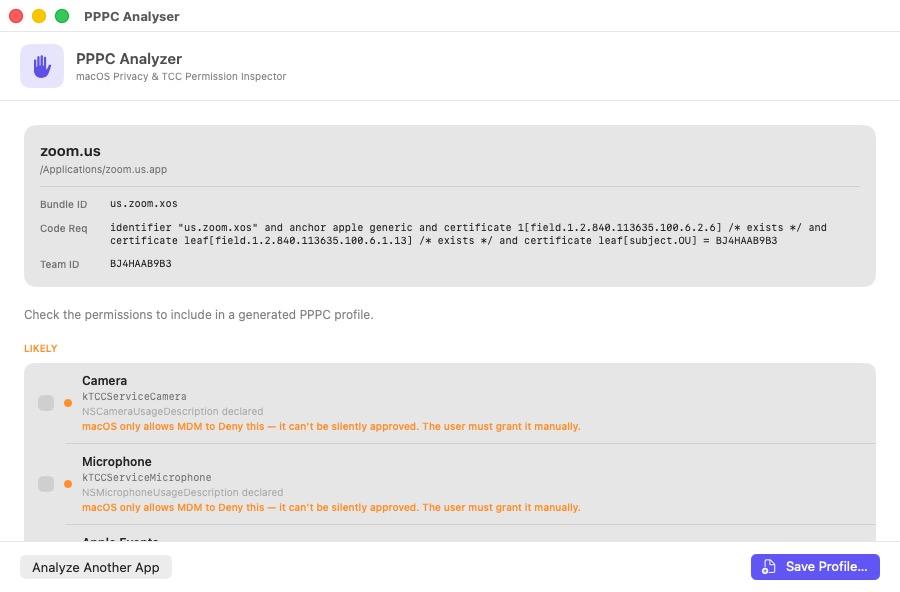
assets/images/blog/pppc-analyser/app-details.pngZoom, analysed: bundle ID, code requirement and Team ID read straight from the signatureEvery Mac admin knows the drill. A new app lands, users get a stack of privacy prompts, and someone has to build a PPPC profile. That means hunting for the bundle ID, running codesign to get the code requirement, guessing which TCC services the app actually needs, then hand-writing a .mobileconfig.
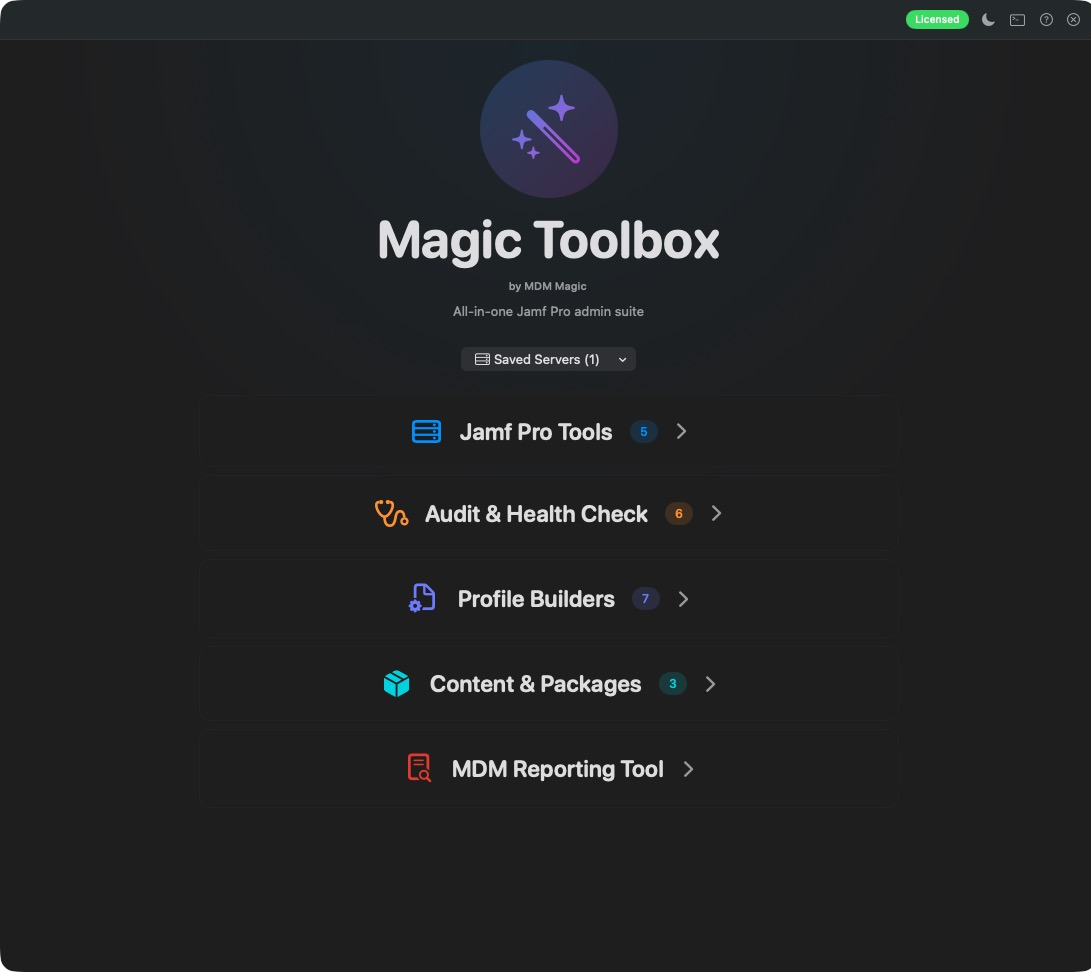
PPPC Analyser does all of that for you. It’s the light, standalone version of the PPPC Analyser in Magic Toolbox, built for one job and built to do it well.
Drop in an app
Drag any .app onto the window, or click Choose App…. Set your organisation name once and it’s remembered, so every profile you save carries it.
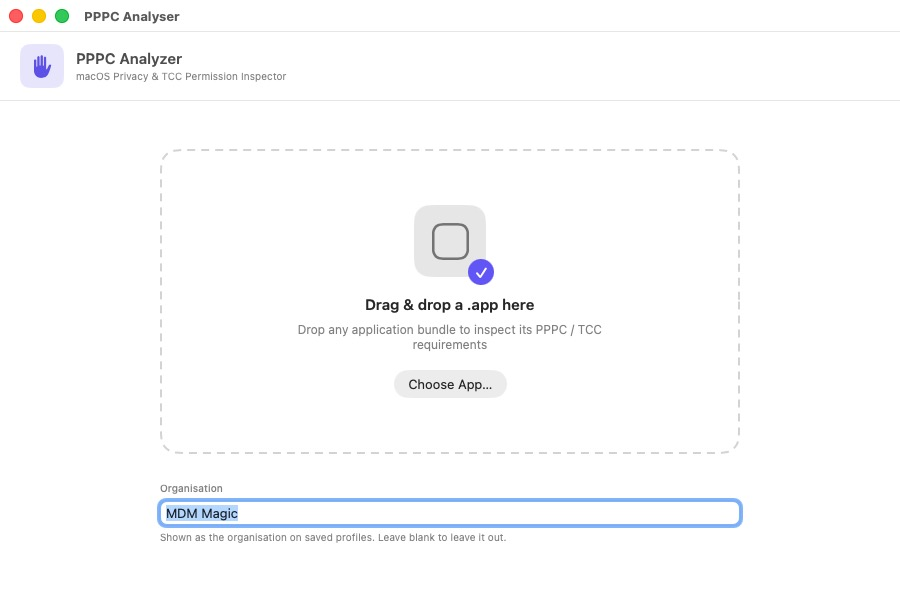
assets/images/blog/pppc-analyser/home.pngDrop an app on the window, or choose oneSee what it really needs
PPPC Analyser reads the app’s Info.plist usage descriptions and its code-signing entitlements, then sorts what it finds:
- Likely: the app declares it needs this permission. Ticked for you.
- Possible: weaker hints. Left unticked so you decide.
For each permission pick Allow, Deny or User Can Allow. The bundle ID and code requirement come straight from the app’s signature, so there’s nothing to copy and paste.
Guard rails built in
Some permissions can’t be pre-approved by MDM. Camera, Microphone, Screen Recording and Input Monitoring can only be denied (or, for the last two, left for the user to allow). Tick one of those and PPPC Analyser tells you, in red, exactly what a Deny will do. Deny the camera for a video-calling app and you’ve broken every call on every Mac in scope. Better to find that out now than from the help desk.
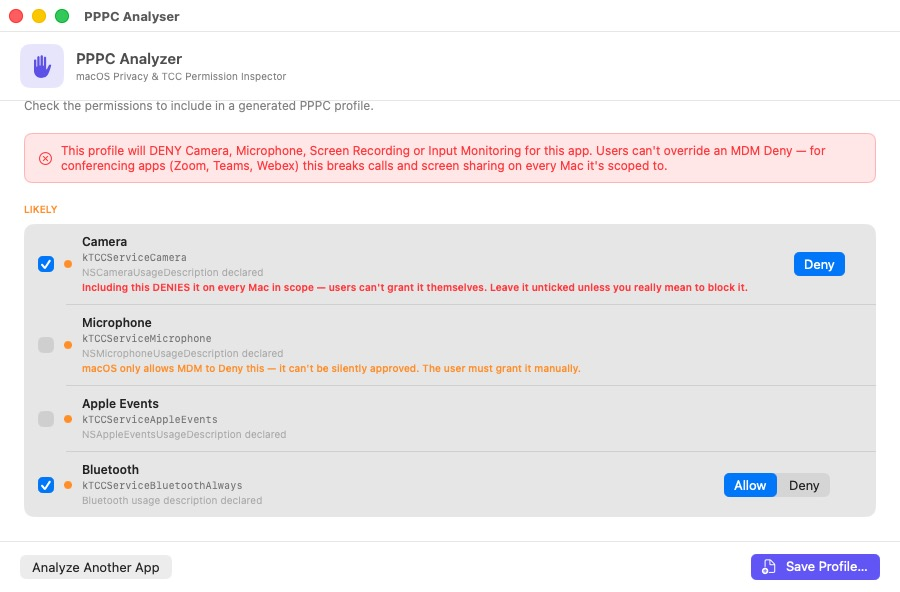
assets/images/blog/pppc-analyser/deny-warning.pngA clear warning before you save a Deny that users can't overrideApple Events, sorted
Apple Events need a receiver app as well as the sender. Click Choose App… next to the receiver fields, pick Finder, System Events or any other app, and its bundle ID and code requirement are filled in for you.
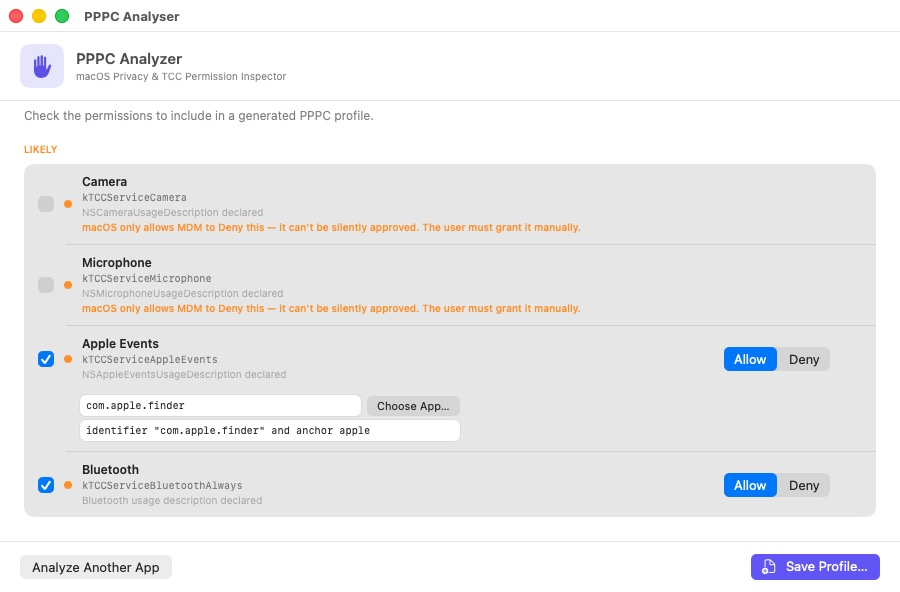
assets/images/blog/pppc-analyser/apple-events.pngPick the receiver app and the rest is filled inSave and upload
Click Save Profile… and you’ve got a .mobileconfig ready to upload to Jamf Pro, Intune, Iru or any other MDM. Profile identifiers are derived from the app, so saving the same app again replaces the old profile on your devices instead of creating a duplicate.
A couple of honest notes:
- Full Disk Access is never suggested. Apps can’t declare that they need it, so add it in your MDM if you know the app requires it.
- Unsigned apps need a code requirement entered by hand. There’s an identifier-only option for in-house tools, but it’s weaker, because any app claiming that bundle ID will match.
Private by design
PPPC Analyser runs sandboxed, makes no network connections, reads only the app you choose and writes only the profile you save. Nothing leaves your Mac.
Get it
- Download the
.pkgfrom the Releases page. - Open it and follow the installer. PPPC Analyser goes into
/Applications. - Drop in your first app.
You’ll need macOS 15 Sequoia or later.
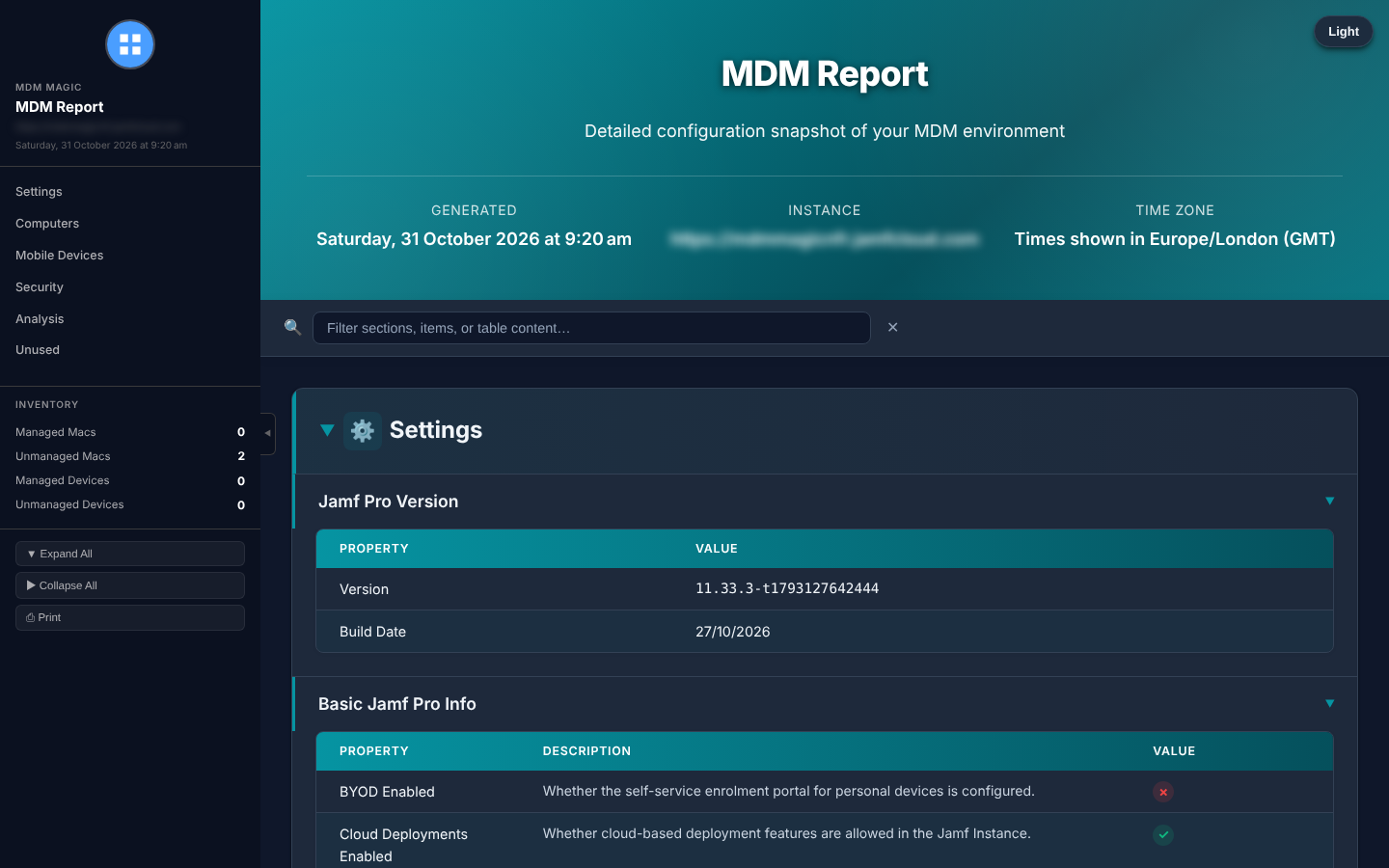
Want to go further? The PPPC Analyser in Magic Toolbox adds Upload to Jamf Pro, HTML reports and macOS 27 AppSettings export, alongside 20 more Jamf Pro tools.
Questions or ideas? Get in touch.